


How To Change Region Settings in Windows 11
By selma čitakovićon 05/02/2026 |
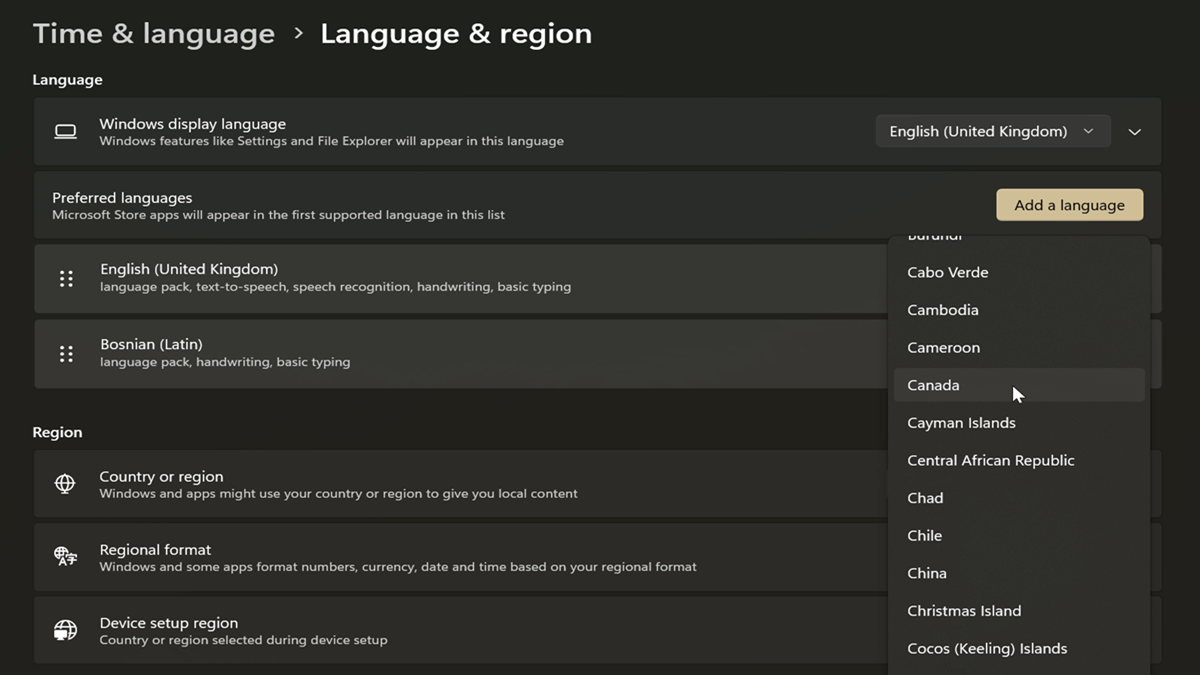
Regional settings determine what kind of local content you may see in Windows, Microsoft Store, and various apps. Based on your location, the Microsoft Store will show you different games, apps, and videos, for example. However, if you move somewhere, you might not be able to access the same content or the funds in your Microsoft account due to region restrictions.
Other than changing your country/region/GeoID, you can configure the time & date, number, and currency formats. For example, you can switch to a different measuring system, long or short date format, currency symbols, first day of the week, and more.
Most importantly, if you need to adjust anything, it's easy to do so. I'll show you how below!
Change country or region via Settings
You can choose another location right from the Settings in Windows 11:
- Go to Settings > Time & language > Language & region.
- Pick a location in the Country & region dropdown menu.
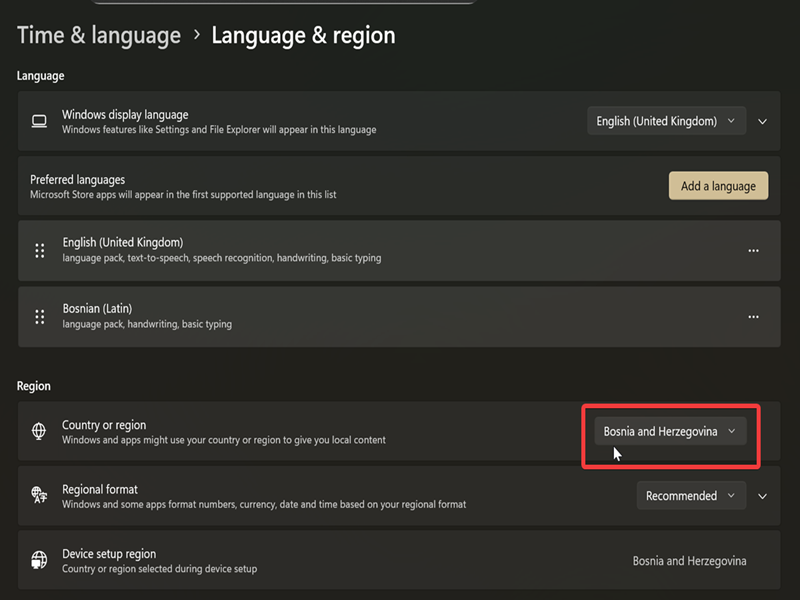
This will apply the new GeoID for the current user.
Change country or region via command
Alternatively, you can use either PowerShell or Command Prompt to modify your GeoID. Here are the steps:
- Right-click the Start button, click Terminal, and choose Command Prompt or PowerShell.
- Type the following command PowerShell Set-WinHomeLocation -GeoID *GeoID number*, but substitute *GeoID number* with the actual value for the country/region you want. You can find it in Microsoft's table of geographical locations. Press Enter when you're done.
- For example, if I wanted to switch my country to Romania, the command would be: PowerShell Set-WinHomeLocation -GeoID 200
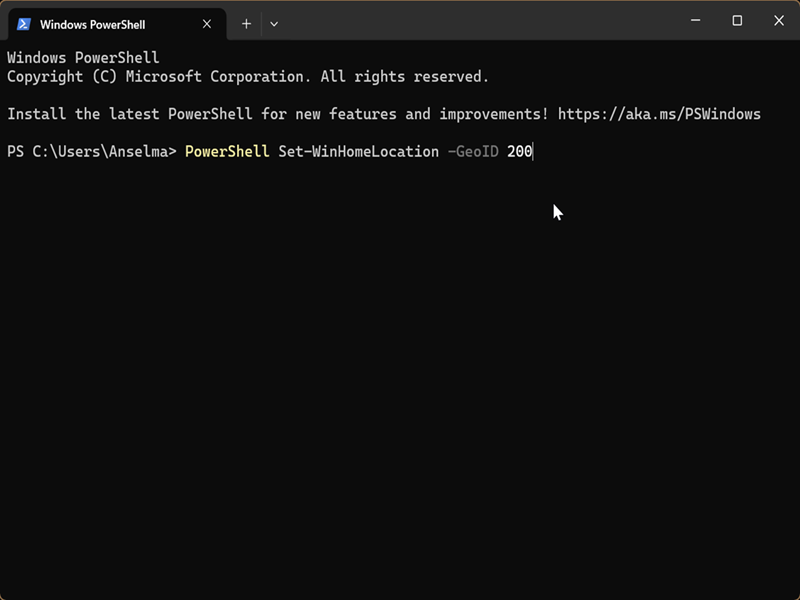
Additionally, you can check your current region/country by typing PowerShell Get-WinHomeLocation, and pressing Enter.
Change regional format via Settings
This will affect how Windows and certain apps format dates and times, currencies, and numbers. Usually, the regional format is set to Recommended, which matches your Windows display language.
To modify it:
- Go to Settings > Time & language > Language & region.
- Choose a language in the Regional format dropdown menu.
- If you want to, you can customize specific formats as well. Expand the Regional format option, and you should see Number format, Currency format, and Date & time format.
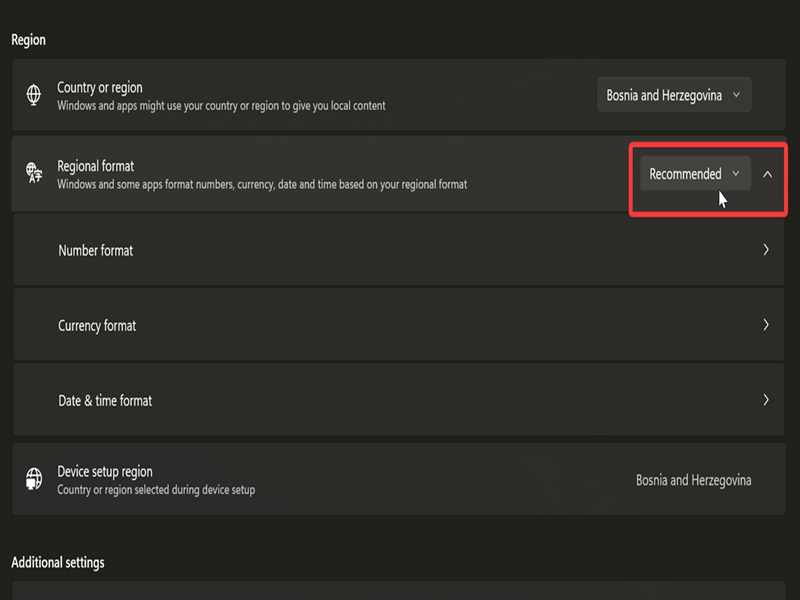
For example, you can opt for a 12 or 24-hour format in the expanded settings.
Change regional format via Control Panel
You can also use the Control Panel instead. It's not as easy to find as the Settings, but it works just as well:
- Type Control Panel in Windows Search, and click Open.
- Select Small icons or Large icons in View by: on the top right.
- Click on Region.
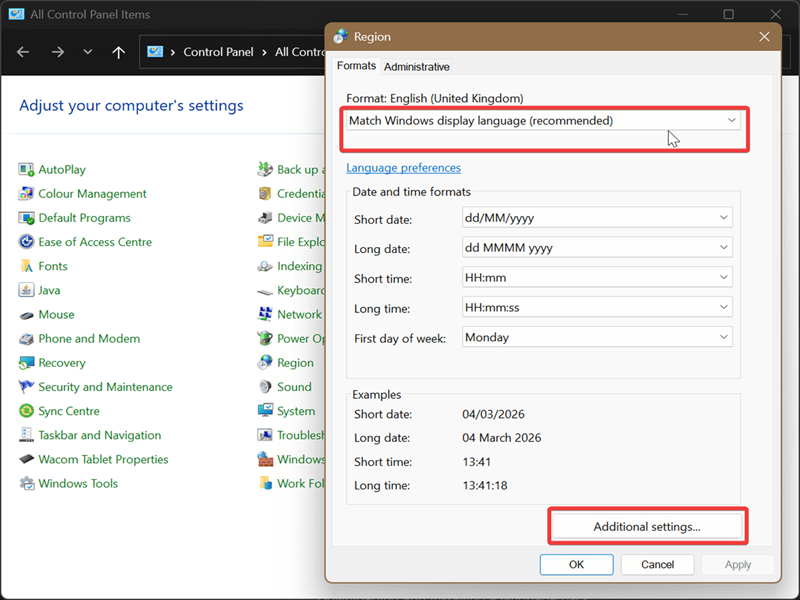
- Choose a language from the Format dropdown menu, and click OK.
- You can also click on Additional settings... and customize Numbers, Currency, Time, and Date in their separate tabs.
So, now you know which settings to configure if you want to switch regions or region formats. Your settings will be saved to HKEY_CURRENT_USER\Control Panel\International key in the registry.

|
selma citakovic
Selma is a gamer, geek and gremlin hunter with a passion for cyber security and smashing Windows bugs before they bite. She’s IBM-certified, loves real freeware, despises bloatware, and powers most of her troubleshooting with an unhealthy amount of coffee. |
comments powered by Disqus
