


How To Check a File's Digital Signature
By selma čitakovićon 08/30/2026 |
![{$insert['content_title']](/content/file/6274_image1.jpg
)
A digital signature is proof that a file is authentic and hasn't been tampered with. It's encrypted code that verifies the origins of the file (basically, who created/developed it) and proves it's not malware.
It's also why sometimes tools by small developers get falsely flagged. The verification process costs money, and certificates can expire. It can be quite expensive for open-source and freeware devs to keep them up-to-date.
Still, you can easily check yourself if a file has been digitally signed or not. Here's how!
Via File Properties
You can inspect specific files by doing this:
- Open File Explorer and find the one you want to verify.
- Right-click the file and select Properties.
- Click the Digital Signatures tab.
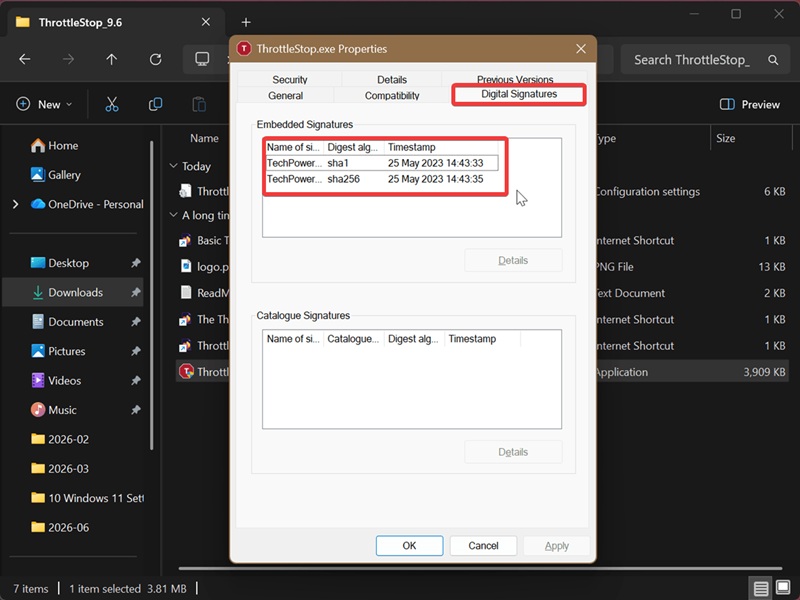
If the file is signed, you should see entries under Name of signer, Digest algorithm, and Timestamp.
Via File Signature Verification
If you want to focus on all system files and drivers instead, you can use the built-in File Signature Verification tool (sigverif.exe). After scanning your files, it will display the results in a table and in a log file.
Let me show you how:
- Press Win + R, type sigverif.exe, and press Enter.
- You can click on Advanced to customize the log file. You can choose to overwrite the existing one or just append to it.
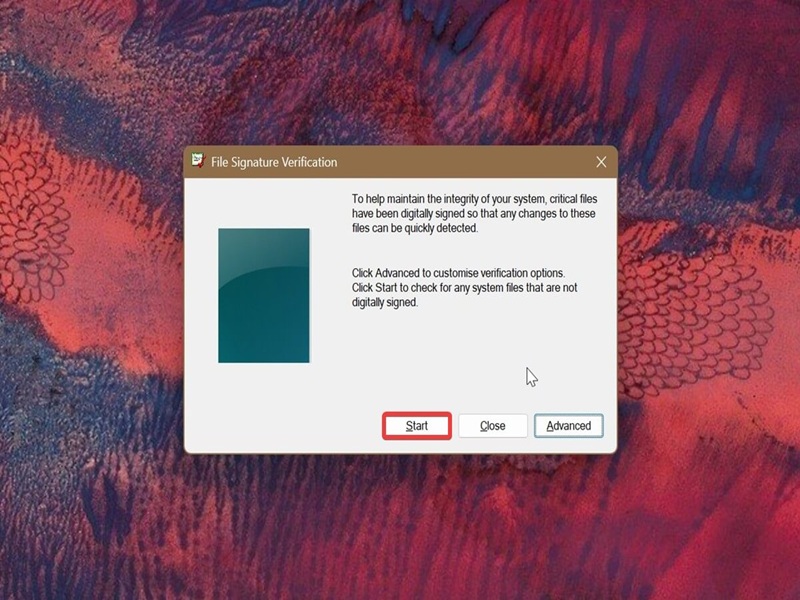
- Select Start.
- Wait for the scan to finish.
- If all files are signed, you'll see a window saying "Your files have been scanned and verified as digitally signed."
- If there are any unsigned files, you'll see them in a table. Sigverif.exe will show their names, folder paths, file types, and other details.
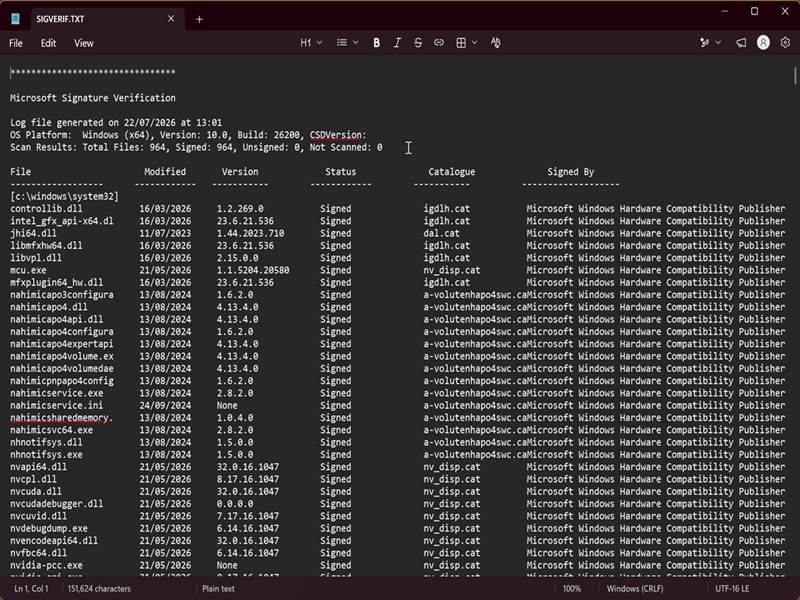
You can also check out the log file at C:\Users\Public\Public Documents\SIGVERIF.TXT. It displays the complete scan results, with even more details.
Sometimes, you may get error codes with unsigned drivers in Device Manager due to hardware changes or malware. Additionally, if companies stop supporting certain drivers, you'll get the same error. Luckily, we have just the guide for that situation.

|
selma citakovic
Selma is a gamer, geek and gremlin hunter with a passion for cyber security and smashing Windows bugs before they bite. She’s IBM-certified, loves real freeware, despises bloatware, and powers most of her troubleshooting with an unhealthy amount of coffee. |
comments powered by Disqus
