


How To Configure Allowed Apps for Controlled Folder Access
By selma čitakovićon 02/04/2026 |
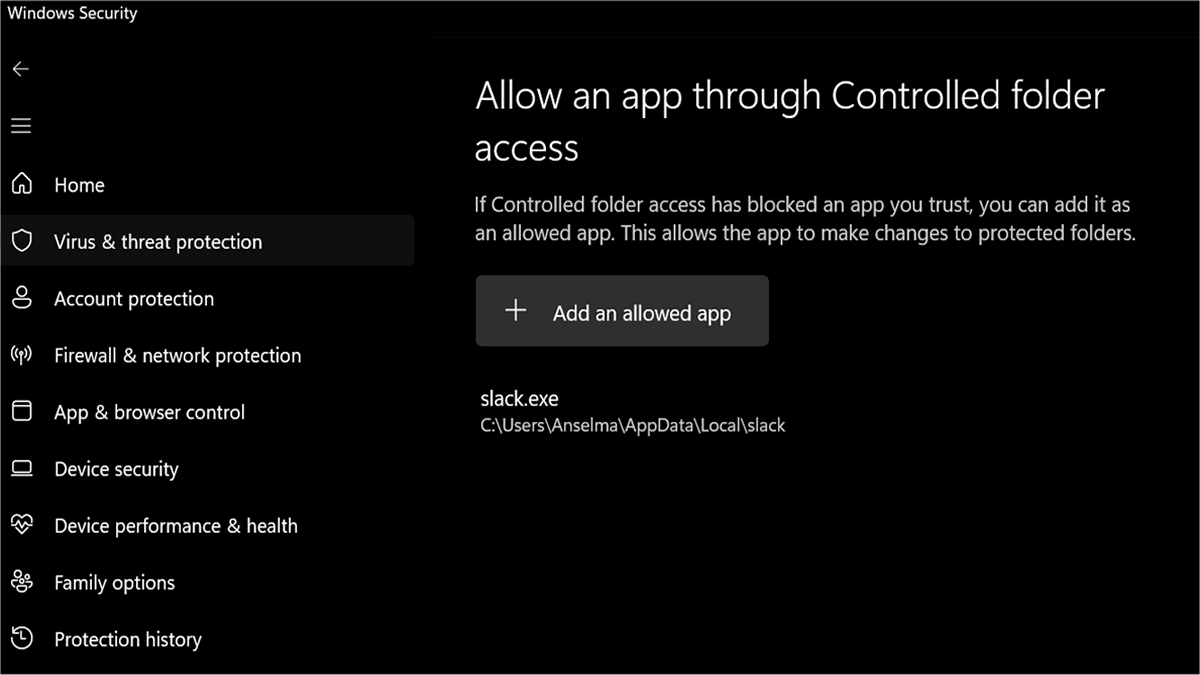
Controlled Folder Access is a built-in security feature in Windows Defender's ransomware protection. Basically, it only allows trusted apps access to your protected folders. If a program isn't on the trusted list, it can't modify files in the controlled folders. In theory, it sounds great, but in practice, it's a different story.
Windows Defender can be overzealous and "defend" you from programs that are completely harmless. For example, gamers have complained about not being able to save their games because the feature blocks access to the Documents folder. On the brighter side, you can easily add allowed apps to counter this. You can also remove them anytime.
Read on as I show you how.
Via Windows Security settings
Make sure you're signed in as an admin to be able to add or remove allowed programs.
Now, let's try the most direct method first:
- Go to Windows Security > Virus & threat protection.
- Under Ransomware protection, click on Manage ransomware protection.
- Under Controlled folder access, select Allow an app through Controlled folder access.
- Click Yes when prompted by User Account Control (UAC).
- To add an allowed app: Click the Add an allowed app button. You can then either select Recently blocked apps or Browse all apps. Choose an app and hit Open.
- To remove it: Click on the program, then the Remove button next to it.
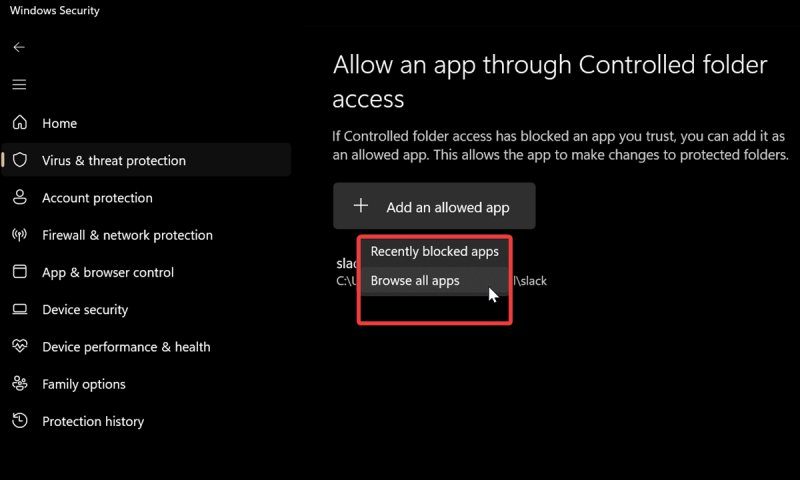
Via Command Prompt or PowerShell
Either one works, since the commands are the same. Here's how to use them:
- Type Command Prompt or PowerShell in Windows Search and select Run as administrator.
- To add an allowed app, type the following command and hit Enter: PowerShell Add-MpPreference -ControlledFolderAccessAllowedApplications "*full path*"
- To remove it, type the following command and hit Enter: PowerShell Remove-MpPreference -ControlledFolderAccessAllowedApplications "*full path*"
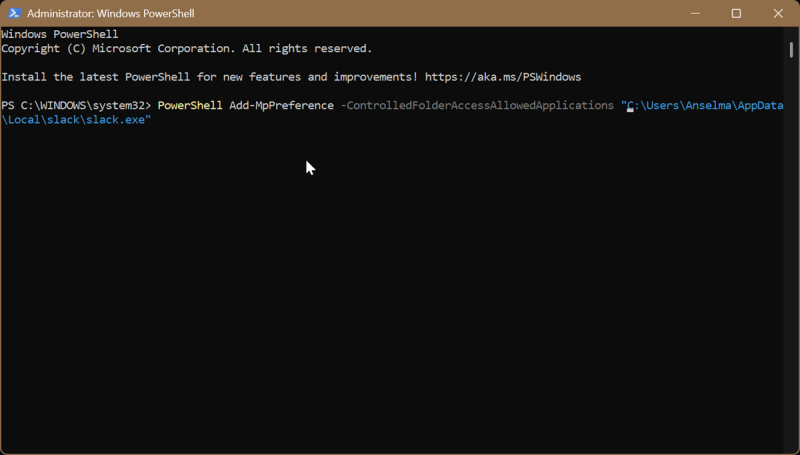
Replace full path with the actual path to the app.
You can simplify this by right-clicking the exe file and selecting Copy as path from the context menu. You can then just paste this into the command.
Via Local Group Policy Editor
As you might know, this editor is only available to Windows Pro, Education, and Enterprise editions. Home edition owners will have to rely on the previous methods.
Here are the steps:
- Press Win + R, type gpedit.msc, and press Enter.
- Go to Computer Configuration>Administrative Templates>Windows Components>Microsoft Defender Antivirus>Microsoft Defender Exploit Guard>Controlled folder access.
- While in the Controlled folder access folder, double-click Configure allowed applications.
- To add an allowed app: Select Enabled, then click the Show button under Options. In the new window that opens, double-click the Value name field, and type in the full path of the app you want to add. In the Value field next to it, type 0. Click OK when you're done.
- To remove an allowed app: Select Enabled, then click the Show button under Options. Find the app you want to remove, and delete the Value name and Value fields for it. Click OK when you're done.
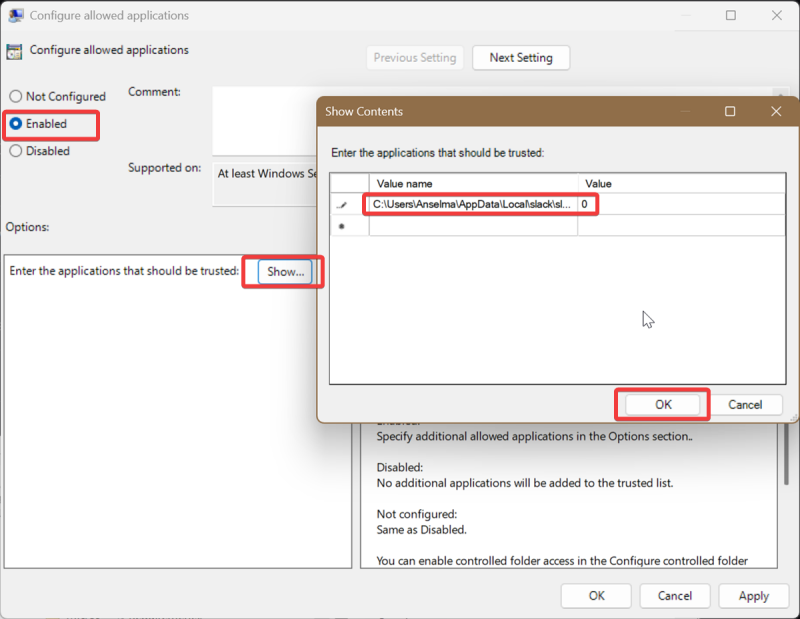
To undo all changes, you can select Not configured (after double-clicking Configure allowed applications) and click OK.
However, you should know that any apps you add using the Local Group Policy Editor, you won't be able to remove via Windows Defender settings or CMD/PowerShell. You'll have to remove them with the editor again.
And that's it! You won't be annoyed by ransomware protection blocking perfectly safe programs anymore.

|
selma citakovic
Selma is a gamer, geek and gremlin hunter with a passion for cyber security and smashing Windows bugs before they bite. She’s IBM-certified, loves real freeware, despises bloatware, and powers most of her troubleshooting with an unhealthy amount of coffee. |
comments powered by Disqus
