


How To Copy Language and Region Settings
By selma čitakovićon 06/28/2026 |
![{$insert['content_title']](/content/file/6102_image2.png
)
You can copy your region and language settings and apply them to the Welcome screen, system accounts, and all new user accounts. This will transfer your current display and keyboard languages, regional format (date & time), and GeoID settings.
It comes in handy if you want to speed up the setup process for new accounts, or you want the Welcome screen to use your preferred language.
You'll need elevated privileges for this, so make sure you have access to an administrator account. It's a system-wide change that will affect all users.
Via Settings
Here's how to copy your preferences:
- Go to Settings > Time & language > Language & region.
- Click the Copy buttons next to Copy current user settings to welcome screen and system accounts and/or Copy current user settings to new user accounts.
- If successful, you should see a check mark next to both options.
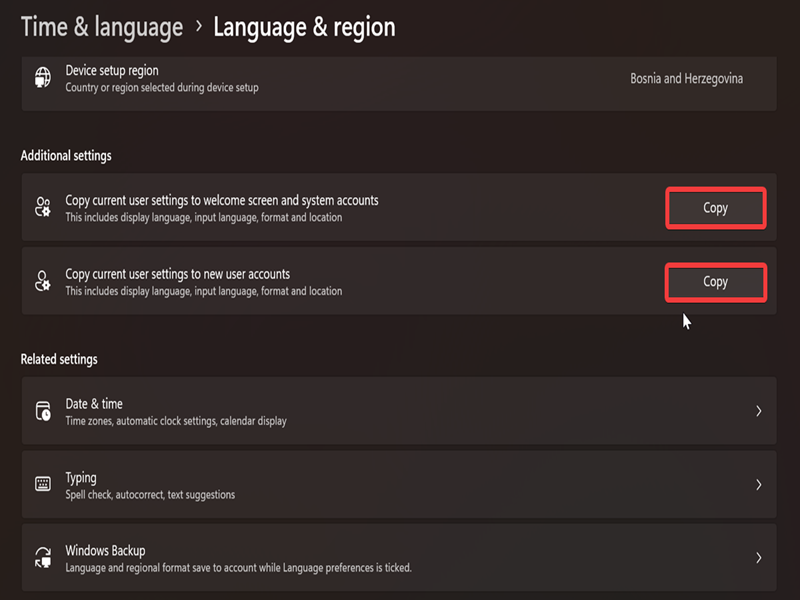
You can add or remove languages and change your region settings in this same section.
Via Control Panel
It's a bit less straightforward than the previous method, since you'll have to navigate through more menus and possibly restart. But hey, it works:
- Type Control Panel in Windows Search, and open it.
- Select either Small icons or Large icons view in the top right corner, since Category view doesn't display all the items at once.
- Now, click on the Region icon.
- In the new window that pops up, go to the Administrative tab.
- Hit the Copy settings... button.
- You'll see the settings for the current user, the Welcome screen, and new user accounts. Check the options for Welcome screen and system accounts and/or New user accounts. Click on OK.
- You may be prompted to restart for the changes to apply. Save your work and close everything before clicking on Restart now.
- Finally, click OK.
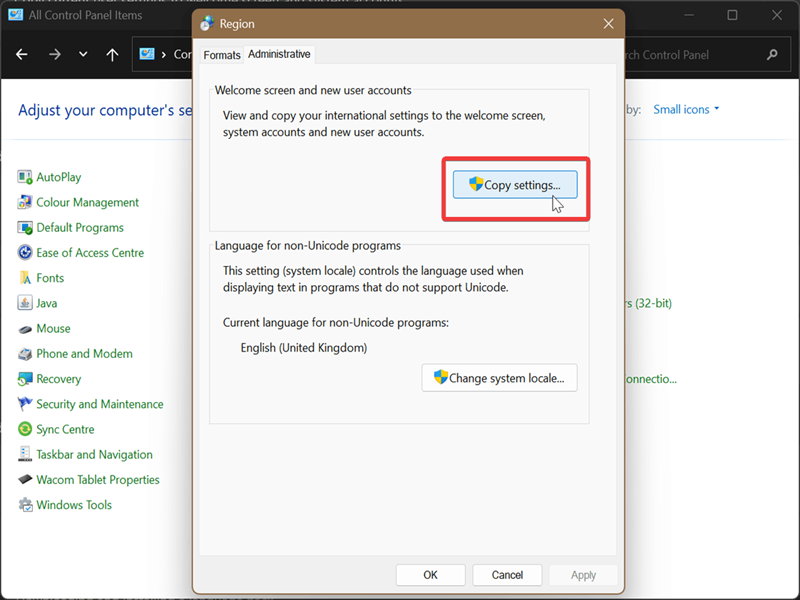
The next time you try to log in, the Welcome screen should be in your preferred language. The same goes for new users and their region and language settings.

|
selma citakovic
Selma is a gamer, geek and gremlin hunter with a passion for cyber security and smashing Windows bugs before they bite. She’s IBM-certified, loves real freeware, despises bloatware, and powers most of her troubleshooting with an unhealthy amount of coffee. |
comments powered by Disqus
