


How To Disable or Enable UserChoice Protection Driver (UCPD)
By selma čitakovićon 01/02/2026 |
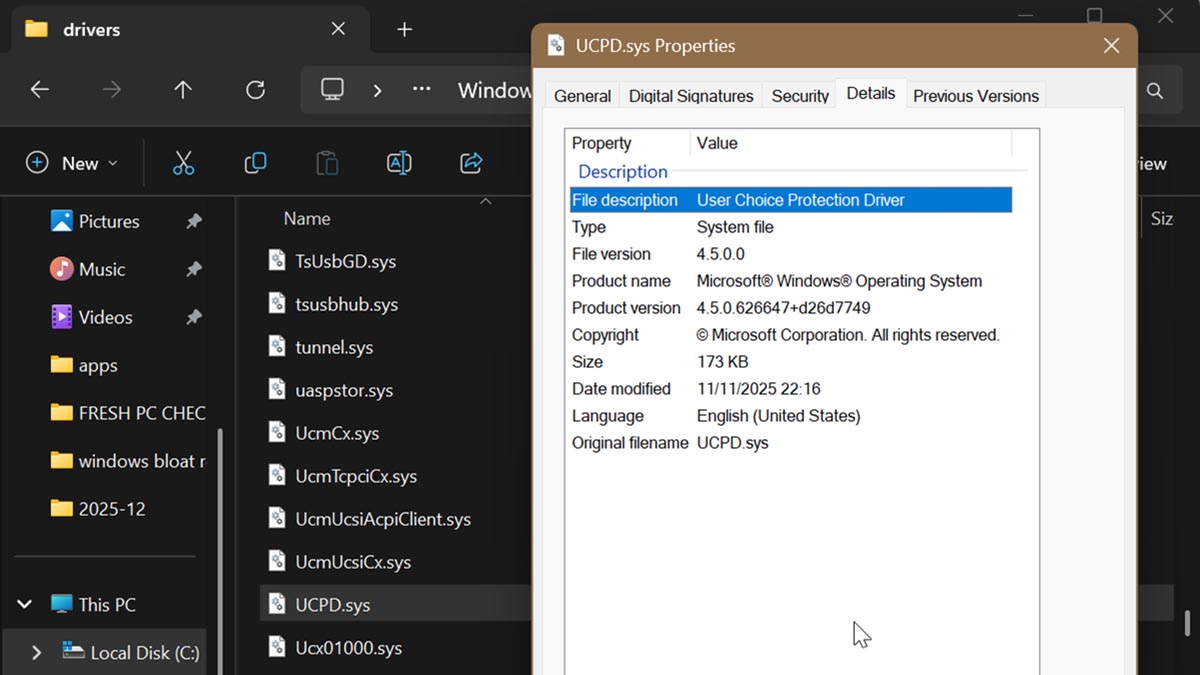
UserChoice Protection Driver (UCPD) is a sneaky system driver that prevents third-party apps from making changes to your default app choices. The name alone doesn't inspire confidence. Most users didn't even know about its existence until they encountered problems with configuring their default browsers.
The general idea behind UCPD is fine: it's supposed to prevent unwanted changes by third-party services. However, what if you want to use those services to configure your default apps? It introduced issues for sys admins, developers, and power users who relied on tools like SetUserFTA, Sophia Script, and VMWare Dynamic Environment Manager.
So, if you want to find out how to disable this driver or re-enable it, read on.
What is UserChoice Protection Driver (UCPD)?
UCPD is a driver-based protection that can block changes to default file type associations by third-party software. It prevents their access to UserChoice registry keys in Windows 10 and 11. These specific registry keys define your default app choices for web browsers and PDF viewers, for example. You can find UCPD in C:\Windows\System32\drivers.
Basically, this driver acts as a filter. It checks whether a process is signed by Microsoft and whether it's on the deny list.
The deny list has been updated several times and now includes the following executables:
- cmd.exe
- explorer.exe
- regedit.exe
- reg.exe
- powershell.exe
- dllhost.exe
- rundll32.exe
- wscript.exe
- cscript.exe, and more.
UCPD only allows access to binaries signed by Microsoft, and even prevents third parties from using official Windows tools from the deny list to tweak default apps.
This doesn't mean users can't manually adjust their default app settings. The restrictions only apply to third-party apps.
Still, since the driver's first appearance in March 2024, Microsoft has tightened security measures, expanded the deny list, and patched some workarounds that previously bypassed it. The current version of ucpd.sys is 4.5.
How to disable or enable UCPD
First, let's find out whether UCPD is even active on your system. Chances are it is, but it's still a good idea to check. Here's how to do that:
- Right-click the Start button and click on Terminal. This will bring up Windows PowerShell.
- Type the following command and press Enter: Get-Service UCPD
- PowerShell will display its status as Running or Stopped.
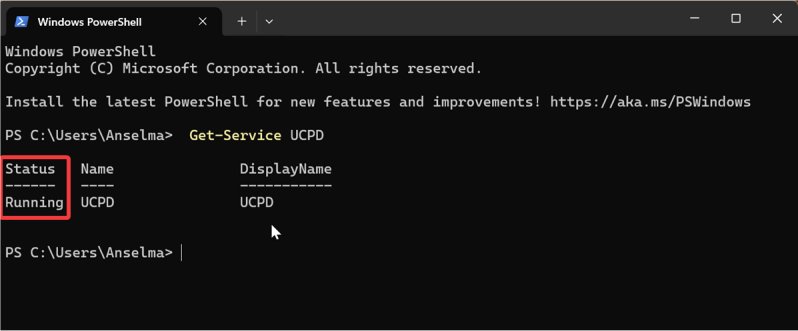
You can also use Command Prompt for the same lookup by typing sc query ucpd. You'll then see UCPD's state.
Now, to disable it, follow these steps:
- Right-click the Start button and click on Terminal (Admin). You'll need elevated privileges for these changes.
- Type the following command and press Enter: Set-Service -Name UCPD -StartupType Disabled
- Then type the next one and press Enter again: Disable-ScheduledTask -TaskName "\Microsoft\Windows\AppxDeploymentClient\UCPD velocity"
- Restart your PC.
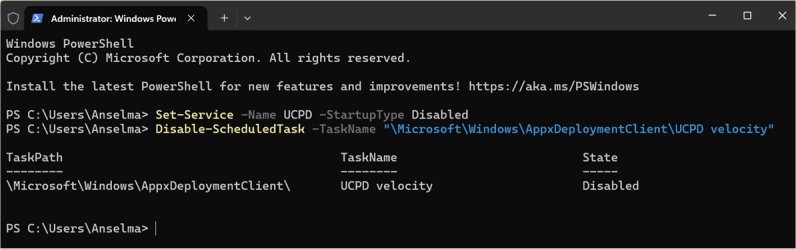
The second command targets UCPD Velocity in Task Scheduler. This task ensures the UCPD driver runs with each user login. So, you'll have to disable this as well if you want the driver to stay inactive.
Alternatively, you can do the same with an elevated Command Prompt, but the commands are slightly different:
- sc config UCPD start=disabled
- schtasks /change /Disable /TN "\Microsoft\Windows\AppxDeploymentClient\UCPD velocity"
Moreover, if you ever want to enable UCPD:
- In Windows Terminal (Admin), type this command and press Enter: Set-Service -Name UCPD -StartupType Automatic
- Followed by: Enable-ScheduledTask -TaskName "\Microsoft\Windows\AppxDeploymentClient\UCPD velocity"
- Again, restart your PC for the changes to take effect.
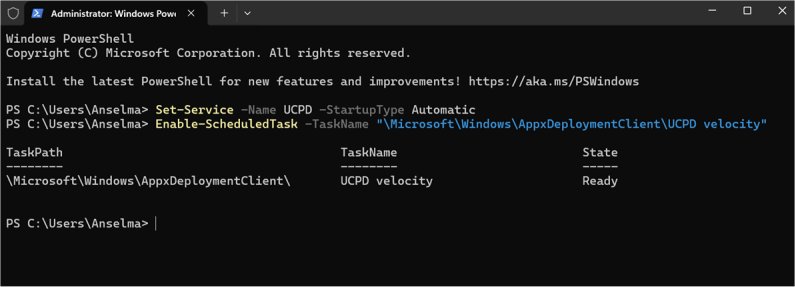
Alternatively, to enable it via an elevated Command Prompt, run:
- sc config UCPD start=auto
- schtasks /change /Enable /TN "\Microsoft\Windows\AppxDeploymentClient\UCPD velocity"
It's generally better to disable the driver than delete it. You never know when you might need it again. Also, if you run system repair commands (sfc /scannow or dism /restorehealth), they will restore the deleted driver as well.
Hopefully, these tweaks will help you regain some control over your apps. After all, this driver filter doesn't discriminate between well-known, legitimate third-party programs and genuinely suspicious ones.

|
selma citakovic
Selma is a gamer, geek and gremlin hunter with a passion for cyber security and smashing Windows bugs before they bite. She’s IBM-certified, loves real freeware, despises bloatware, and powers most of her troubleshooting with an unhealthy amount of coffee. |
[comment]
