


How To Download a Windows 11 ISO
By selma čitakovićon 04/18/2026 |
![{$insert['content_title']](/content/file/5865_image1.png
)
Microsoft has gradually made it easier to download Windows ISO files. For a time, you couldn't just get them directly from the website. You had to use the Media Creation Tool (which sometimes just didn't work, so good luck with that!) or rely on various workarounds. But now, you can get the latest version right from the downloads page.
If you're still confused about ISO files and how they work, here's a quick explanation:
ISO files are a convenient way to back up, store, and distribute huge amounts of data without having to rely on physical discs. It's a disk image that acts as a perfect digital copy of a CD, DVD, or Blu-Ray. ISOs usually store installation files for operating systems like Windows, all in the form of a single file you can "mount" (run using a virtual drive, which acts as an extra physical drive) or "burn" to a USB/DVD/CD (write its contents to a USB/DVD/CD, so you can boot it).
Here's how to easily download them.
Use Media Creation Tool (MCT)
MCT works a bit better than it used to, but some users have reported that it still has moments where it may fail. I generally recommend not bothering with it and just skipping to the next method. Still, here are the steps for the few souls who might prefer it:
- Go to the official Microsoft downloads page.
- Click the Download Now button under Create Windows 11 Installation Media.
- This will download the MediaCreationTool.exe file. Once it's done, double-click the exe file.
- Click Yes on the User Account Control (UAC) prompt.
- You may have to wait a bit for Windows to "get a few things ready". Once it does, accept the license terms.
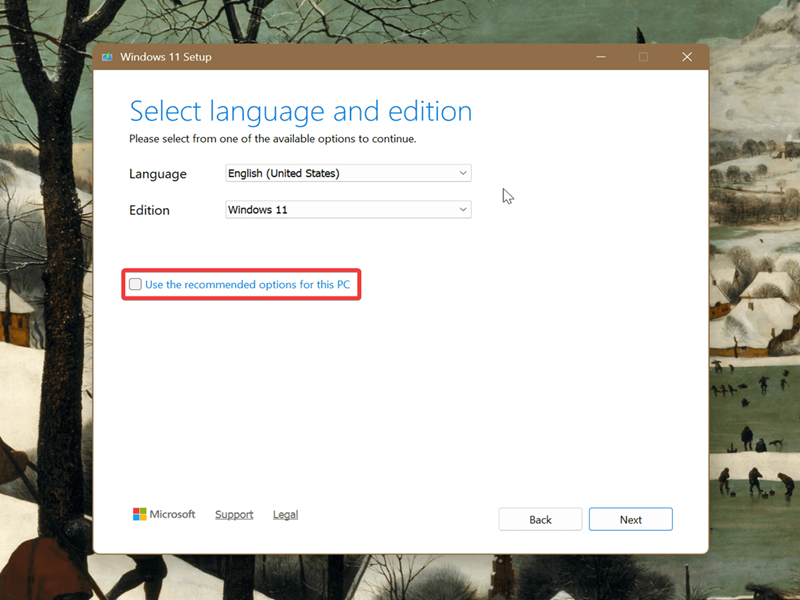
- On the next screen, uncheck Use the recommended options for this PC if you want to customize your ISO file. If you keep that option checked, MCT will download an ISO with the same Windows edition, language, and architecture as your current installation.
- Choose a language and edition for the ISO file, and click Next.
- Under Choose which media to use, select ISO file, and click Next.
- Choose where you want to save the file, and click on Save.
- Wait for the Windows 11 ISO file to download.
- When it's done, click the file location to open it, and click Finish.
Directly download Windows 11 ISO for x64/ARM64 devices
Alternatively, you can skip the extra steps that MCT introduces and just get your ISO file directly from the source. Here's how:
- Go to the official Microsoft downloads page.
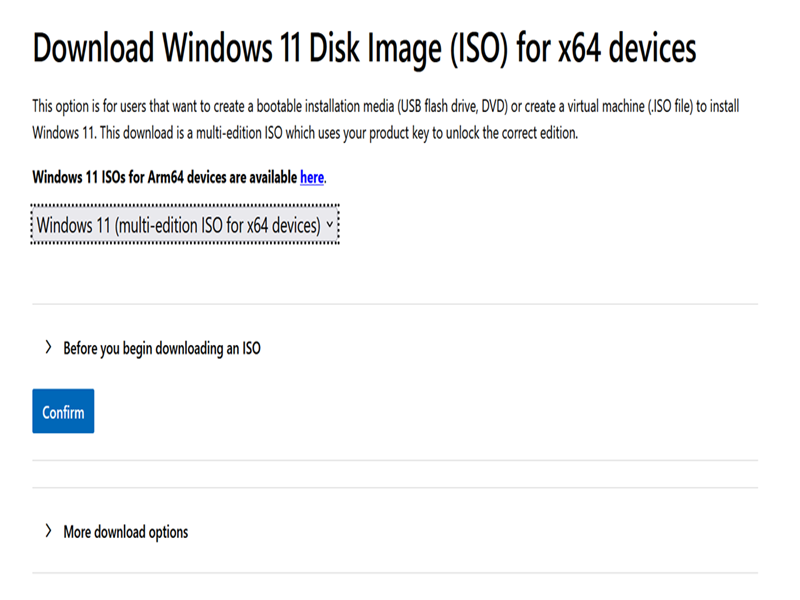
- Scroll down to Download Windows 11 Disk Image (ISO) for x64 devices. This section applies to most modern PCs. But if you need an ISO for an ARM64 device, click the link that says "Windows 11 ISOs for Arm64 devices are available here."
- Select Windows 11 (multi-edition ISO for x64 devices) from the dropdown menu.
- Click the Confirm button under Before you begin downloading an ISO.
- Select the installation language, and click the Confirm button again.
- The website will process your request and create a download link valid for the next 24 hours. Click the 64-bit Download button.
- Wait for the download to finish. The latest 25H2 version was 7.2GB during my tests.
Directly download Windows 11 Insider ISO
You'll need to be a member of the Insider program for this method to work. Alternatively, you can download an Insider ISO using UUP Dump.
Here are the steps if you're a member:
- Go to the official Insider Previews downloads page.
- Select the edition you want to download from the dropdown menu, and click the Confirm button.
- Select the product language, and click the Confirm button again.
- The website will create a download link valid for the next 24 hours. Click the 64-bit Download button.
- Wait for the download to finish.
Now that you have your shiny new ISO, all that's left to do is install it. You can burn it to a USB drive with Rufus or Ventoy. Both are free and open-source tools, and every geek's go-to choice.

|
selma citakovic
Selma is a gamer, geek and gremlin hunter with a passion for cyber security and smashing Windows bugs before they bite. She’s IBM-certified, loves real freeware, despises bloatware, and powers most of her troubleshooting with an unhealthy amount of coffee. |
comments powered by Disqus
