


How To Enable or Disable File and Printer Sharing in Windows 11
By selma čitakovićon 05/31/2026 |
![{$insert['content_title']](/content/file/6039_image3.png
)
You can share folders or attached printers with other computers within the same network. Depending on the network profile, you can even set them up differently. In Windows 11, file and printer sharing is on by default for private networks and turned off for public ones.
Naturally, you can change the default settings if you want. You'll need elevated privileges to do so, so make sure you sign in as an administrator first.
Via Settings
Windows 11 makes it pretty easy to configure file and printer sharing for public and private networks. Here's how:
- Go to Settings > Network & internet > Advanced network settings.
- Select Advanced sharing settings under More settings.
- Click on both Private networks and Public networks to expand them.
- Toggle on or off File and printer sharing for both.
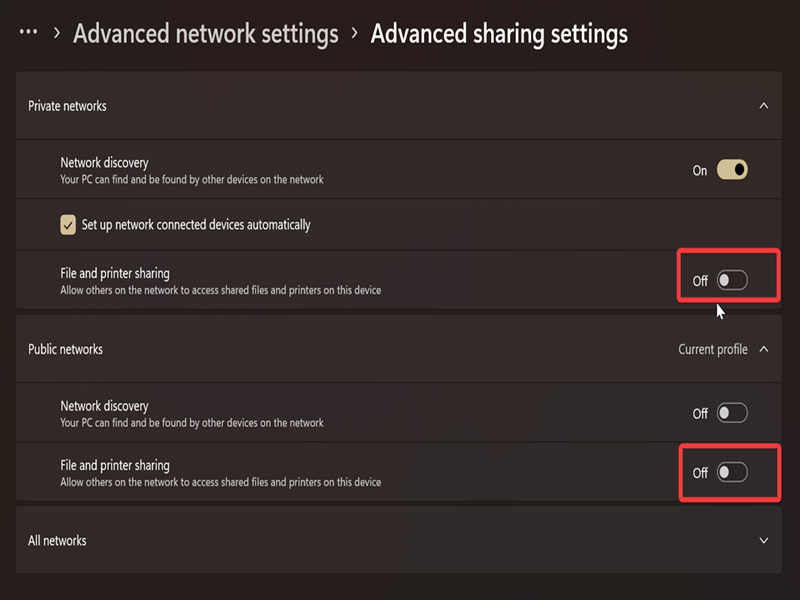
Still, you can't change the settings for domain networks using this method, or apply changes to all network profiles at once. If that's what you want to do, check out the next steps!
Via PowerShell
You can also use commands and target private, public, domain, or all network profiles.
First, you'll have to open elevated PowerShell (type its name in Windows Search and select Run as Administrator). Then, depending on the network profile you're using, paste the following commands and press Enter.
To turn on file and printer sharing:
- For all network profiles: Get-NetFirewallRule -Group '*-28502*' | Where-Object 'Profile' -Match 'Any' | Set-NetFirewallRule -Enabled 'True'
- For domain network profile: Get-NetFirewallRule -Group '*-28502*' | Where-Object 'Profile' -Match 'Domain' | Set-NetFirewallRule -Enabled 'True'
- For public network profile: Get-NetFirewallRule -Group '*-28502*' | Where-Object 'Profile' -Match 'Public' | Set-NetFirewallRule -Enabled 'True'
- For private network profile: Get-NetFirewallRule -Group '*-28502*' | Where-Object 'Profile' -Match 'Private' | Set-NetFirewallRule -Enabled 'True'
To turn off file and printer sharing:
- For all network profiles: Get-NetFirewallRule -Group '*-28502*' | Where-Object 'Profile' -Match 'Any' | Set-NetFirewallRule -Enabled 'False'
- For domain network profile: Get-NetFirewallRule -Group '*-28502*' | Where-Object 'Profile' -Match 'Domain' | Set-NetFirewallRule -Enabled 'False'
- For public network profile: Get-NetFirewallRule -Group '*-28502*' | Where-Object 'Profile' -Match 'Public' | Set-NetFirewallRule -Enabled 'False'
- For private network profile: Get-NetFirewallRule -Group '*-28502*' | Where-Object 'Profile' -Match 'Private' | Set-NetFirewallRule -Enabled 'False'
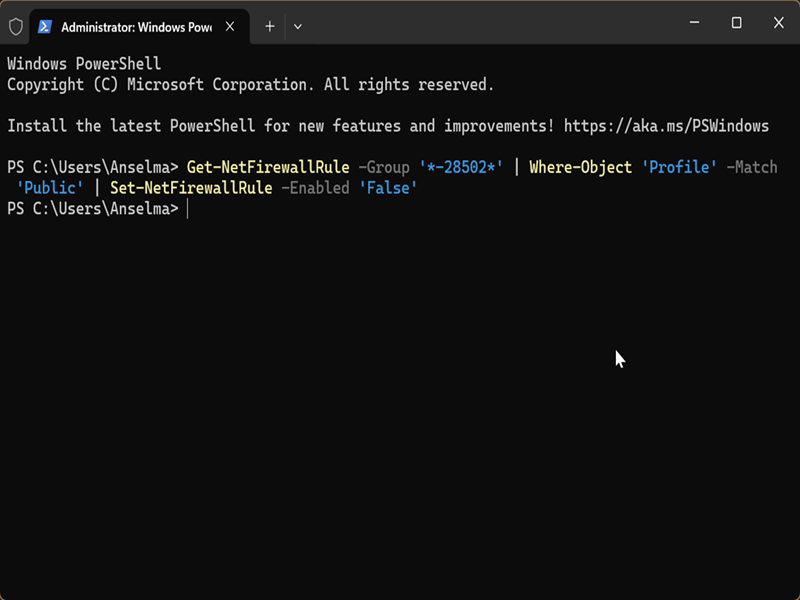
And that's it! Unlike in Windows 10, you can't configure file and printer sharing in the Control Panel anymore. Even if you open it and go to the Network and Sharing Center, clicking the option only takes you to Settings, just like in the first method.

|
selma citakovic
Selma is a gamer, geek and gremlin hunter with a passion for cyber security and smashing Windows bugs before they bite. She’s IBM-certified, loves real freeware, despises bloatware, and powers most of her troubleshooting with an unhealthy amount of coffee. |
comments powered by Disqus
