


How to Reset Network Settings in Windows 10 & 11
By Timothy Tibbettson 06/19/2023 |
Networking problems are never fun, but you might need to reset your network settings when all else fails. Windows 10 makes it simple to do.
Video tutorial:
Head to Start, Settings, Network & Internet.
On Windows 11, click Advanced network settings.
Scroll down on the right side and click on Network reset.
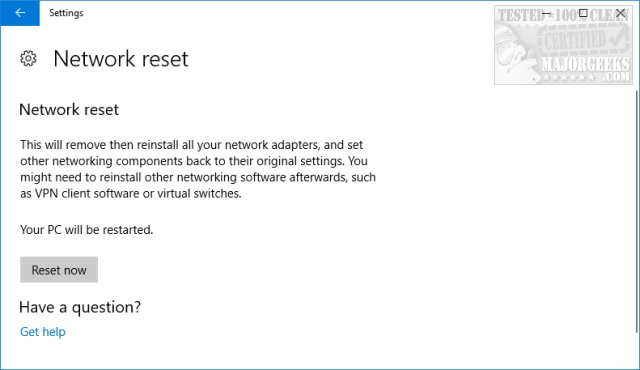
Click on Reset now to complete the reset and reboot. If Windows automatically detects your network adapters, they should come back after the reboot. If Windows doesn't recognize your network card, be sure you have the drivers for your adapter on your hard drive before you begin.
As mentioned, resetting your network settings is a last-ditch effort if you're trying to resolve a connection issue. You should update your network card drivers, test your router, and all the usual steps to be sure the typical culprits aren't at fault.
You can also use the Command Prompt by typing in netcfg -d and rebooting.
Because many Windows problems come with many possible solutions, we've had great luck using Tweaking.Com Windows Repair.
Similar:
How-To Flush the Windows DNS Cache
How-To Reset Winsock on Windows 10\8\7
How-To Reset TCP/IP or Internet Protocol
How to View and Reset Network Data Usage in Windows 10
Windows 10 Problems You Can Fix Yourself With Included Troubleshooters
comments powered by Disqus
Head to Start, Settings, Network & Internet.
On Windows 11, click Advanced network settings.
Scroll down on the right side and click on Network reset.
Click on Reset now to complete the reset and reboot. If Windows automatically detects your network adapters, they should come back after the reboot. If Windows doesn't recognize your network card, be sure you have the drivers for your adapter on your hard drive before you begin.
As mentioned, resetting your network settings is a last-ditch effort if you're trying to resolve a connection issue. You should update your network card drivers, test your router, and all the usual steps to be sure the typical culprits aren't at fault.
You can also use the Command Prompt by typing in netcfg -d and rebooting.
Because many Windows problems come with many possible solutions, we've had great luck using Tweaking.Com Windows Repair.
Similar:
comments powered by Disqus
