Providing Free and Editor Tested Software Downloads
< HOME | TUTORIALS | GEEK-CADE| WEB TOOLS | YOUTUBE | NEWSLETTER | DEALS! | FORUMS | >

MajorGeeks.com - Talk nerdy to me.

Software Categories

All In One Tweaks
Android
Antivirus & Malware
Appearance
Back Up
Browsers
CD\DVD\Blu-Ray
Covert Ops
Drivers
Drives (SSD, HDD, USB)
Games
Graphics & Photos
Internet Tools
Linux Distros
MajorGeeks Windows Tweaks
Multimedia
Networking
Office & Productivity
System Tools

Other news

· How To and Tutorials
· Life Hacks and Reviews
· Way Off Base
· MajorGeeks Deals
· News
· Off Base
· Reviews

spread the word

· YouTube
· Facebook
· Instagram
· Twitter
· Pintrest
· RSS/XML Feeds
· News Blur
· Yahoo
· Symbaloo

about

· Top Freeware Picks
· Malware Removal
· Geektionary
· Useful Links
· About Us
· Copyright
· Privacy
· Terms of Service
· How to Uninstall

top downloads

1. GS Auto Clicker
2. Macrium Reflect FREE Edition
3. Smart Defrag
4. Sergei Strelec's WinPE
5. MusicBee
6. Microsoft Visual C++ 2015-2022 Redistributable Package
7. K-Lite Mega Codec Pack
8. Visual C++ Redistributable Runtimes AIO Repack
9. ImgBurn
10. Sergei Strelec's WinPE 64-Bit for Windows 10 and 11
More >>

top reads

Star 4 Ways To Check System Uptime in Windows 11

Star 6 Ways To Clear Clipboard History

Star How To Enable and Install the Built-In System Monitor (Sysmon)

Star Network Location - What Is It and How To Add It?

Star 4 Ways To Run a Manual Scan With Microsoft Defender

Star How To Easily Backup and Import Windows Defender Firewall Rules

Star How To Install and Restore WMIC in Windows 11

Star How To Bring Back the Classic File Explorer with Ribbon in Windows 11

Star How To Limit Max CPU Usage for Microsoft Defender Scans in Windows 11

Star Recently Opened Files - How To Hide or Show Them In Jump Lists, File Explorer, and Start Menu


MajorGeeks.Com » Overview » How To End Tasks Right From the Taskbar

How To End Tasks Right From the Taskbar

By selma čitaković

on 05/11/2026

Hop into IObit’s Easter Sale and save up to 90% on top utilities, plus score 3 FREE months before the deal disappears! 🐰🌷🏆

{$insert['content_title']


Did you know that you can end tasks directly from the taskbar in Windows 11? You can add an End Task button to the right-click menu and save yourself the trouble of searching for the unresponsive program in Task Manager. It works on everything except system processes (like Windows Explorer or the Start menu, for example). In those cases, you'll still have to use Task Manager or reboot.

Anyway, this option isn't enabled by default. You'll have to find it in the Settings:

  1. Go to Settings > System > Advanced.
  2. Toggle on End Task. The option should be right at the top of the page, under Taskbar.
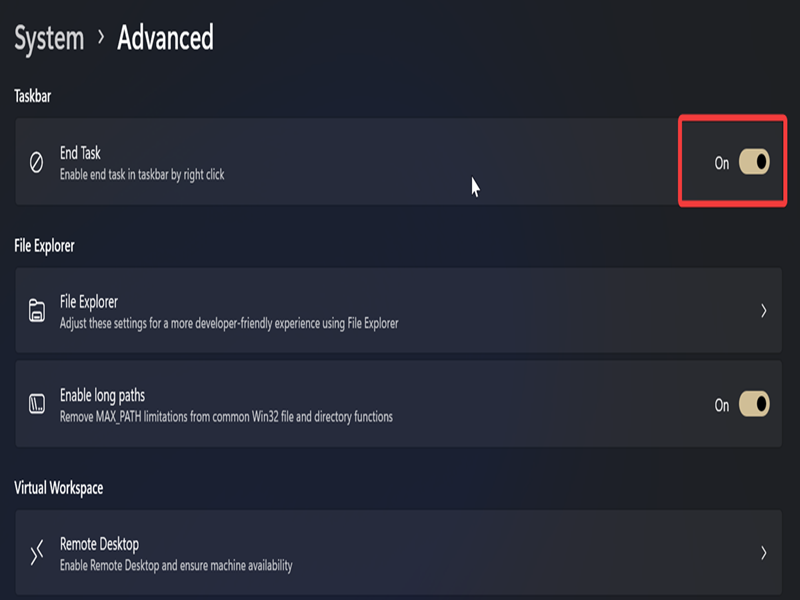

image3.png


Alternatively, you may enable it in Settings > System > For developers.

Once you do, right-click a program's icon in your taskbar, and you should see End task next to Close window in the menu. Click on it, and it will instantly close the selected program.

Still, only use this button for frozen/unresponsive programs. If you just want to close a program normally, use Close window instead. End task serves as a "hard stop" - it immediately terminates the application. Simply closing the program is generally the safer procedure, going through the entire process of saving your data, checking for changes, and more.

So, don't use them interchangeably once you enable this button. With great power comes great responsibility, and all that.

For system apps, you can still use Task Manager:

  1. Press Ctrl+Shift+Esc and open the Processes section.
  2. Look for the app/process you want to close in the Name column, right-click it, and select End task or Restart.


image1.png


Hopefully, this feature saves you a couple of clicks and makes force-closing programs easier.

selma citakovic
selma citakovic
Selma is a gamer, geek and gremlin hunter with a passion for cyber security and smashing Windows bugs before they bite. She’s IBM-certified, loves real freeware, despises bloatware, and powers most of her troubleshooting with an unhealthy amount of coffee.

comments powered by Disqus


© 2000-2026 MajorGeeks.com
Powered by Contentteller® CMS System
