


How to Fix Windows 11 Changing Your Audio Output Device Randomly
By Jim McMahonon 07/26/2026 |
![{$insert['content_title']](/content/file/6266_audio1.jpg
)
Key Takeaways
- Windows automatically switches to another audio source if your primary device loses connection for even a microsecond.
- Modern monitors with built-in speakers transmit audio over HDMI/DisplayPort, and when they wake from sleep, Windows often defaults to them automatically.
- Certain apps (like Discord, Steam, or media players) are allowed to hijack your audio hardware, which forces Windows to switch outputs to resolve conflicts.
- Disabling unused virtual audio lines, controller jacks (like PS4/PS5 controllers), and monitor speakers prevents Windows from having alternative devices to switch to.
Few things are more frustrating than your sound cutting out mid-game, during a critical business call, or right in the middle of a movie, only to realize Windows 11 has randomly decided your monitor's tinny, built-in speakers are now your primary audio output.
This issue is not just a minor annoyance; it disrupts your workflow and forces you to constantly open your system tray to fix your settings. This random swapping usually happens because Windows detects a brief hardware power cycle or allows an aggressive application to hijack your audio device priorities.
If you are tired of your computer ignoring your audio choices, follow these highly effective, step-by-step methods to permanently lock down your preferred audio outputs.
Why Does Windows Keep Switching Your Audio
Windows 11 tends to feature a rather complex Plug and Play (PnP) audio subsystem that is basically designed to make connecting new hardware very easy. Anytime you plug in a headset, Windows wants to play audio through it immediately. Though this "helpful" design ends up backfiring with modern displays and advanced audio hardware:
- When your monitors enter standby mode, they technically disconnect from your graphics card's audio controller. When you move your mouse to wake your PC, the monitor re-establishes its connection. Windows sees this "reconnection" as a brand-new audio device being plugged in and immediately switches your sound to it.
- Plugging a PS4, PS5, or Xbox controller into your PC via USB often introduces an unnoticed built-in headphone jack to your operating system. Windows may randomly decide that this controller is your new default playback device.
Method 1: Disable All Unused Playback Devices
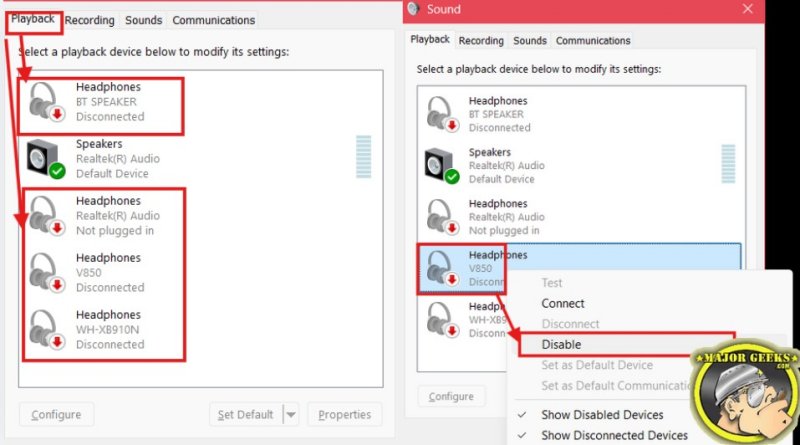
Perhaps the most effective way to stop Windows from switching to the wrong device is basically to disable all outputs that you never plan on using.
- Press the Windows key + R, type mmsys.cpl, and press Enter to open the classic Sound Control Panel.
- Under the Playback tab, look at the list of devices.
- Right-click any device you don't use (such as your monitor's audio, auxiliary virtual lines, or controller ports) and select Disable.
- Right-click your preferred headphones or speakers and ensure both Set as Default Device and Set as Default Communication Device are selected.
- Click Apply and OK.
Method 2: Stop Apps From Taking Exclusive Control
Some applications are programmed to seize exclusive priority over your audio hardware. While this doesn't typically crash your audio driver, it can sometimes cause minor system conflicts or unexpected audio routing. Disabling this feature is an excellent troubleshooting step to ensure other software doesn't pull priority away from your default playback device:
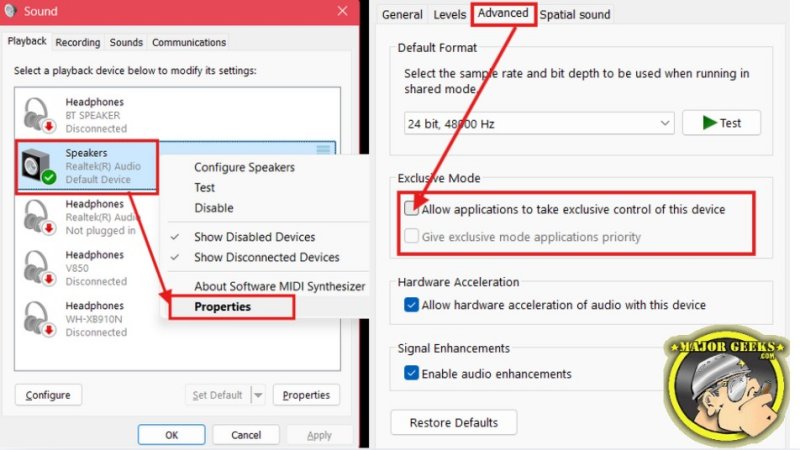
- In the same Sound Control Panel (mmsys.cpl), right-click your active, preferred audio device and select Properties.
- Go to the Advanced tab.
- Under the Exclusive Mode section, uncheck the box for "Allow applications to take exclusive control of this device."
- Click Apply and OK.
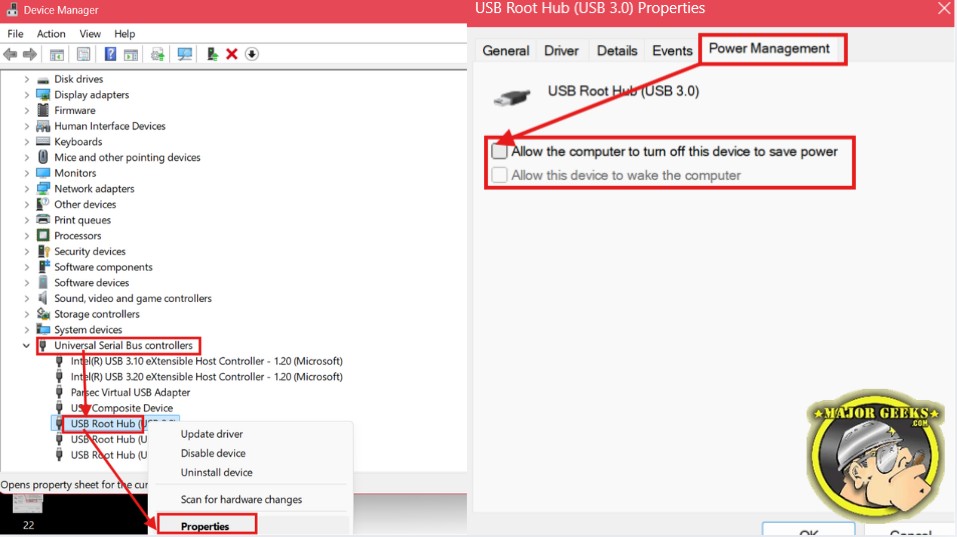
- Right-click the Windows Start button and select Device Manager.
- Scroll to the bottom and expand Universal Serial Bus controllers.
- Right-click your main USB root hub (or the controller your audio device is plugged into) and select Properties.
- Navigate to the Power Management tab.
- Uncheck the box that says "Allow the computer to turn off this device to save power".
- Click OK and restart your computer.
- Unlock better acoustics: If you want to dive deeper into system-level audio enhancements and multi-dimensional acoustics, check out our tutorial on how to enable or disable Spatial Sound in Windows 11.
- Upgrade your media software: Standard Windows apps can sometimes complicate background audio streams. If you are looking for dedicated software that handles audio handshakes beautifully, browse our list of the best audio players for Windows.
Optional: If your audio balance feels off or uneven after toggling hardware settings, you can learn how to change your sound and audio balance in Windows to perfectly recalibrate your stereo channels.
Method 3: Disable USB Power Savings
If you use an external USB headset, a gaming interface, or a high-end DAC, Windows might be temporarily turning off your USB ports behind the scenes to save power. This microsecond power cut triggers an instant, automatic audio device switch.
Fine-tuning Your Windows Audio Experience
Remember that once you've stabilized your physical audio connections, you can start optimizing how your system tends to process sound.
Windows 11 randomly swaps audio devices because it's just trying to be helpful when it detects a minor hardware sleep cycle or connection drop. However, you can easily force Windows to stick to your preferred speakers by following these adjustments. And that's about it! Let us know if this method worked for you in the comments below or on our forums!
comments powered by Disqus
