


How to Make a Program Always Run as Administrator And or Compatibility Mode
By Timothy Tibbettson 06/15/2023 |
Some programs always require you to Run as Administrator or in compatibility mode for older programs. The simple solution is to right-click and select "Run as administrator." Easy enough. But, what if you have a program you use regularly, and you want to simplify this by having the program always run as administrator or in compatibility mode? Here's how to accomplish that.
Note that the following steps used to be accomplished as well with a registry edit that no longer works and a batch file, which we won't waste your time with since it's not 1995.
1: Always Run as Administrator or Compatibility Mode From a Desktop Shortcut
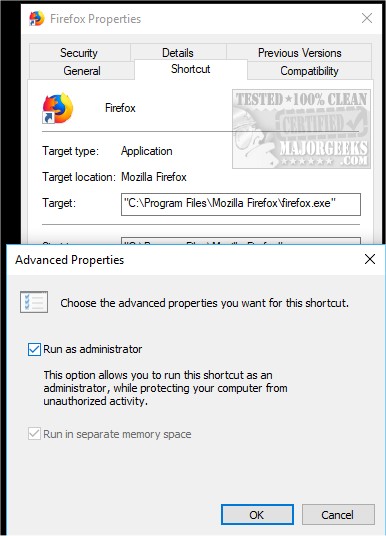
If you have a shortcut on your Desktop, right-click on the shortcut and select Properties.
Click on the Advanced tab and click Run as Administrator. Click OK.
2: Always Run as Administrator or Compatibility Mode From Anywhere Else
If you run your program from the Start Menu, then click Start, locate the shortcut, and right-click on the program. Select More, Open file location and locate the executable.
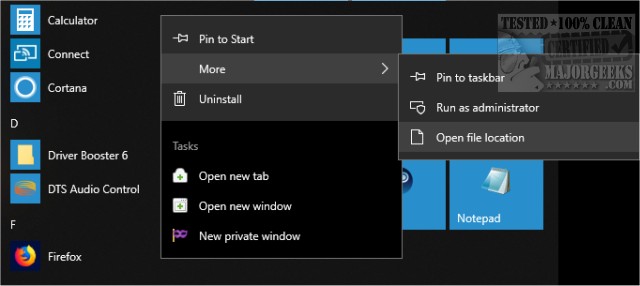
Note: You can also do this for any program you like by finding the executable with File Explorer or Windows Explorer and follow the steps after the screenshot below.
Each executable will have a similar name to the program. For example, we're looking at Firefox in the screenshot, so we know to find and right-click on firefox.exe.
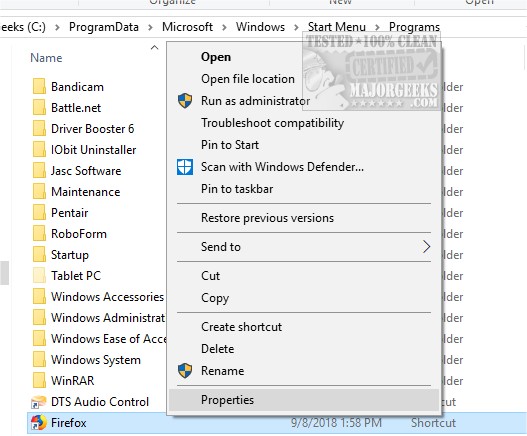
Right-click on the executable and select Properties. Click on the Compatibility tab and select Run this program as Administrator.
Compatibility Mode can be found near the top. Check that box and select what Operating system you want to run your program compatible with. Only Windows 8, 7, and Vista are supported, so choose the operating system your application was written for or use Windows 7 if you're unsure.
Similar:
How to Check if User Accounts are Administrator or Standard Users
How to Make a Program Always Run as Administrator And or Compatibility Mode
Open Powershell Window Here as Administrator Context Menu
How-To Run PowerShell or the Command Prompt as Administrator
comments powered by Disqus
Note that the following steps used to be accomplished as well with a registry edit that no longer works and a batch file, which we won't waste your time with since it's not 1995.
1: Always Run as Administrator or Compatibility Mode From a Desktop Shortcut
If you have a shortcut on your Desktop, right-click on the shortcut and select Properties.
Click on the Advanced tab and click Run as Administrator. Click OK.
2: Always Run as Administrator or Compatibility Mode From Anywhere Else
If you run your program from the Start Menu, then click Start, locate the shortcut, and right-click on the program. Select More, Open file location and locate the executable.
Note: You can also do this for any program you like by finding the executable with File Explorer or Windows Explorer and follow the steps after the screenshot below.
Each executable will have a similar name to the program. For example, we're looking at Firefox in the screenshot, so we know to find and right-click on firefox.exe.
Right-click on the executable and select Properties. Click on the Compatibility tab and select Run this program as Administrator.
Compatibility Mode can be found near the top. Check that box and select what Operating system you want to run your program compatible with. Only Windows 8, 7, and Vista are supported, so choose the operating system your application was written for or use Windows 7 if you're unsure.
Similar:
How to Check if User Accounts are Administrator or Standard Users
How to Make a Program Always Run as Administrator And or Compatibility Mode
Open Powershell Window Here as Administrator Context Menu
How-To Run PowerShell or the Command Prompt as Administrator
comments powered by Disqus
