


How to Make Desktop Icons Bigger or Smaller in Windows 11
By selma čitakovićon 09/28/2026 |
![{$insert['content_title']](/content/file/6452_image1.jpg
)
Need to resize the desktop icons?
You can switch between several sizes, depending on the method you pick. For example, if you use the scroll wheel, you can cycle through up to 28 sizes. Other methods aren't as detailed, but they're good if you want to stick to one standard size.
Let me show you below!
Via scroll wheel
This old trick has been around since Windows 7 at the very least, and it still works. All you need to do is hold the Ctrl key and roll the scroll wheel on your mouse up and down. Up makes icons larger, and down makes them smaller. Let go of Ctrl when you find the size you like.
You can quickly scroll through extra-small to extra-large icons.
Via the right-click context menu
Or, you can right-click an empty spot on the desktop and select View. The menu will expand, and you can click on Large icons, Medium icons, or Small icons.
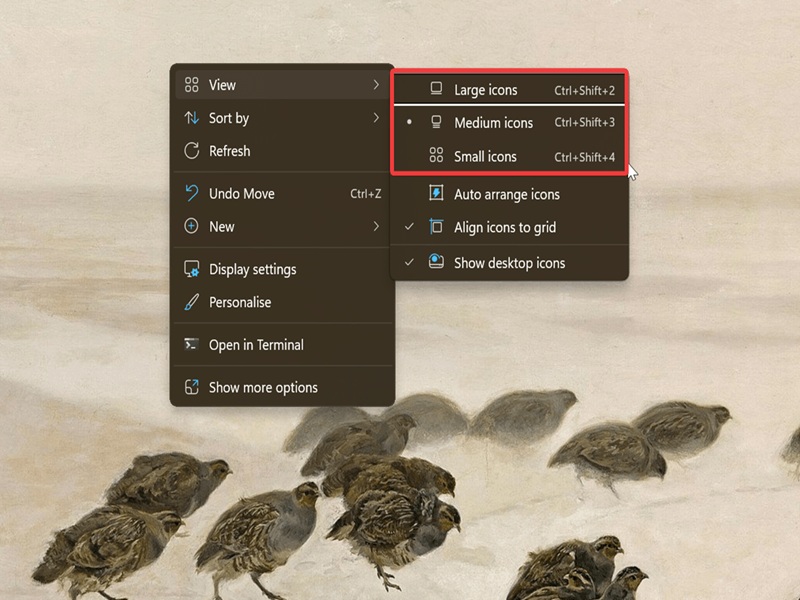
That's it! If only changing the desktop icon spacing was that easy.
Via keyboard shortcut
Alternatively, you can use keyboard shortcuts:
- Ctrl + Shift + 1 - for extra-large icons
- Ctrl + Shift + 2 - for large icons
- Ctrl + Shift + 3 - for medium icons
- Ctrl + Shift + 4 - for small icons.
Just make sure you're on the desktop before trying these.
Additionally, if you want to customize things further, you can change the taskbar size and position right from the settings in Windows 11.

|
selma citakovic
Selma is a gamer, geek and gremlin hunter with a passion for cyber security and smashing Windows bugs before they bite. She’s IBM-certified, loves real freeware, despises bloatware, and powers most of her troubleshooting with an unhealthy amount of coffee. |
comments powered by Disqus
