


How To Monitor AppContainer Isolation in Task Manager
By selma čitakovićon 09/06/2026 |
![{$insert['content_title']](/content/file/6368_image1.png
)
Windows 11 Task Manager has a new optional column called Isolation. Starting with builds 26100.8524 (24H2) and 26200.8524 (25H2), you can add it in the Processes and Details sections. Additionally, the same update includes several NPU-related columns.
In short, Isolation shows you which apps are isolated and running in an AppContainer - a sandbox security feature. This "container" environment minimizes the chances of malicious app manipulation and vulnerability exploits. It isolates the program from device resources, other application processes, other windows, network resources, and more. Even if an app gets compromised, it can't access resources beyond what's in the AppContainer.
You can see which processes are running in the AppContainer by doing the following:
- Right-click an empty spot on the taskbar and select Task Manager.
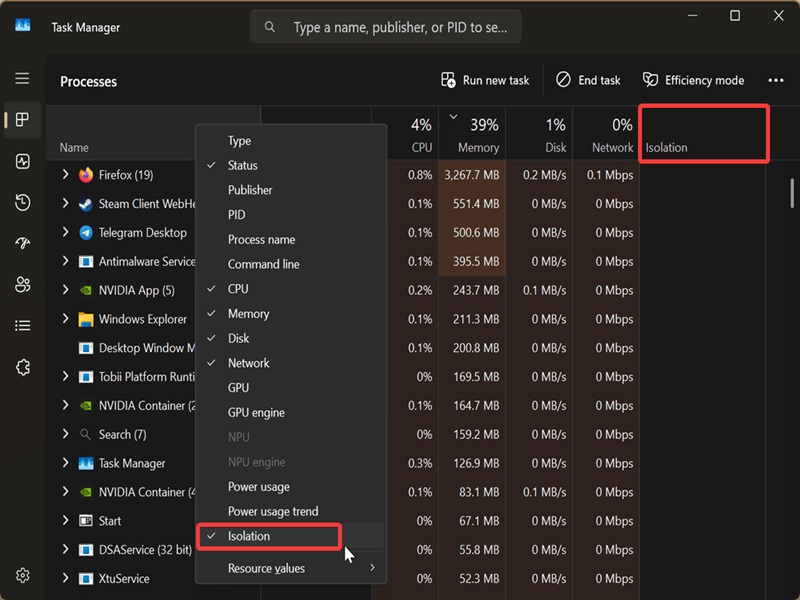
- When it opens, go to the Processes tab and right-click one of the columns at the top.
- A list will open. Select Isolation.
- You'll then see an Isolation column, with AppContainer next to processes that are running isolated.
Alternatively, you can go to the Details section in Task Manager:
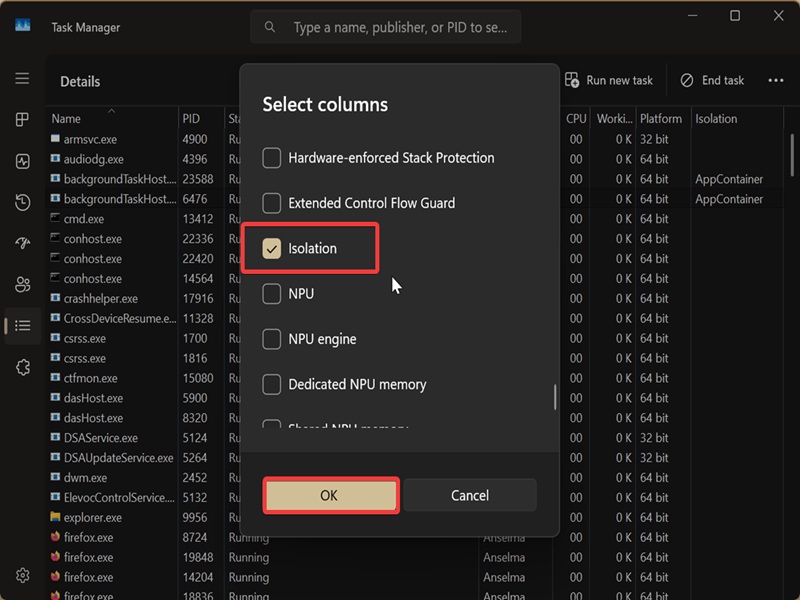
- Right-click one of the columns at the top and click on Select columns.
- This time, an even longer list will open. Scroll down to Isolation and check it to add it to the existing columns. Click OK.
- You'll then see App Container next to certain processes under the Isolation column.
Here's a reminder that you can customize Task Manager further and add or remove columns as you like. It's pretty neat!

|
selma citakovic
Selma is a gamer, geek and gremlin hunter with a passion for cyber security and smashing Windows bugs before they bite. She’s IBM-certified, loves real freeware, despises bloatware, and powers most of her troubleshooting with an unhealthy amount of coffee. |
comments powered by Disqus
