


How To Quickly Restart Windows Explorer in Windows 11
By selma čitakovićon 04/26/2026 |
![{$insert['content_title']](/content/file/5959_image2.png
)
When Windows Explorer starts acting up, you can either restart your PC or restart the explorer.exe process. The latter is quicker, and you get to keep all your very important browser tabs open, so it's a win-win.
Since the explorer.exe process manages your desktop, taskbar, notifications, and, obviously, File Explorer, you may notice missing icons, a blank desktop, or general unresponsiveness if something is wrong. Luckily, restarting it only takes a minute.
Let me show you how.
Via Task Manager
Task Manager is the go-to tool for ending and restarting frozen processes and apps. To use it:
- Press Ctrl + Shift + Esc, or right-click the Start button and select Task Manager.
- In the Processes tab, scroll down to find Windows Explorer in the Name column.
- Select it and click the Restart task button, or right-click it and then choose Restart.
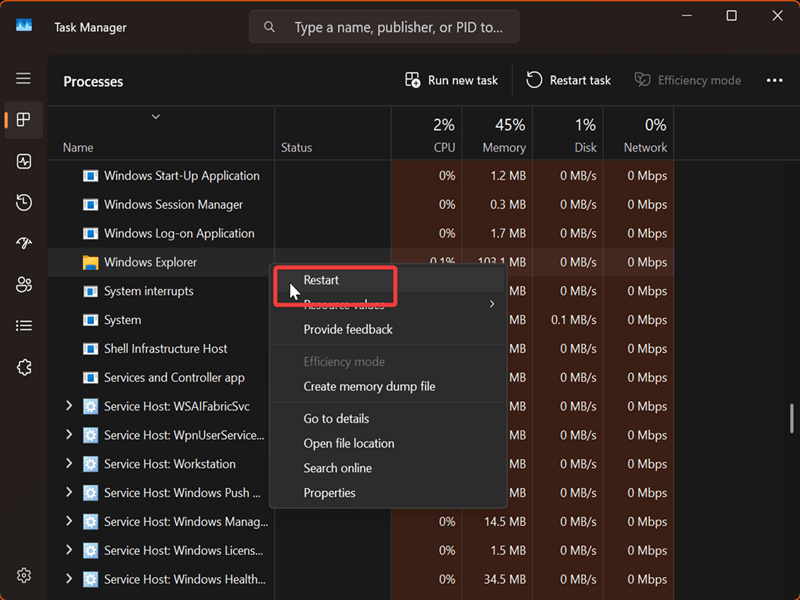
Additionally, if explorer.exe stopped working and you're left with a blank desktop, here's what you should do:
- Press Ctrl + Shift + Esc to open Task Manager.
- Click the Run new task button at the top. (If you're still using the old Task Manager, select File > Run new task.)
- Type explorer.exe in the window that opens, and click on OK.
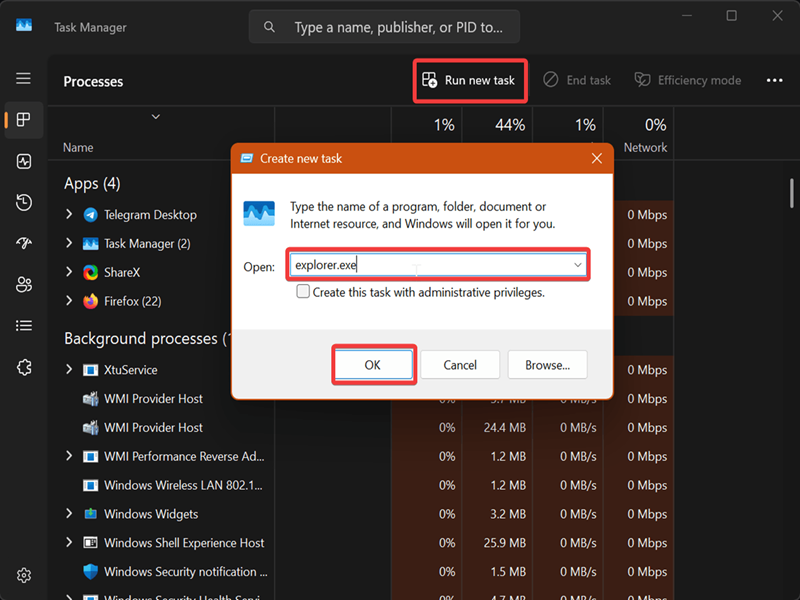
This should start the Windows Explorer process again. Your desktop and taskbar should go back to normal.
Via PowerShell/Command Prompt
Alternatively, you can use Windows Terminal to restart Explorer. Here's how:
- Press Win + R, type either powershell or cmd, and press Enter.
- Type the following command and press Enter: powershell "Get-Process -Name explorer | Stop-Process; Start-Process explorer.exe"
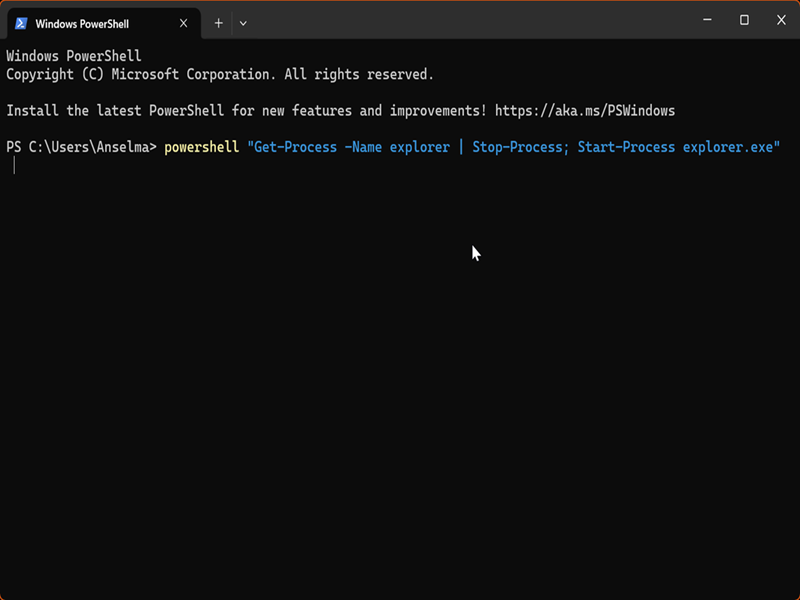
This will automatically stop and restart the buggy process.
Via Command Prompt
Finally, you can use Command Prompt specifically to fix your problem:
- Press Win + R, type cmd, and press Enter.
- Type the following command and press Enter: taskkill /f /im explorer.exe
- This will "kill" the active process, and your taskbar and desktop may disappear as a result. Don't worry, that's to be expected. Type start explorer.exe and press Enter to restore them.
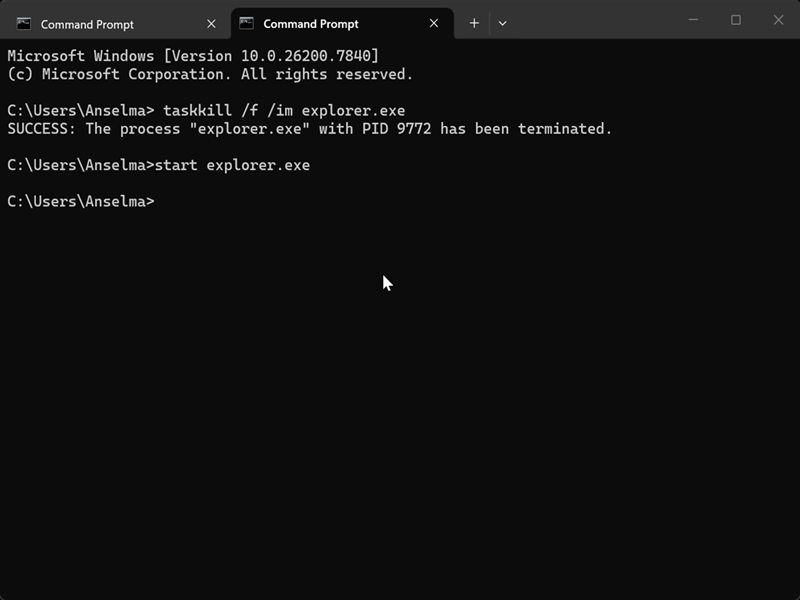
So, now you know how to restart File Explorer without having to reboot your PC!
This will also come in handy after certain registry edits. Instead of rebooting to apply the changes, you can speed things up by restarting explorer.exe instead.

|
selma citakovic
Selma is a gamer, geek and gremlin hunter with a passion for cyber security and smashing Windows bugs before they bite. She’s IBM-certified, loves real freeware, despises bloatware, and powers most of her troubleshooting with an unhealthy amount of coffee. |
comments powered by Disqus
