


How To Reset Firewall Settings in Windows 11
By selma čitakovićon 06/26/2026 |
![{$insert['content_title']](/content/file/6096_image3.png
)
If you've poked around your firewall settings too much and changed something you shouldn't have, you can reset them back to default. You'll need elevated privileges for it, so make sure you sign in as an admin first.
Let's get started!
Via Windows Security
First, you can restore the defaults here:
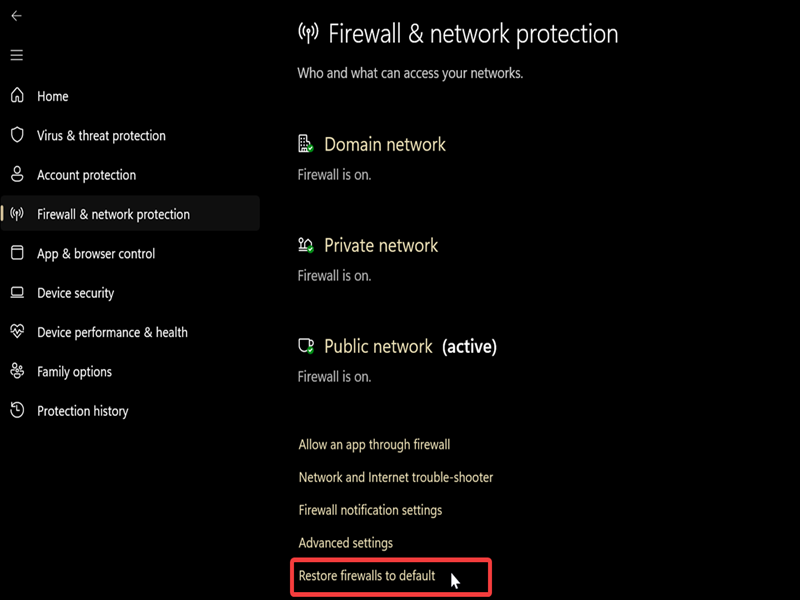
- Open Windows Security from the notification area on your taskbar.
- Go to Firewall & network protection, and click the Restore firewalls to default link at the bottom.
- Click Restore defaults, and confirm you want to continue in the window that pops up.
Via Advanced Security
Or you can dig a bit deeper and go to Advanced Security, the legacy firewall tool:
- Press Win + R, type wf.msc, and hit Enter.
- Select Windows Defender Firewall with Advanced Security on Local Computer on the left side.
- Click Restore Default Policy on the right, under Actions.
- Confirm your decision by clicking on Yes.
- Hit OK when you're done.
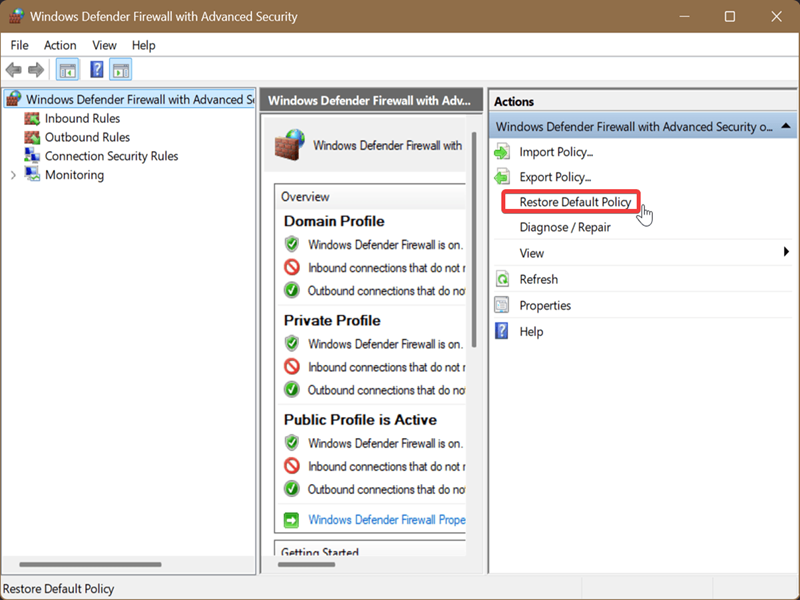
You can also back up and import your settings in this section.
Via Control Panel
You can find the reset option here:
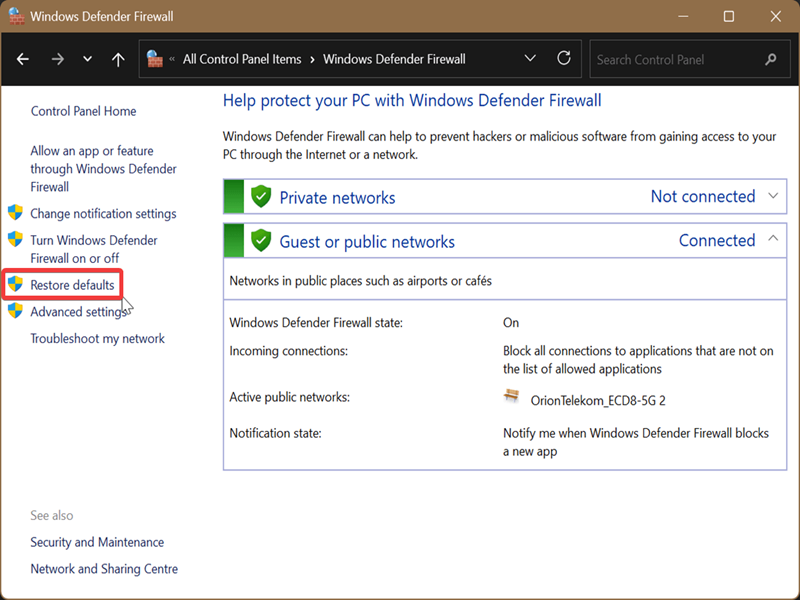
- Type Control Panel in Windows Search and open it (unless you have it pinned somewhere convenient).
- Select Large icons or Small icons in View by: on the top right. Now, click the Windows Defender Firewall icon.
- Click on Restore defaults on the left side.
- Again, click Restore defaults, then Yes to confirm.
Via PowerShell
Alternatively, you can just paste a command and get it done quickly:
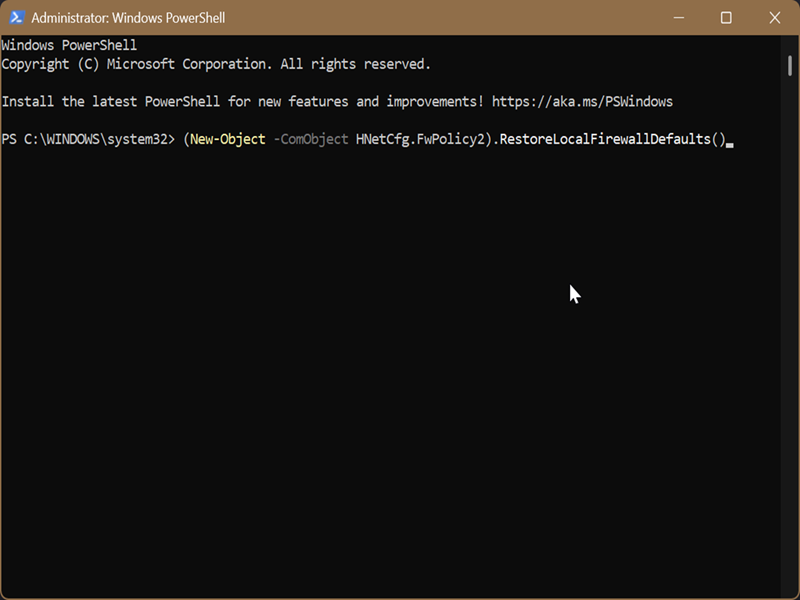
- Type PowerShell in Windows Search, and select Run as administrator.
- Type the following command and hit Enter: (New-Object -ComObject HNetCfg.FwPolicy2).RestoreLocalFirewallDefaults()
Via Command Prompt
This one works as well:
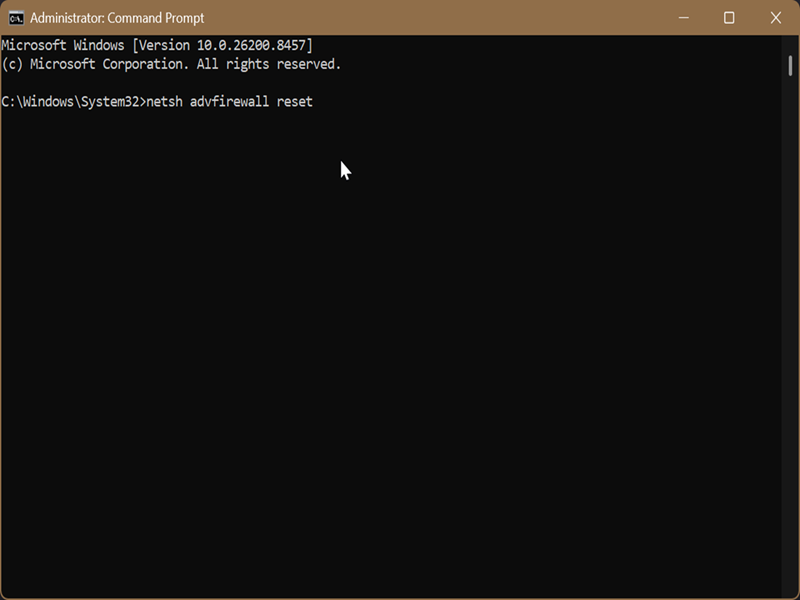
- Type Command Prompt in Windows Search, and select Run as administrator.
- Paste this command and press Enter: netsh advfirewall reset
Most of these methods still work on Windows 10 and older versions.
After the reset, you'll have to rebuild your entire security configuration: your custom rules, preferences, and application permissions. That's why it's a good idea to back up your firewall policy once you're happy with your setup.

|
selma citakovic
Selma is a gamer, geek and gremlin hunter with a passion for cyber security and smashing Windows bugs before they bite. She’s IBM-certified, loves real freeware, despises bloatware, and powers most of her troubleshooting with an unhealthy amount of coffee. |
comments powered by Disqus
