


4 Ways To Create a Control Panel Shortcut in Windows 11
By selma čitakovićon 06/26/2026 |
![{$insert['content_title']](/content/file/6091_image4.png
)
As you may have noticed, Windows 11 is making it increasingly difficult to find the Control Panel. This design decision is part of the operating system's big migration to Settings. Most of the important options for "regular" users have been moved there, and the Control Panel is slowly but surely being deprecated. However, it still has its uses!
If you'd like to keep it right at your fingertips, you can set up a shortcut. Let me show you how.
Pin to Start menu and taskbar
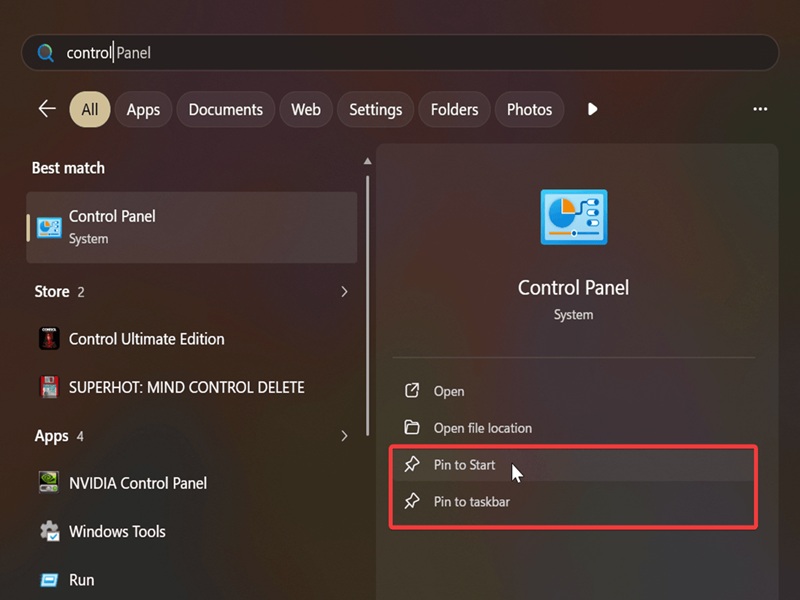
You can pin the Control Panel for easier access, like this:
- Type Control Panel in Windows Search.
- Select Pin to Start and/or Pin to taskbar.
Via Settings
Or, you can set up a handy desktop shortcut:
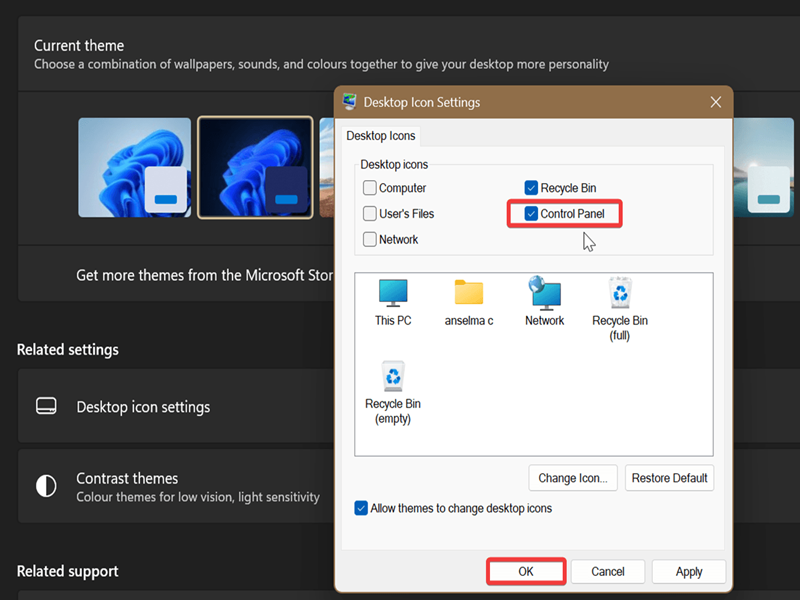
- Go to Settings > Personalization > Themes.
- Click on Desktop icon settings, under Related settings.
- This will open a separate window. Check Control Panel and click OK.
Via desktop
Alternatively, you can do this:
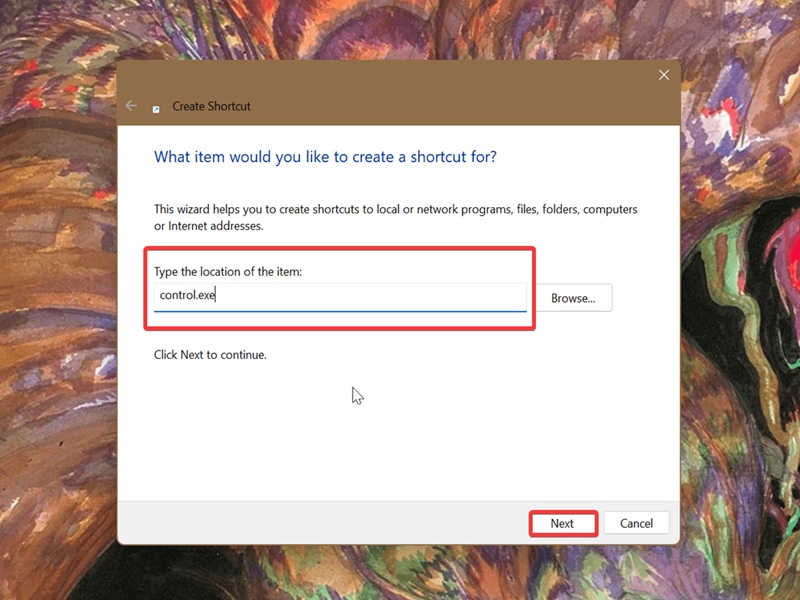
- Right-click an empty spot on your desktop, and select New > Shortcut.
- Type control.exe in the field, and click Next.
- Type in a name for your shortcut, and click Finish.
If you'd like to create a shortcut for something more specific, you can paste these instead in the second step:
- To open Control Panel in Icons view: explorer "shell:::{21EC2020-3AEA-1069-A2DD-08002B30309D}"
- To open Control Panel in Category view: explorer "shell:::{26EE0668-A00A-44D7-9371-BEB064C98683}"
- To open God Mode (All Tasks): explorer "shell:::{ED7BA470-8E54-465E-825C-99712043E01C}"
Additionally, once you've opened Control Panel in Icons view, you can right-click any item (for example: AutoPlay) and select Create shortcut. Confirm that you want to add it to your desktop, and bam, you've got yourself a very specific shortcut.
From the system32 folder
Finally, you can also make a shortcut from The Folder That You Definitely Shouldn't Delete - system32! Here's how:
- Open File Explorer and paste C:\Windows\System32 in the address bar at the top.
- Find control.exe, right-click it, and select Show more options, then Create a shortcut.
- You'll be prompted to move the shortcut to the desktop. Click Yes.
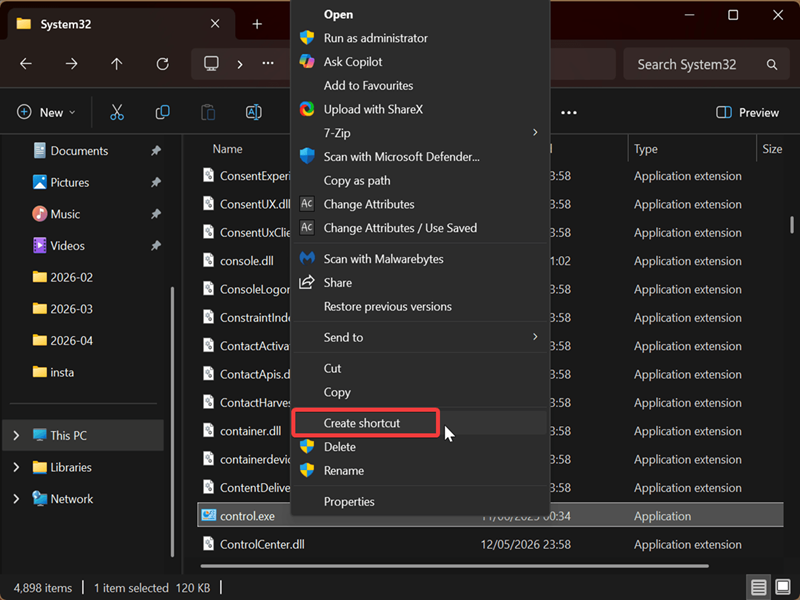
Alternatively, you can select Show more options > Send to > Desktop (create shortcut). It works just the same.

|
selma citakovic
Selma is a gamer, geek and gremlin hunter with a passion for cyber security and smashing Windows bugs before they bite. She’s IBM-certified, loves real freeware, despises bloatware, and powers most of her troubleshooting with an unhealthy amount of coffee. |
comments powered by Disqus
