


How To Run an App As Admin Without UAC Prompt
By selma čitakovićon 07/26/2026 |
![{$insert['content_title']](/content/file/6184_image3.jpg
)
Want to run a specific app as admin without getting pestered by UAC every time?
You can create an elevated task shortcut for it. The process is a bit more involved than you'd expect, though. Still, I'll guide you through every step to make it as simple as possible. As an example, I'll create a shortcut for elevated ThrottleStop, a neat little program I use daily for my undervolt.
Make sure you've signed in as an administrator first, and do the following:
- Press Win + R, type taskschd.msc, and hit Enter.
- Click on Task Scheduler Library on the left, then Create Task on the right, under Actions.
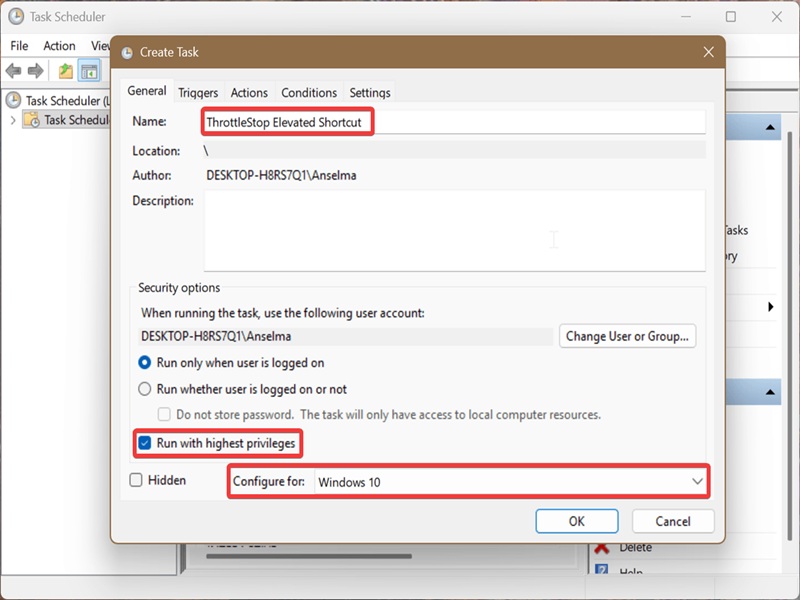
- Open the General tab and type a name for the task in the appropriate field. Remember the task name; you'll need it in a bit. You can also add an optional description for it in the Description field.
- Check the Run with highest privileges box.
- Under the check box, select Windows 10 in the Configure for menu.
- Now, click the Actions tab, and hit the New button in the lower-left corner.
- In the Program/script field, type cmd.exe.
- In the Add arguments field, right under it, type the following command: /c start "Task Name" "Full path of application file" but replace "Task Name" with the name from step 3 and "Full path of application file" with the path to the app's executable file. Click OK.
- Since I want to create a shortcut for ThrottleStop, here's what my command looks like: /c start "ThrottleStop Elevated Shortcut" "C:\Users\Anselma\Downloads\ThrottleStop_9.6\ThrottleStop.exe"
- Now, click on the Conditions tab. Uncheck Start the task only if the computer is on AC power, and hit OK.
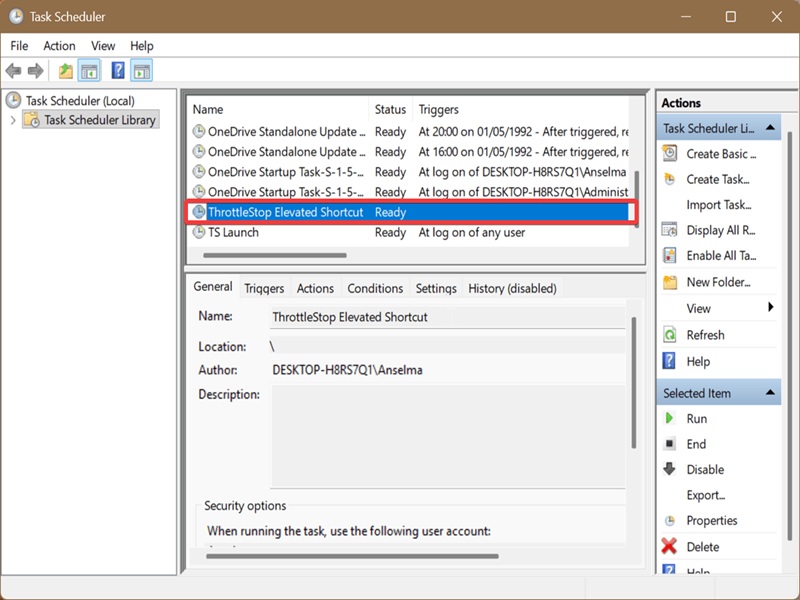
You'll then see your new shortcut task listed in the table with the others in the Task Scheduler Library.
On to the next phase:
- Right-click an empty spot on your desktop, and select New > Shortcut.
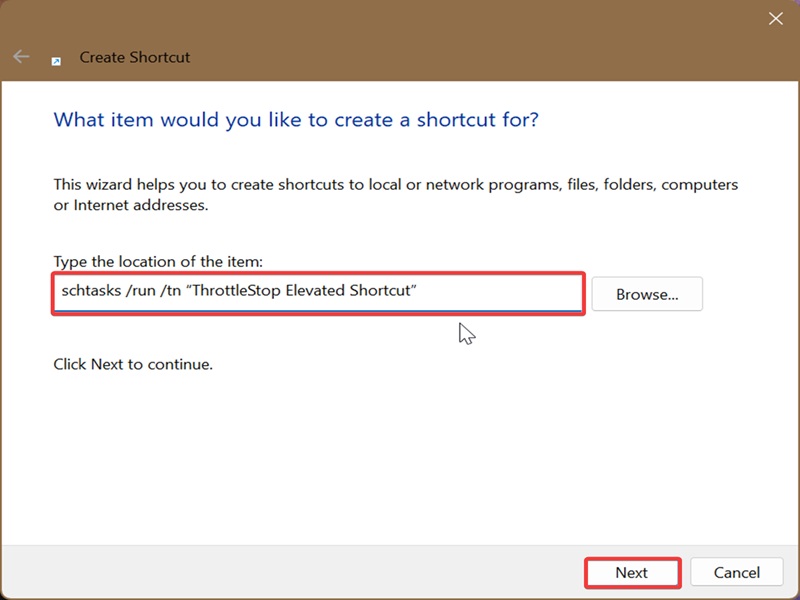
- Under Type the location of the item, type schtasks /run /tn "Task Name" but replace the placeholder with the name you've used in the previous steps. Double-check that there are no extra spaces or any misspellings in the task name or the command in general. If the shortcut doesn't work later, this is most likely where you've made a mistake. (It happened to me as well.)
- Click on Next.
- Type a name for the shortcut and hit Finish.
This will create a generic-looking shortcut on your desktop. To make it easier to recognize and use, I recommend these finishing touches:
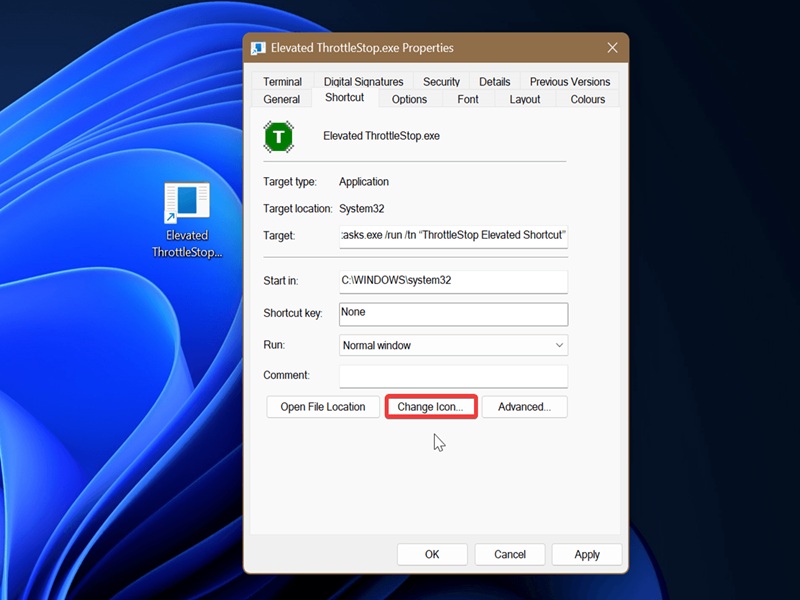
- Right-click your new shortcut and select Properties.
- In the Shortcut tab, click on Change Icon.
- Click OK.
- Click on Browse and navigate to the .exe file location for the app you want to open as elevated (follow the file path you used earlier in the first part of the guide). Select the .exe file.
- Click Open, and select an icon from the available ones. Click OK.
- Finally, click OK.
Now, when I double-click this shortcut, it will instantly open elevated ThrottleStop for me, without any UAC prompts. I can pin it to the taskbar, Start, run it at startup, and do whatever I want with it.

|
selma citakovic
Selma is a gamer, geek and gremlin hunter with a passion for cyber security and smashing Windows bugs before they bite. She’s IBM-certified, loves real freeware, despises bloatware, and powers most of her troubleshooting with an unhealthy amount of coffee. |
comments powered by Disqus
