


How To Switch Between a Microsoft and Local Account in Windows 11
By selma čitakovićon 03/28/2026 |
While installing Windows 11, you are pretty much pushed into creating a Microsoft account. If you want to set up a local account, you'll have to resort to workarounds, such as temporarily disabling your internet connection. And to make things worse, some of the old tricks are now unusable, and it's hard to keep track of what works anymore.
Fortunately, switching between account types is a lot more straightforward. You can do it directly in the Settings.
Switch to a local account from a Microsoft one
If you're currently using a Microsoft account, here's how to change to a local one:
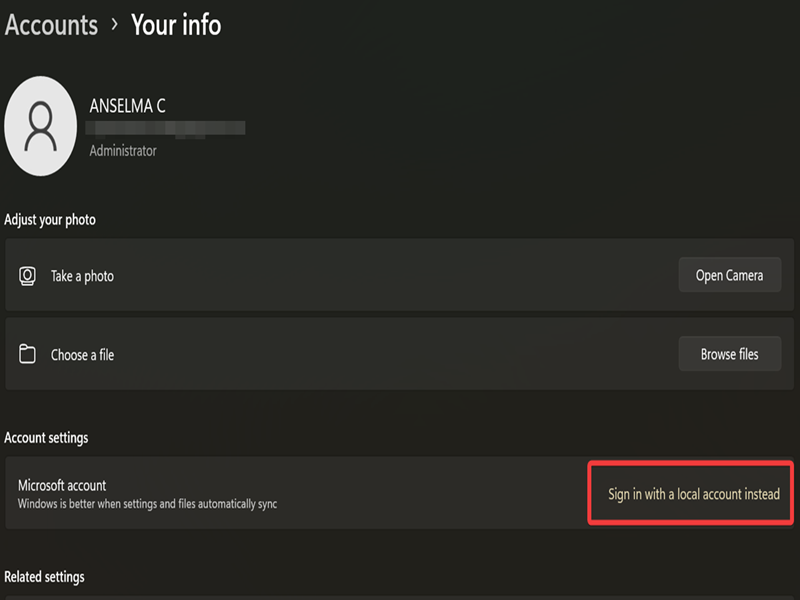
- Go to Settings > Accounts > Your info.
- Select Sign in with a local account instead, under Account settings.
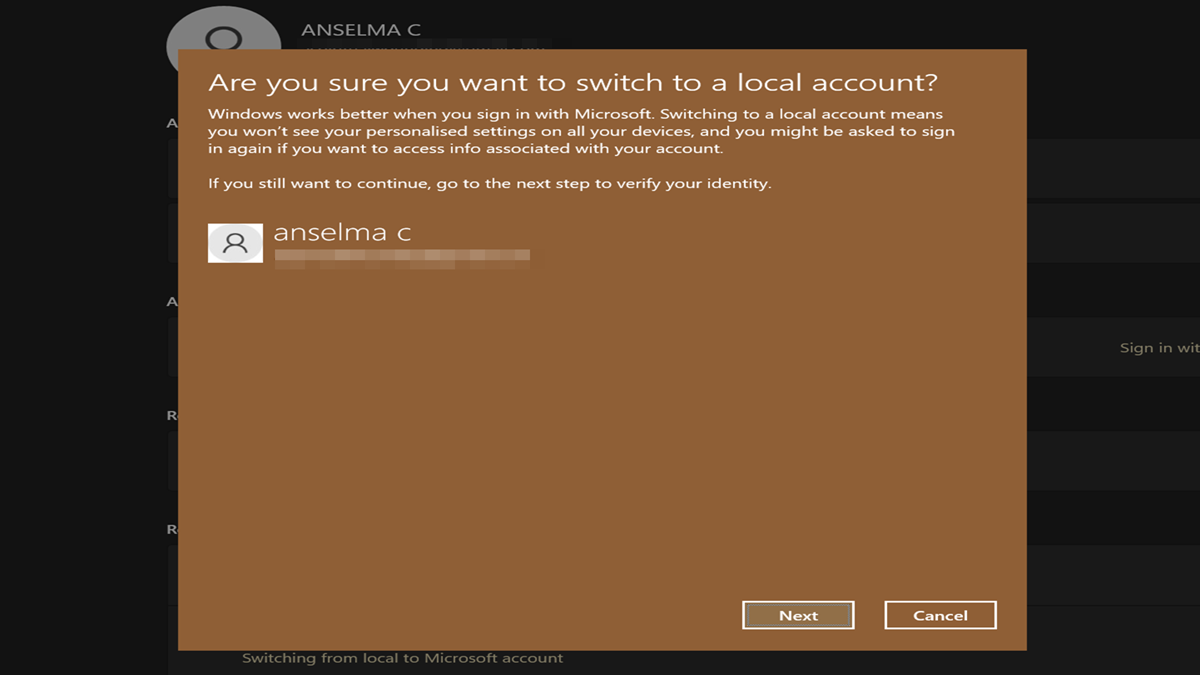
- In the new screen that shows up, click on Next.
- You'll need to verify your identity. Enter your Microsoft account credentials.
- Now it's time to set up your local account! Type in your user name, new password, and confirm it. You can add a password hint as well. Alternatively, you can create an account without a password, but it's a security risk.
- Click Next.
- Click Sign out and finish to complete the setup.
You should now be able to sign in to your local account.
Switch to a Microsoft account from a local one
To do it the other way around:
- Go to Settings > Accounts > Your info.
- If available, click on Stop signing in to all Microsoft apps automatically under Account settings. If you don't see this, skip to the next step.
- Select Sign in with a Microsoft account instead, right under Account settings.
- You'll need to sign in. Type the email address of the Microsoft account you want to switch to, and click Next.
- Enter the password, and click Sign in.
- If you've enabled two-factor verification, you'll also need to pick a method to receive a security code and select Send code. Once you get it (via text message, for example), enter the code and click on Verify.
- Now, enter the password of your current local account, and click Next.
- On the screen that says "One more step", hit the Next button.
- You'll have to enter your Windows Hello credentials, like your PIN. If you haven't already created a PIN for your account, you'll be prompted to set it up.
And with that, the switch should be complete.
So, what's the difference between a Microsoft and a local account?
A Microsoft account lets you sync your settings online across devices, and download apps and content from the Microsoft Store more easily. It also makes it easy for Microsoft to track your activities and preferences.
On the other hand, having a local account is better for your data privacy, but without perks like syncing settings across multiple devices or automatic downloads from the store. It's specific to one device. Still, that's a small price to pay if you want to stop Windows from spying on you.

|
selma citakovic
Selma is a gamer, geek and gremlin hunter with a passion for cyber security and smashing Windows bugs before they bite. She’s IBM-certified, loves real freeware, despises bloatware, and powers most of her troubleshooting with an unhealthy amount of coffee. |
comments powered by Disqus
