


How To Turn On/Off Text and Image Generation in Windows 11
By selma čitakovićon 06/07/2026 |
![{$insert['content_title']](/content/file/6074_image4.png
)
Windows 11 has built-in generative AI features - and we're not talking about Copilot. You can use them in the Photos app, Notepad, Snipping tool, Outlook, and more. Unlike services that rely on cloud AI generative technology, these use on-device tech to respond to your requests.
I don't care for them personally, so I've disabled them. If you'd like to do the same, or enable them instead, read on.
Via Settings
You can globally disable or enable text and image generation for all user accounts right from the privacy settings. Sign in as an administrator and follow these steps:
- Go to Settings > Privacy & security > Text and image generation, under App permissions. You'll have to scroll down quite a bit to find it.
- Toggle on or off Text and image generation.
The default setting is on. If you toggle it off, the rest of the section will be grayed out.
But if you turn on Text and image generation, you can then enable or disable Let apps use Text and image generation. This change will apply to your current user account.
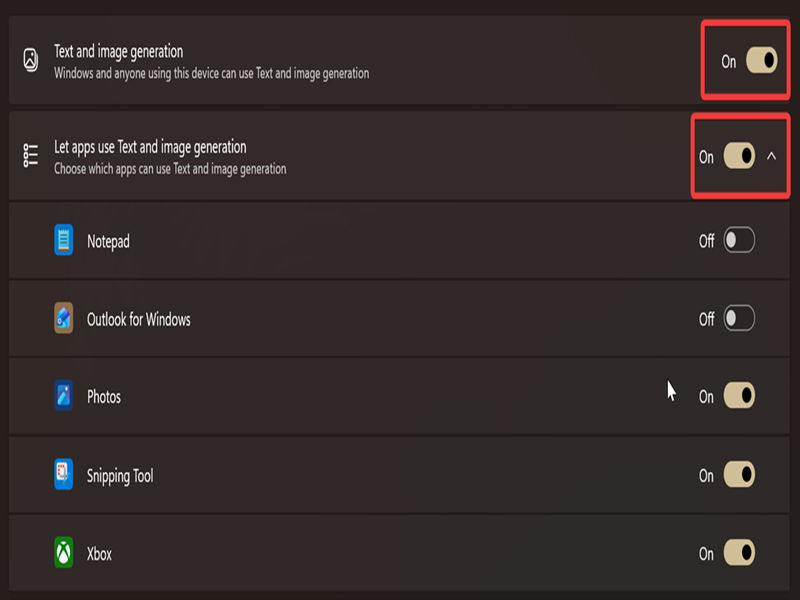
Additionally, you can toggle individual apps on or off right under it.
Via Command Prompt or PowerShell
Or, if you prefer using commands, try this method. Again, make sure you sign in as an administrator first.
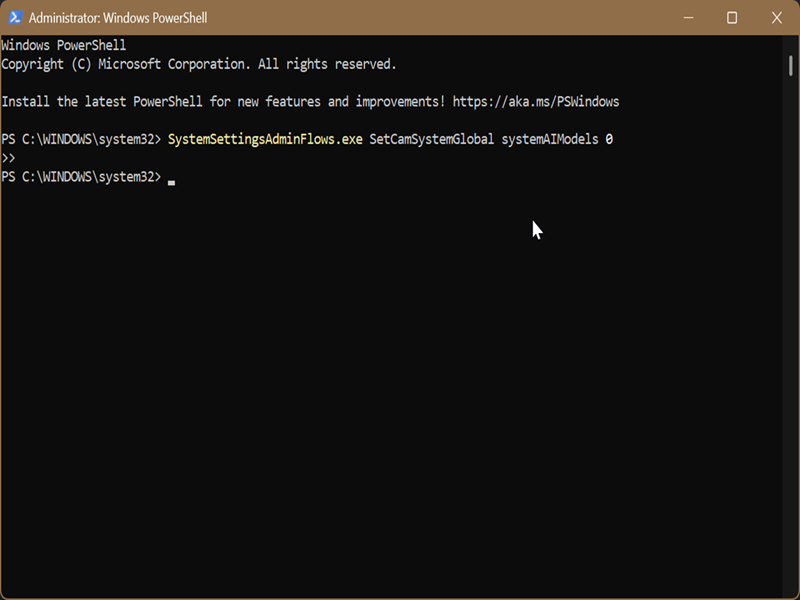
- Press Windows + X, select Terminal (Admin), and open either Command Prompt or PowerShell.
- To turn on text and image generation for all users, type this command and hit Enter: SystemSettingsAdminFlows.exe SetCamSystemGlobal systemAIModels 1
- To turn it off, try this instead: SystemSettingsAdminFlows.exe SetCamSystemGlobal systemAIModels 0
Via Local Group Policy Editor
Alternatively, you can edit an App Privacy policy to allow or disable text and image generation. However, the Local Group Policy Editor is only available to Windows Pro, Education, and Enterprise editions.
To use it:
- Press Win + R, type gpedit.msc, and press Enter.
- Go to Computer Configuration > Administrative Templates > Windows Components > App Privacy on the left pane.
- Double-click Let Windows apps make use of Text and image generative features of Windows on the right.
- To always enable text and image generation, select Enabled and then Force Allow in the Default for all apps menu. Click OK.
- To disable text and image generation, select Enabled and then Force Deny in the Default for all apps menu. Click OK.
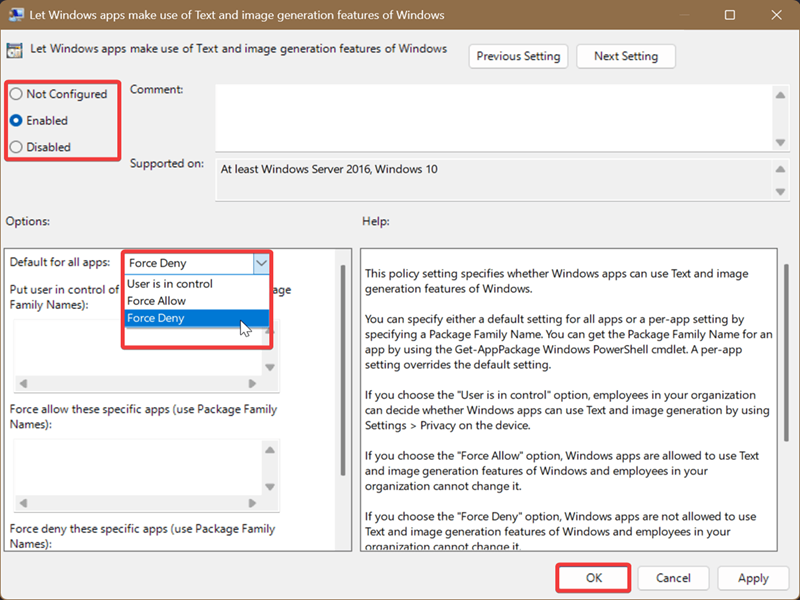
If you want to undo these changes and restore the default settings, pick Not Configured and hit OK.

|
selma citakovic
Selma is a gamer, geek and gremlin hunter with a passion for cyber security and smashing Windows bugs before they bite. She’s IBM-certified, loves real freeware, despises bloatware, and powers most of her troubleshooting with an unhealthy amount of coffee. |
comments powered by Disqus
