


How to Uninstall the Movies and TV App
By Timothy Tibbettson 07/21/2023 |
There are many useful apps included with Windows 10, but there are some you might want to remove. In this guide, we look at how to remove the Movies and TV App.
The fastest way is to search and uninstall. We will also discuss other methods if that doesn't work for you.
1: Uninstall From Search
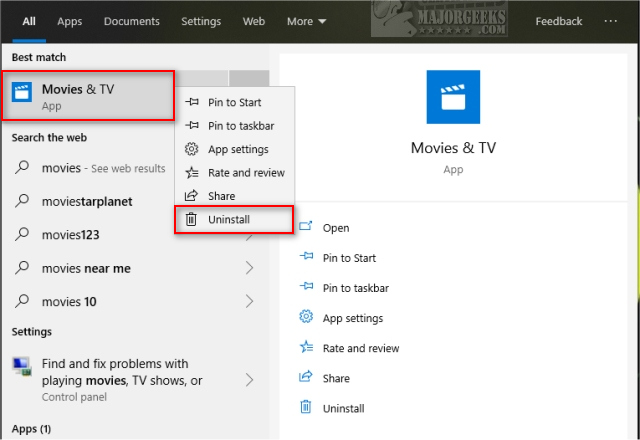
You can begin typing movies in Cortana, or press the Windows Key + S. When you see Movies & TV you can right-click and click on Uninstall or click on the arrow to see the list of options.
2: Uninstall From Apps & Features
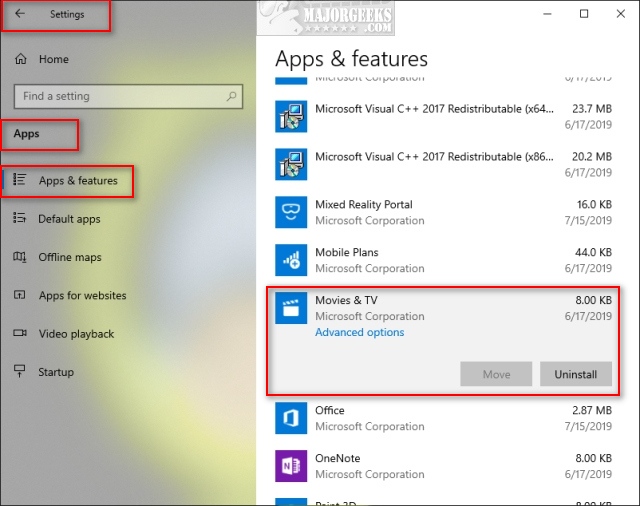
Click on Start> Settings > Apps, and you'll be at the Apps & Features settings. Scroll down, find and click on Movies & TV. The Uninstall button should appear.
3: Uninstall With PowerShell
When all else fails, we can remove it from the Command Prompt.
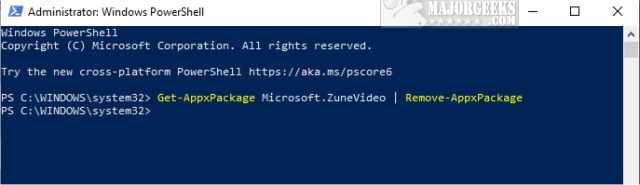
Open PowerShell as admin and type in Get-AppxPackage Microsoft.ZuneVideo | Remove-AppxPackage. You might see some text flash briefly, but otherwise, this process only takes seconds to complete.
You can also Remove Windows 10 Apps Using PowerShell individually.
4: Uninstall With a Third-Party App
One excellent choice is O&O AppBuster. O&O AppBuster has the advantage of letting you pick from different apps you want to remove and the ability to restore them should you change your mind later.
Similar:
Windows10Debloater
Remove Windows 10 Apps Using PowerShell
How to Stop Windows 10 From Reinstalling Apps After a Feature Update
Remove Windows 10, 8 and 8.1 Built-In Apps Using PowerShell
PowerShell and Command Prompt 101
comments powered by Disqus
The fastest way is to search and uninstall. We will also discuss other methods if that doesn't work for you.
1: Uninstall From Search
You can begin typing movies in Cortana, or press the Windows Key + S. When you see Movies & TV you can right-click and click on Uninstall or click on the arrow to see the list of options.
2: Uninstall From Apps & Features
Click on Start> Settings > Apps, and you'll be at the Apps & Features settings. Scroll down, find and click on Movies & TV. The Uninstall button should appear.
3: Uninstall With PowerShell
When all else fails, we can remove it from the Command Prompt.
Open PowerShell as admin and type in Get-AppxPackage Microsoft.ZuneVideo | Remove-AppxPackage. You might see some text flash briefly, but otherwise, this process only takes seconds to complete.
You can also Remove Windows 10 Apps Using PowerShell individually.
4: Uninstall With a Third-Party App
One excellent choice is O&O AppBuster. O&O AppBuster has the advantage of letting you pick from different apps you want to remove and the ability to restore them should you change your mind later.
Similar:
comments powered by Disqus
