


How To View All Installed Programs and Apps in Windows 11
By selma čitakovićon 04/25/2026 |
![{$insert['content_title']](/content/file/5934_image3.png
)
You can find several lists of installed apps and programs in Windows 11, with some being more comprehensive than others. They include the desktop apps you installed, Microsoft Store apps, and default programs that come with your Windows installation. However, if you need to find something specific, you may have to dig deeper than the Start Menu.
I'll show you all the methods to list them, so read on!
Via Start Menu
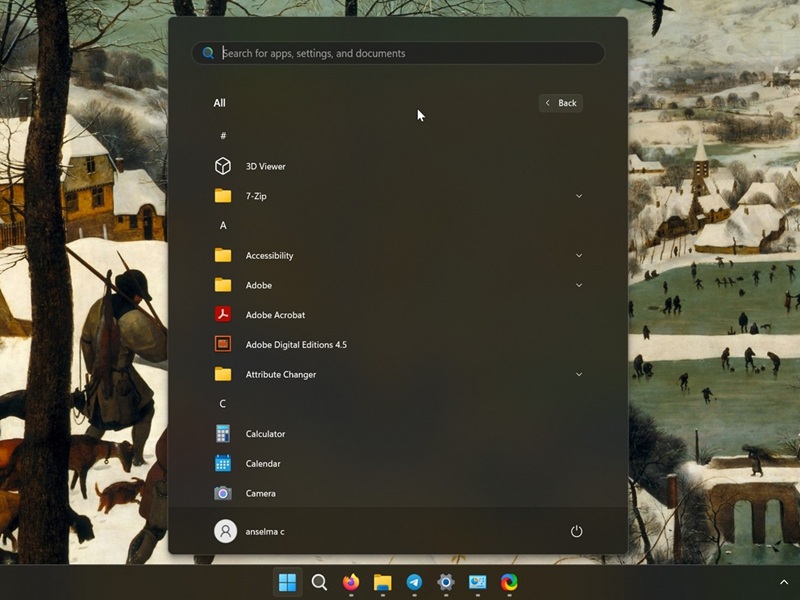
The most direct way to check out your installed programs is using the Start Menu. However, despite being labeled as "All," some apps won't be listed here. Anyway, here are the steps:
- Click the Windows Start icon on your taskbar.
- If you have the updated big Start Menu (Windows 11 24H2 and 25H2), you just need to scroll down. It shows all (well, not really) programs by default. You can click on View: and choose Category, Grid, or List to display them. Do yourself a favor and don't pick Category, though. It will make your search much harder.
- If you still have the "old" Start Menu (like I do), click the All button in the upper-right corner to look at the list of apps.
Via Settings
If you'd prefer a more organized approach, you can filter, sort, and search for specific apps with the Settings. Here's how:
- Go to Settings > Apps > Installed apps.
- You can switch to List, Grid, or Tile view in the top-right corner.
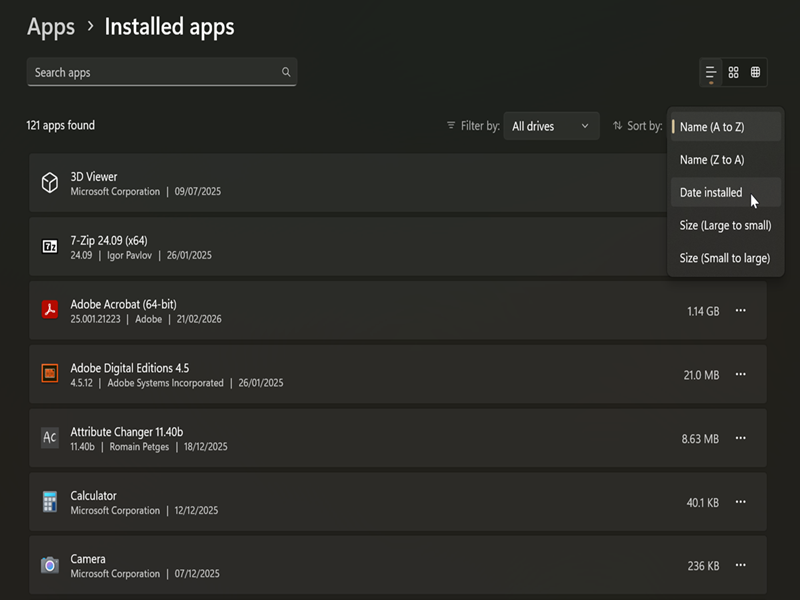
If you select Filter by:, the list will show you programs on all drives or specific ones. Additionally, clicking Sort by: organizes them by name (A to Z or Z to A), date installed, and size.
Via Applications Folder
Alternatively, you can find all your installed apps in File Explorer:
- Press Win + R, type Shell:AppsFolder, and press Enter.
- This will take you to the Applications folder. You can sort or view them in different layouts.
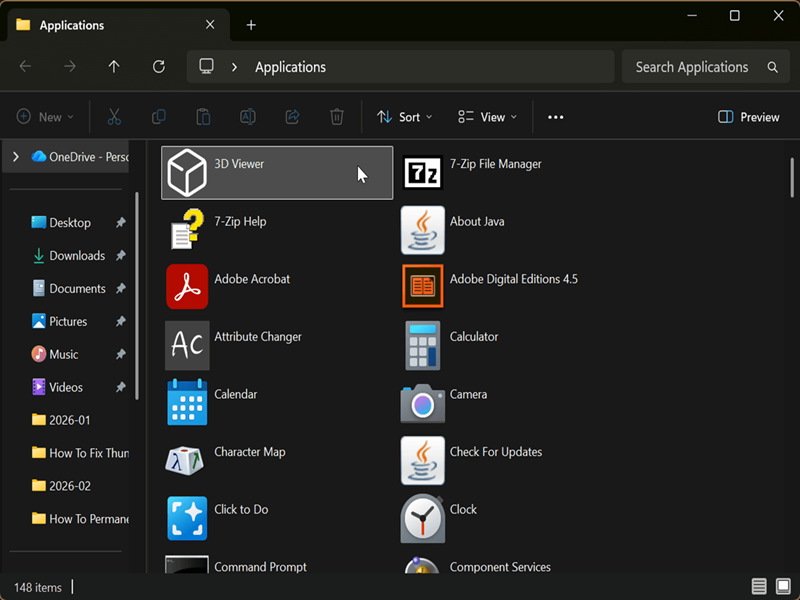
This is a shell folder that's different than physical folders like Program Files or Program Files (x86), for example.
Via Microsoft Store
If you need to single out Microsoft Store apps specifically:
- Open the Microsoft Store, and click on Library on the left side.
- Select All, click the Sort and filter button (the one with two arrows), and then Show installed products only.
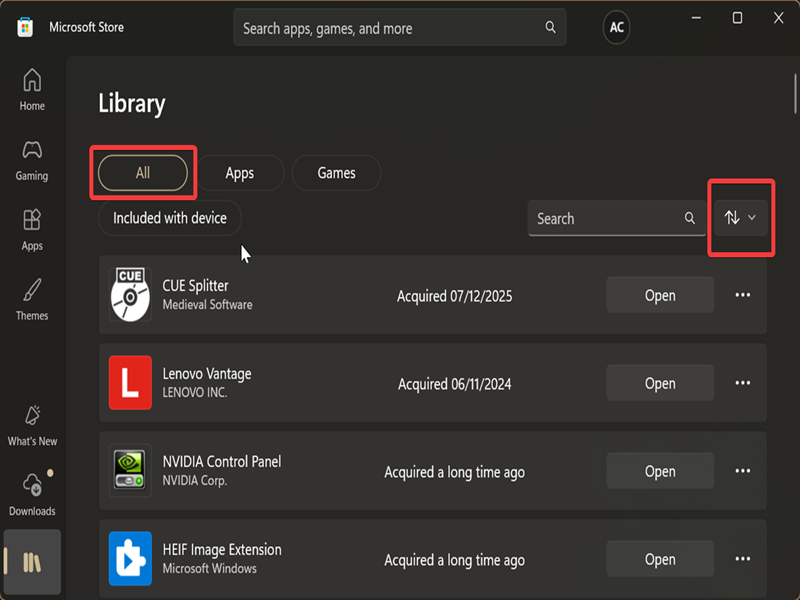
You can then browse the list of all installed Microsoft Store programs on your computer.
Via Control Panel
Or you could use the legacy Control Panel:
- Type Control Panel in Windows Search and click on Open.
- Select Small icons or Large icons in View by: on the top right.
- Click on Programs and Features. This will display a list of all the apps you have installed.
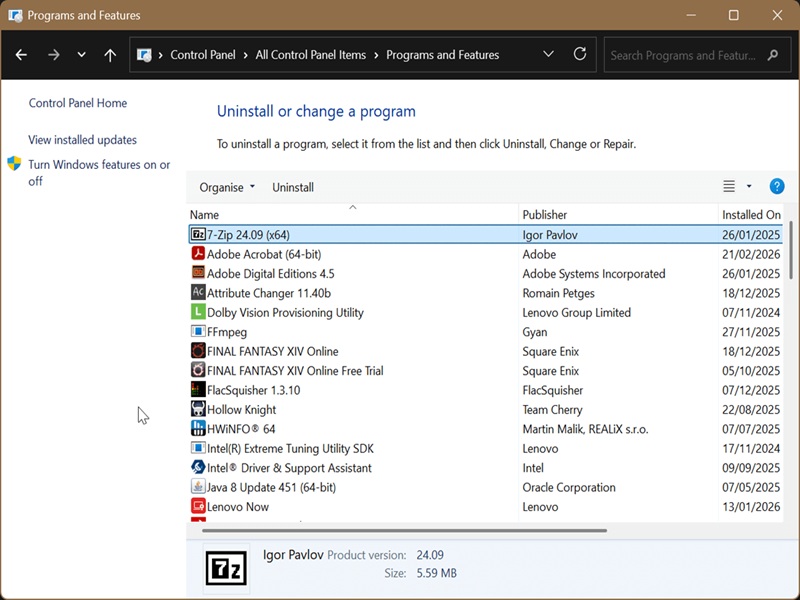
You can right-click and select Uninstall to remove them from your PC.
Via commands
Finally, you can use commands to achieve the same results with PowerShell or Command Prompt. Here's how:
- Press Win + R, type cmd, and press Enter to open Command Prompt. Or, press Win + R, type powershell, and press Enter.
- To show all installed programs for the current user, type the following command(s) and press Enter:
- In Command Prompt: powershell -command "Get-ItemProperty HKCU:\Software\Microsoft\Windows\Currentversion\Uninstall\* | Select-Object DisplayName, DisplayVersion, Publisher, InstallDate | Format-Table -AutoSize"
- In PowerShell: Get-ItemProperty HKCU:\Software\Microsoft\Windows\Currentversion\Uninstall\* | Select-Object DisplayName, DisplayVersion, Publisher, InstallDate | Format-Table -AutoSize
- To show all installed 32-bit programs for all users:
- In Command Prompt: powershell -command "Get-ItemProperty HKLM:\SOFTWARE\WOW6432Node\Microsoft\Windows\Currentversion\Uninstall\* | Select-Object DisplayName, DisplayVersion, Publisher, InstallDate | Format-Table -AutoSize"
- In PowerShell: Get-ItemProperty HKLM:\SOFTWARE\WOW6432Node\Microsoft\Windows\Currentversion\Uninstall\* | Select-Object DisplayName, DisplayVersion, Publisher, InstallDate | Format-Table -AutoSize
- To show all installed 64-bit programs for all users:
- In Command Prompt: powershell -command "Get-ItemProperty HKLM:\SOFTWARE\Microsoft\Windows\Currentversion\Uninstall\* | Select-Object DisplayName, DisplayVersion, Publisher, InstallDate | Format-Table -AutoSize"
- In PowerShell: Get-ItemProperty HKLM:\SOFTWARE\Microsoft\Windows\Currentversion\Uninstall\* | Select-Object DisplayName, DisplayVersion, Publisher, InstallDate | Format-Table -AutoSize
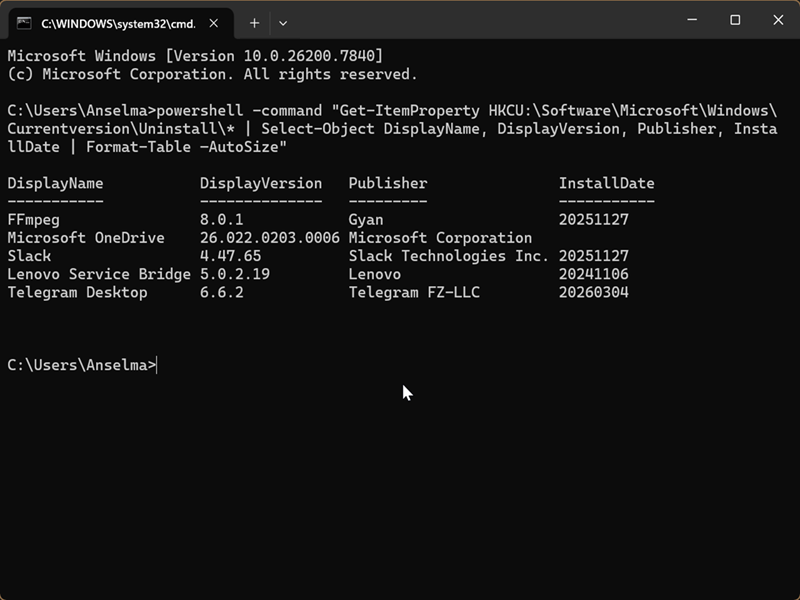
So, now you know how to find all installed programs on your device. This, of course, doesn't include portable apps or executables you didn't have to install. In that case, you should look for them in File Explorer.
Either way, good luck with your search!

|
selma citakovic
Selma is a gamer, geek and gremlin hunter with a passion for cyber security and smashing Windows bugs before they bite. She’s IBM-certified, loves real freeware, despises bloatware, and powers most of her troubleshooting with an unhealthy amount of coffee. |
comments powered by Disqus
