


How To View Your Update History in Windows 11
By selma čitakovićon 05/02/2026 |
![{$insert['content_title']](/content/file/5893_image1.png
)
Need to track down a specific update? Windows Update history keeps a log of all installed feature, quality, definition, and similar types of updates on your computer. So, for example, if everyone online is talking about one of the latest updates causing problems (for the hundredth time), you'll probably want to check if you've also installed it.
I'll show you four methods below.
Via Settings
Here's the most straightforward way to check your history:
- Go to Settings > Windows Update > Update history.
- You'll see a list of installed updates and dates.
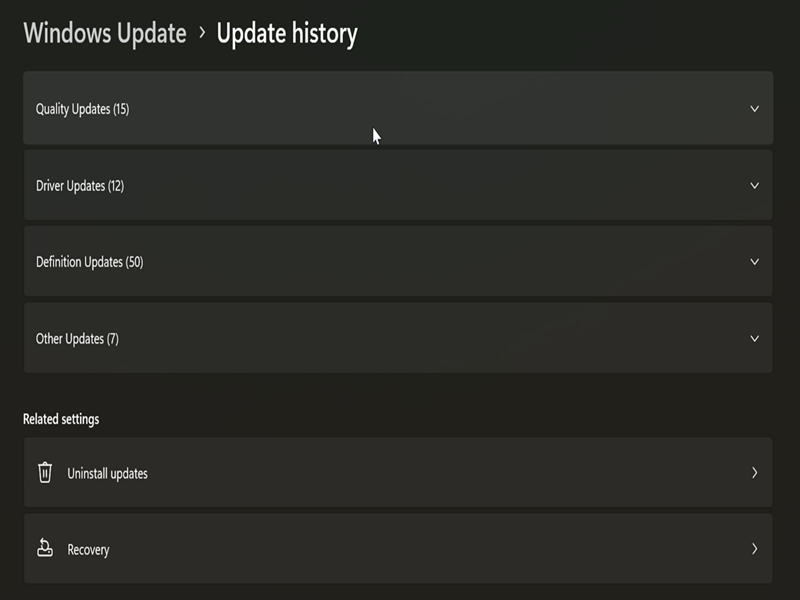
They're organized in sections you can expand/collapse: Quality Updates, Driver Updates, Definition Updates, and Other Updates.
Via PowerShell
Alternatively, you can use a quick PowerShell command to list your most recent installed updates:
- Type PowerShell in Windows Search, and select Run as Administrator.
- Type the following command and press Enter: Get-HotFix
- If you want to sort them by installation date: Get-HotFix | Select-Object HotFixID, InstalledOn, InstalledBy, Description| sort InstalledOn -Desc
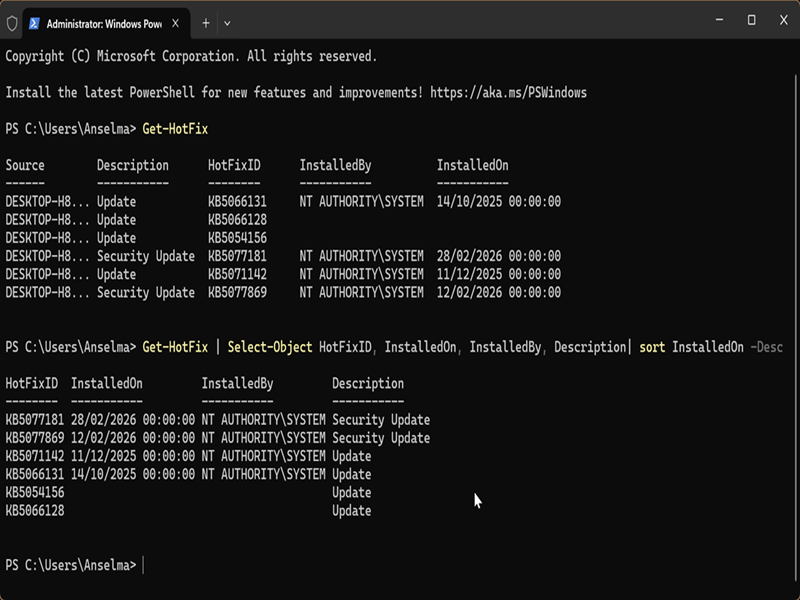
Previously, you could use the WMIC utility to list updates with wmic qfe list, but it's being deprecated in Windows 11.
Via Control Panel
Or, you could view it from the Control Panel. However, this method is no longer available for modern Windows 11 builds, starting with 22523. Still, I'll include it for the sake of completion:
- Type Control Panel in Windows Search, and click Open.
- Select Small icons or Large icons in View by: on the top right.
- Click on Programs and Features.
- Select View installed updates on the left side.
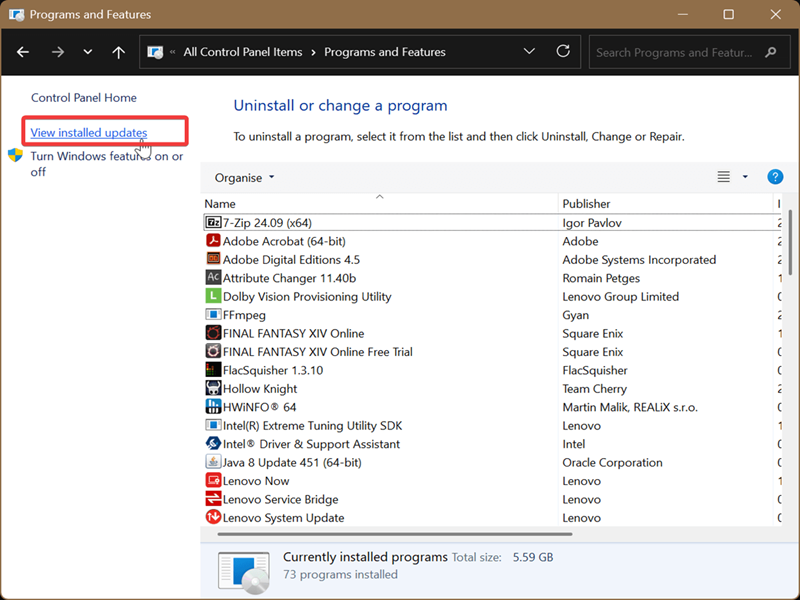
In previous builds, you'd see your update history, and you'd be able to uninstall them right there in the Control Panel. But now, this option will take you to the Windows Update > Uninstall updates section in the Settings instead.
This change is part of Microsoft's general project of moving important options and features from the legacy Control Panel to the Settings.
Via Registry Editor
Finally, you can check out specifically feature updates using the registry. Don't worry - there's no need to edit or create any new values. All you'll have to do is this:
- Press Win+R, type regedit, and press OK.
- Navigate to Computer\HKEY_LOCAL_MACHINE\SYSTEM\Setup. You can paste this in the address bar at the top.
- Expand the Setup key, and look for Source OS subkeys under it. Each Source OS folder will have an installation date and time next to it. These represent your installed feature updates.
- Click on a Source OS subkey, and on the right, you'll see CurrentBuild and CurrentBuildNumber.
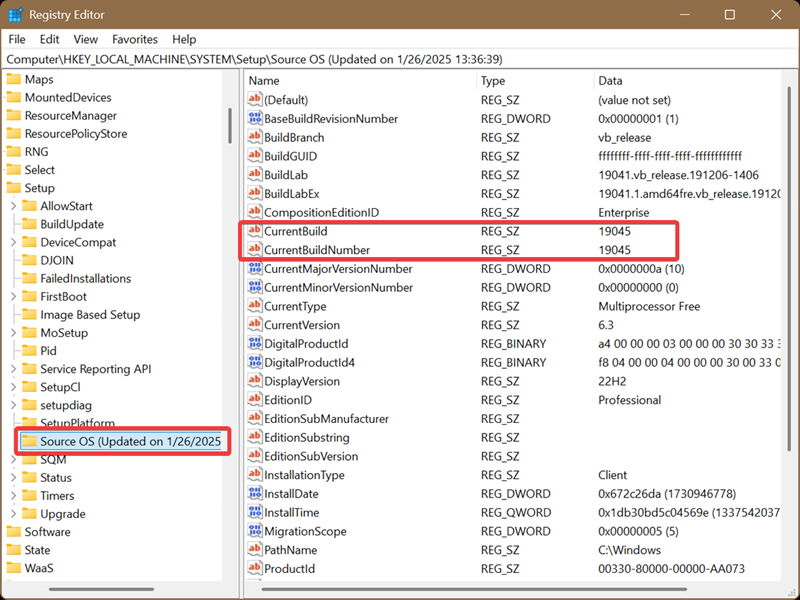
You'll find the build number for all the previously installed feature updates, except your current one. As you can see, we didn't change anything in the registry; we only took a quick look.
Hopefully, these tips will help you find the exact updates you're looking for.

|
selma citakovic
Selma is a gamer, geek and gremlin hunter with a passion for cyber security and smashing Windows bugs before they bite. She’s IBM-certified, loves real freeware, despises bloatware, and powers most of her troubleshooting with an unhealthy amount of coffee. |
comments powered by Disqus
