


Is Your Drive an HDD, SSD, or NVMe? Here's How To Find Out
By selma čitakovićon 10/03/2026 |
![{$insert['content_title']](/content/file/6343_image4.jpg
)
Wondering which disk drive you have?
HDD, SSD, and NVMe may sound like a bunch of confusing acronyms at first, but they're actually pretty easy to differentiate.
We already covered HDD vs SSD vs NVMe drives in great detail, so here's a summary:
- An HDD (Hard Disk Drive) is the oldest storage solution, with a mechanical magnetic spinning disk. It's the slowest, but also the most affordable type. Still, even HDDs have become more expensive, following the new pricing trends for RAM and SSDs.
- An SSD (Solid State Drive) is a more modern storage technology that relies on memory chips and has no moving parts. It's absolutely silent, and much quicker (and expensive!) than an HDD. Their lifespan is also shorter, but you can still get years of usage out of them.
- An NVMe (Non-Volatile Memory Express) drive is a new SSD type with even faster read/write speeds. Instead of connecting via SATA, it goes directly into a PCIe slot on your motherboard. Of course, it's also the most expensive storage solution.
So, which type do you have? Let's find out!
Via Settings
You can check here:
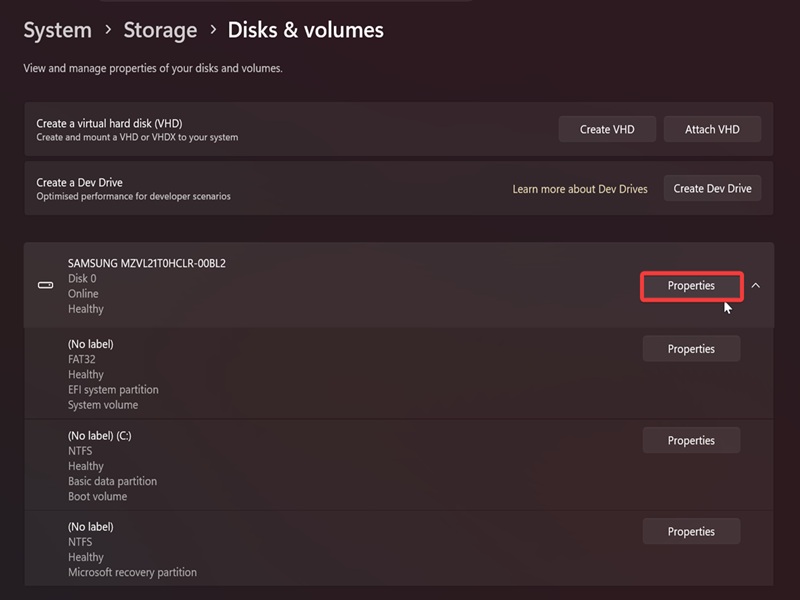
- Go to Settings > System > Storage > Advanced storage settings > Disks & volumes.
- Click Properties next to the disk you want to check.
- Look for Media and Bus type in the properties to see if it's HDD (SATA), SSD (SATA), or SSD (NVMe).
Via Task Manager
Alternatively, you can use Task Manager. However, in older versions it doesn't show whether your SSD is SATA or NVMe. You can try other methods if this one isn't detailed enough.
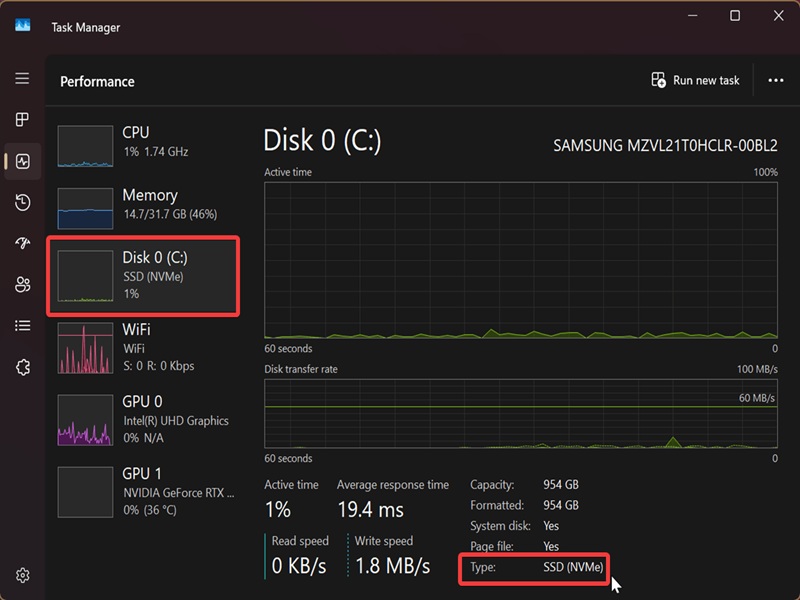
- Press Ctrl + Shift + Esc to open Task Manager.
- Go to Performance on the left.
- You'll see your connected drives listed on the left side.
- Select the one you want to check, and you'll see its Type on the bottom right.
Via command
Or, you can check it with a quick command:
- Press Win + X, select Terminal, and open either Command Prompt or PowerShell.
- In Command Prompt, paste this and hit Enter: PowerShell "Get-PhysicalDisk | Select FriendlyName, SerialNumber, MediaType, BusType"
- In PowerShell, paste this instead: Get-PhysicalDisk | Select FriendlyName, SerialNumber, MediaType, BusType
- The MediaType and BusType columns contain the info you need.
Finally, you can also physically check what kind of drive you have, but that's a no-brainer. Depending on your setup, that might require opening your laptop or PC case, so these methods are far quicker.

|
selma citakovic
Selma is a gamer, geek and gremlin hunter with a passion for cyber security and smashing Windows bugs before they bite. She’s IBM-certified, loves real freeware, despises bloatware, and powers most of her troubleshooting with an unhealthy amount of coffee. |
comments powered by Disqus
