


Network Location - What Is It and How To Add It?
By selma čitakovićon 05/10/2026 |
![{$insert['content_title']](/content/file/5997_image1.png
)
A network location acts as a shortcut to a website, shared folder, or FTP site. It provides quick access to remote external resources or resources within your network. You can find it in the This PC section in File Explorer.
It's pretty similar to a mapped network drive, with some differences. Mapped drives are ideal for shared folders and drives within a local network. Network locations, on the other hand, don't have drive letters assigned to them, and they support a broader range of resources.
Here's how to add them in Windows 11, step by step.
Add a network location
You'll be using a wizard to create your shortcut, so there will be a lot of clicking on Next buttons. Here are the steps:
- Open File Explorer and go to This PC.
- Right-click an empty spot there and select Add a network location.
- This will open the Add Network Location Wizard. Click Next.
- Select Choose a custom network location, and hit Next.
- Type the address you want to add in the field, and click Next. (For example: ftp://ftp.server.com, \\server\share, https://webserver/share, etc.)
- If you can or want to log on anonymously, check the option for it and click Next. If you don't, leave it unchecked, type the user name in the field, and click Next.
- Type a name for the network location and click on Next.
- Click the Finish button. (You can check or uncheck Open this network location when I click Finish.)
- If you haven't logged on anonymously, you will see a window prompting you to input a name and password. Click Log On when you're done. Additionally, you can check Save password so you don't have to enter your credentials every time.
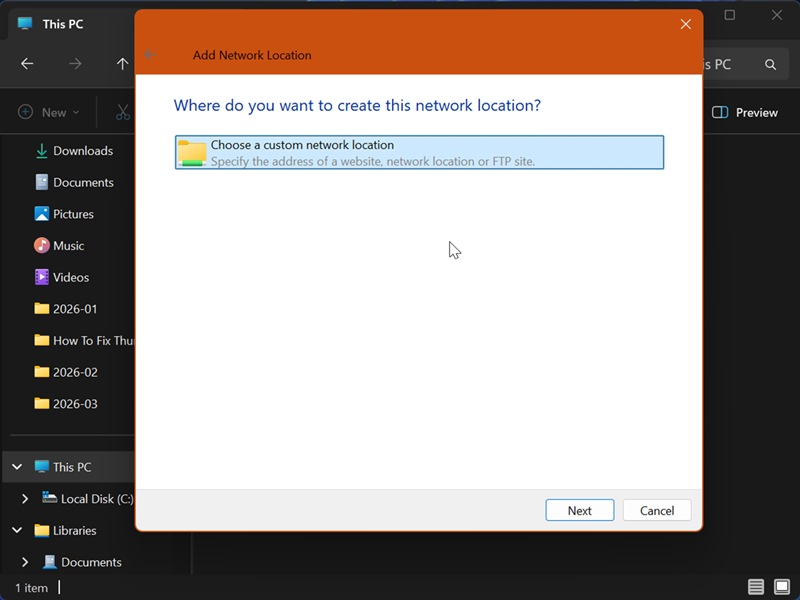
And that's it! A shortcut for your network location will appear in This PC. You can also find all your saved shortcuts for the current user in %AppData%\Microsoft\Windows\Network Shortcuts.
If you ever want to remove it, right-click it and click the Delete button on the context menu.
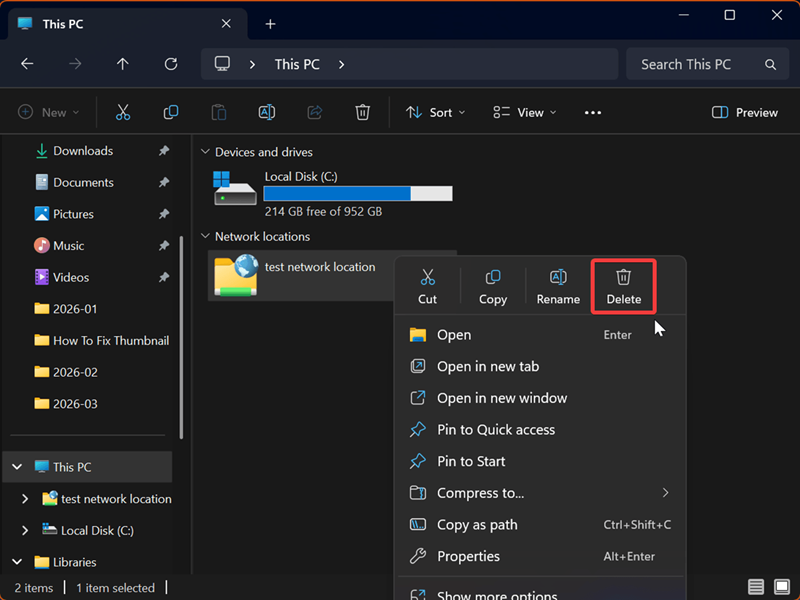
This will delete the network location shortcut, but not its contents, so don't worry about your data.

|
selma citakovic
Selma is a gamer, geek and gremlin hunter with a passion for cyber security and smashing Windows bugs before they bite. She’s IBM-certified, loves real freeware, despises bloatware, and powers most of her troubleshooting with an unhealthy amount of coffee. |
comments powered by Disqus
