


Not Sure Which Windows 11 ISO You Have? Here's How to Check
By selma čitakovićon 10/12/2026 |
![{$insert['content_title']](/content/file/6486_image2.jpg
)
If you have a Windows 11 ISO file or installation USB you're unsure about, you can check its build and version beforehand without starting the installation process first. You can also see more details, like its edition, language, architecture, etc. It's better than blind-installing it and then having to abort the mission halfway through if it's the wrong one.
Anyway, make sure you have your ISO file or installation media at hand, and read on.
How to check Windows 11 ISO build and version
First, you'll need to mount your ISO (right-click it and select Mount) or connect the USB. Remember its assigned drive letter in File Explorer. For example, D:.
Then, open the mounted ISO file or connected USB, and open the sources folder in it. Scroll down and look for a file called install.wim, install.esd, or install.swm. In Windows 10, by comparison, the relevant files are install.wim and install.esd. Remember the file's extension, and close File Explorer.
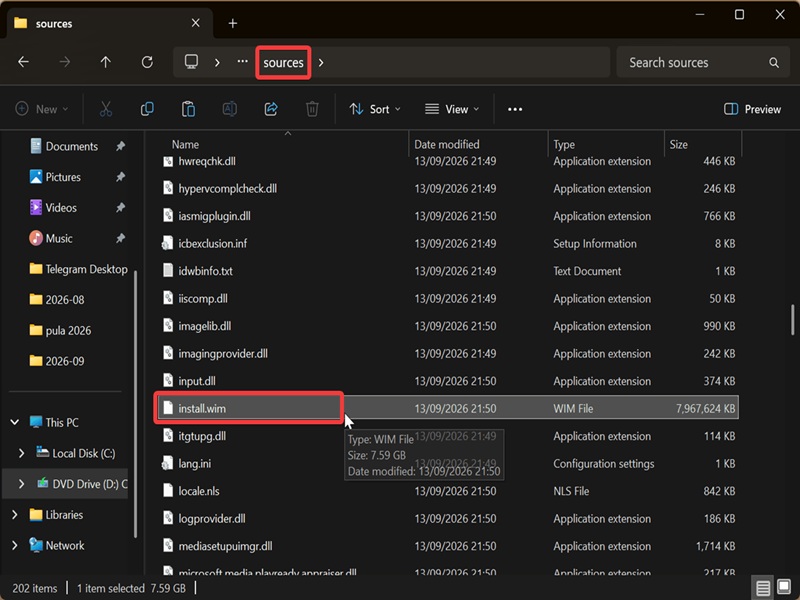
Now, on to the next part of the process:
- Press Win + X, select Terminal (Admin), and open either Command Prompt or PowerShell.
- Then, depending on whether you've found an install.wim, install.esd, or install.swm file earlier, paste one of the following commands. Make sure you replace the placeholder <Drive Letter> with the actual letter. For example, in my case, the full command looks like this: dism /get-wiminfo /wimfile
 :\sources\install.wim /index:1
 - For install.wim: dism /get-wiminfo /wimfile:<Drive Letter>:\sources\install.wim /index:1
- For install.esd: dism /get-wiminfo /wimfile:<Drive Letter>:\sources\install.esd /index:1
- For install.swm: dism /get-wiminfo /wimfile:<Drive Letter>:\sources\install.swm /index:1
- If the command completes successfully, you'll see a list of details for the ISO file.
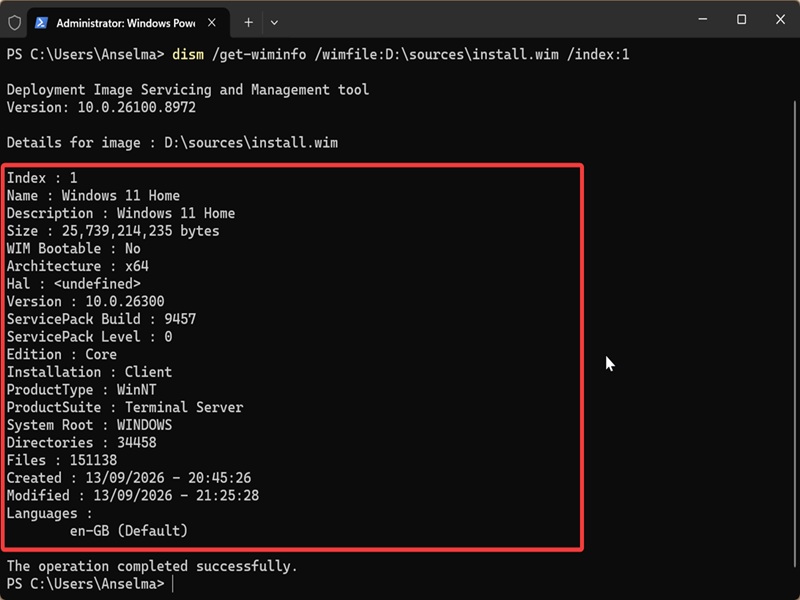
You'll notice info like the Windows Edition (Home, Pro, Education, or Enterprise) in Name and Description, architecture (x64 or ARM64), the Version and ServicePack Build number, etc.
To read the build number for the ISO, look at the number that comes after 10.0 for Version (e.g., 26300) and the number for ServicePack Build (e.g., 9457). Combine the two, and you'll get the build. So, in this case, it's 26300.9457.
Sometimes, ISO files have the build right in the name, but that's a more recent trend. We hope this helps!

|
selma citakovic
Selma is a gamer, geek and gremlin hunter with a passion for cyber security and smashing Windows bugs before they bite. She’s IBM-certified, loves real freeware, despises bloatware, and powers most of her troubleshooting with an unhealthy amount of coffee. |
comments powered by Disqus
