


NTFS Compression in Windows: What It Is and How to Use It
By selma čitakovićon 08/23/2026 |
![{$insert['content_title']](/content/file/6317_image1.jpg
)
Windows 10 and 11 support NTFS file compression by default. Basically, you can minimize redundant data and "squish" large files and folders into more reasonable file sizes. It also uses a lossless compression algorithm called Lempel-Ziv, which means no data is lost during compression/decompression.
If you've ever used 7-Zip, WinRAR, or similar tools, you get the gist. However, NTFS file system compression has a few quirks of its own. You don't need third-party tools for it; it's a built-in feature. Moreover, it continually decompresses and recompresses files on the fly, as you copy or move them. Unlike ZIP compression, it doesn't create a static archive file for the compressed files. There's no need for zipping or unzipping.
But because it works that way, it can impact your CPU performance and slow down your computer if you keep moving or copying the compressed files. So, if your CPU is already on the slower side, it's best to stick to other compression methods.
If you still want to give it a try, follow this guide.
Via Properties
First, let's look at how to compress or uncompress files:
- Select the file(s) you want to compress, right-click, and click Properties.
- In the General tab, click the Advanced... button.
- Check or uncheck Compress contents to save disk space, and click OK.
- Click OK in the General tab as well.
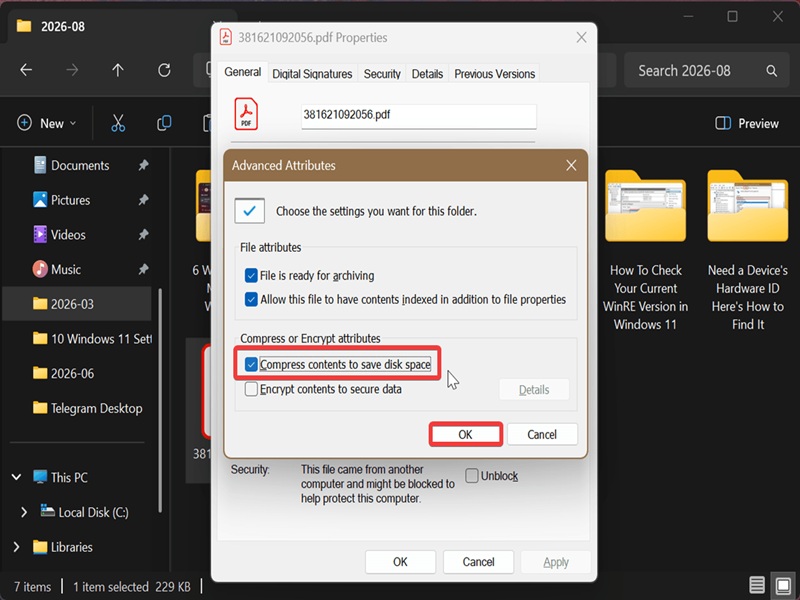
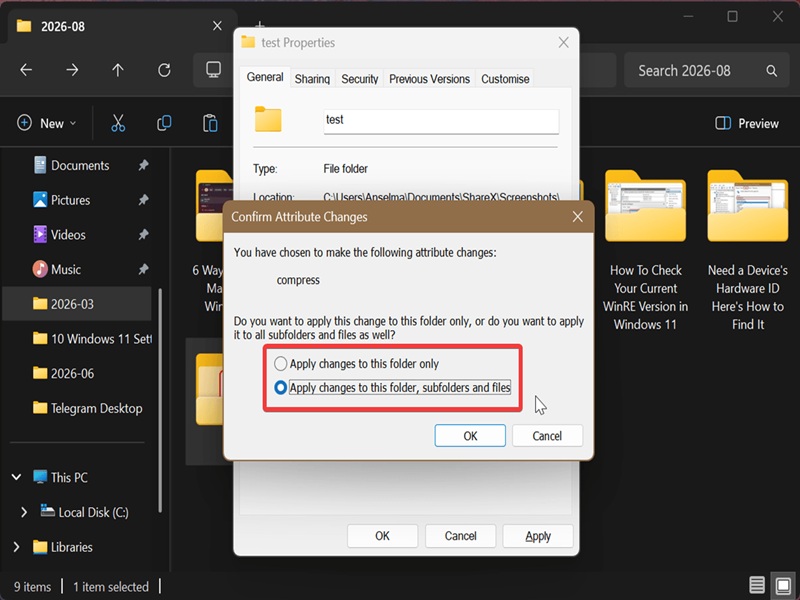
The process is nearly identical for folders, with one last extra step. You'll see a window asking you whether you want to "Apply changes to this folder only" or "Apply changes to this folder, subfolders, and files". Choose the option you want, and click OK.
Via command
Alternatively, you can compress files like this:
- Press Win + X, select Terminal, and open either Command Prompt or PowerShell.
- Type the following command and press Enter: compact /c "<full path of file>" /i /Q
- Make sure you paste the actual path to the file in the quote marks. The full command will look something like this: compact /c "C:\Users\Anselma\Downloads\381621092056.pdf" /i /Q
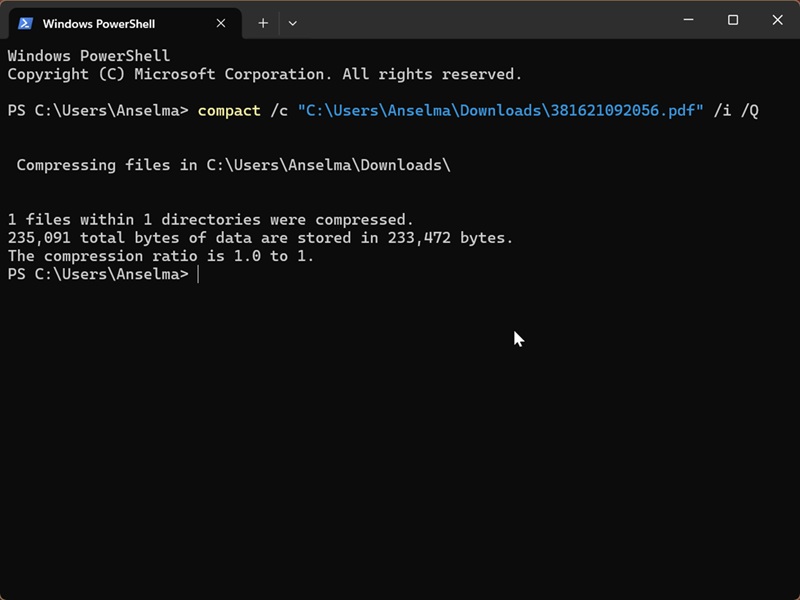
You can quickly get the file path by doing this: Right-click the file (or folder) you want, and select Copy as path.
To uncompress the file, paste this command instead: compact /u "
Again, the process is pretty similar with folders, with one difference. You can choose to:
- Compress folder but apply changes to this folder only: compact /c "<full path of folder>" /i /Q
- Compress folder but apply changes to this folder, subfolders, and files: compact /c /s:"<full path of folder>" /i /Q
- Uncompress but apply changes to this folder only: compact /u "<full path of folder>" /i /Q
- Uncompress but apply changes to this folder, subfolders, and files: compact /u /s:"<full path of folder>" /i /Q
You can recognize NTFS compressed files and folders at a glance by the two blue arrows over their icons.
Anyway, give it a try and see how it serves you. If you find that it impacts your performance too much, you can always go for different compression tools.

|
selma citakovic
Selma is a gamer, geek and gremlin hunter with a passion for cyber security and smashing Windows bugs before they bite. She’s IBM-certified, loves real freeware, despises bloatware, and powers most of her troubleshooting with an unhealthy amount of coffee. |
comments powered by Disqus
