


Reduce Eye Strain With Screen Tint in Windows 11
By selma čitakovićon 08/09/2026 |
![{$insert['content_title']](/content/file/6249_image2.jpg
)
If your eyes feel tired after staring at your bright monitor during the day, I have good news for you. The latest July update (KB5101650) introduced Screen Tint, a soft color overlay across the display. Basically, it makes harsh, saturated colors easier on the eyes.
It's different from the Night Light feature, which warms your display to filter out blue light. You can adjust Screen Tint's strength, select one of the default colors, or create your own. It's pretty neat!
You can find it in the Accessibility settings. However, since it's a gradual rollout, you might not see it immediately upon installing the update.
Here are the steps:
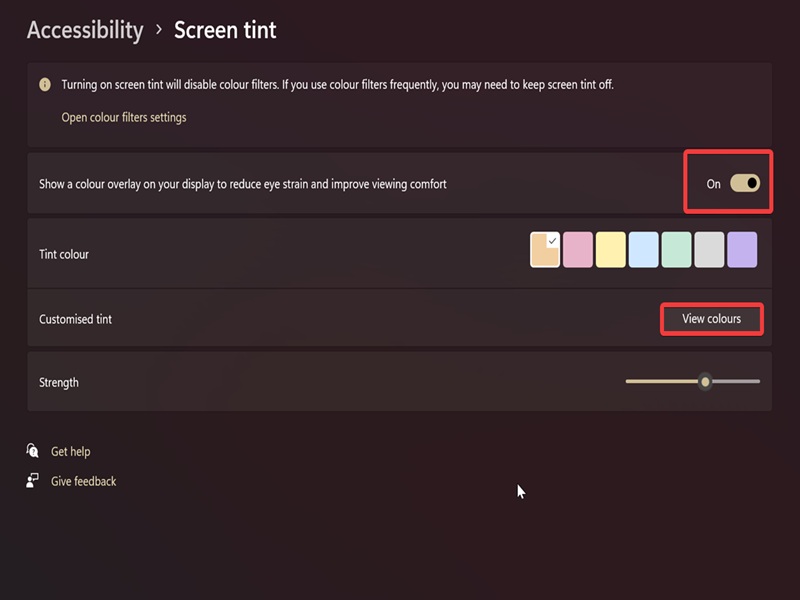
- Go to Settings > Accessibility > Screen tint.
- Turn it on/off with the toggle button next to "Show a color overlay on your display..."
- Once you turn it on, you can choose between six default tint colors.
- If you select View colors, you can create your own custom tint. You can even enter an RGB or HSV color code. Click on Done to save it.
- Finally, you can adjust the intensity on the Strength slider at the bottom. The default strength is 50.
And that's all! Give it a try if you're interested. It's easy to disable it if you don't like it.
You could use Screen Tint during the day and Night Light during the night for the full effect. There's also the Light Switch in PowerToys. It lets you switch between light and dark mode for system UI elements and supported apps.

|
selma citakovic
Selma is a gamer, geek and gremlin hunter with a passion for cyber security and smashing Windows bugs before they bite. She’s IBM-certified, loves real freeware, despises bloatware, and powers most of her troubleshooting with an unhealthy amount of coffee. |
comments powered by Disqus
