Providing Free and Editor Tested Software Downloads
< HOME | TUTORIALS | GEEK-CADE| WEB TOOLS | YOUTUBE | NEWSLETTER | DEALS! | FORUMS | >

MajorGeeks.com - Chicks just love a Geek in Uniform.

Software Categories

All In One Tweaks
Android
Antivirus & Malware
Appearance
Back Up
Browsers
CD\DVD\Blu-Ray
Covert Ops
Drivers
Drives (SSD, HDD, USB)
Games
Graphics & Photos
Internet Tools
Linux Distros
MajorGeeks Windows Tweaks
Multimedia
Networking
Office & Productivity
System Tools

Other news

· How To and Tutorials
· Life Hacks and Reviews
· Way Off Base
· MajorGeeks Deals
· News
· Off Base
· Reviews


IObit Black Friday Sale

spread the word

· YouTube
· Facebook
· Instagram
· Twitter
· Pintrest
· RSS/XML Feeds
· News Blur
· Yahoo
· Symbaloo

about

· Top Freeware Picks
· Malware Removal
· Geektionary
· Useful Links
· About Us
· Copyright
· Privacy
· Terms of Service
· How to Uninstall

top downloads

1. GS Auto Clicker
2. Macrium Reflect FREE Edition
3. Smart Defrag
4. MusicBee
5. Sergei Strelec's WinPE
6. Microsoft Visual C++ 2015-2022 Redistributable Package
7. Visual C++ Redistributable Runtimes AIO Repack
8. McAfee Removal Tool (MCPR)
9. K-Lite Mega Codec Pack
10. Visual C++ Runtime Installer (All-In-One)
More >>

top reads

Star All the New Features Landing in Windows 11 This December

Star Lossless vs Lossy: When FLAC, APE, and ALAC Beat MP3 and When They Don't

Star Google Search Tricks You'll Actually Use in 2025 and Beyond

Star Fresh PC Checklist: First 12 Things to Do On a New Windows 11 Machine

Star Running AI Models Locally: What They Are, Where to Find Them, and How to Get Started

Star Deciding Between Idle State, Sleep Mode, and Shutdown: What's Best for Your PC?

Star How to Fix VMware Workstation "The Update Server Could Not Be Resolved" Error Installing VMware Tools

Star How to Remove Google Gemini from Your Phone (and Your Life)

Star Windows Bloat Removal Guide: Debloat Safely and Keep What You Need

Star Windows 11 Repair Playbook: SFC, DISM, CHKDSK Without Breaking Stuff


MajorGeeks.Com » Overview» Tutorials and Video Guides » How to Reset or Repair the Microsoft Photos App in Windows 10 & 11

How to Reset or Repair the Microsoft Photos App in Windows 10 & 11

By Timothy Tibbetts

on 12/01/2022

⚡ Black Friday Blowout! IObit Pro Up to 90% Saving PLUS $5 off! ⚡
Once-a-year pricing on speed, privacy, and protection. Don’t miss the best deal IObit drops all year!

If you're having any problems with the Windows Photos app, you can try to repair or reset the app. Problems may include Photos running slow or not opening.

Windows 10 users can click Start > Settings > Apps & features.
Windows 11 users will click Start > Settings > Apps > Apps & features.

Scroll down and click on Microsoft Photos or Photos.

Click on the three dots, then click on Advanced options.

Click on Repair to try and fix the app without affecting your data.

If that doesn't help, click on Reset, which will delete all of the app's data.
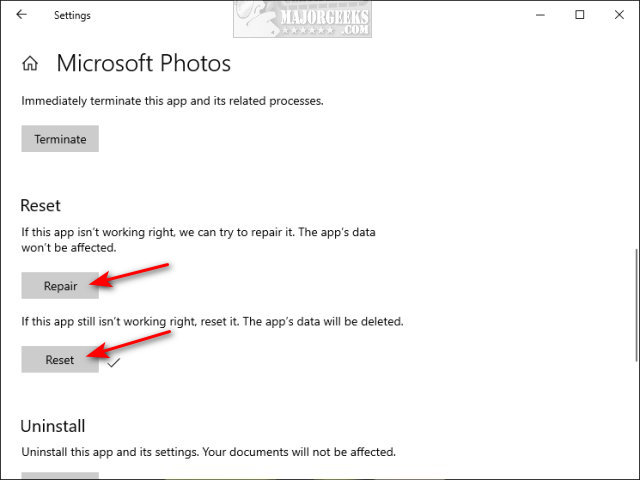


Resetting the Photos app restores it to the default settings, so any changes you made or folders you add will be lost, but your photos will remain intact.

Similar:
  • How to Restore Windows Photo Viewer on Windows 10
  • How to Fix Windows 10 Photos App Running Slow
  • How to Add and Remove Folders in Windows 10 Photos app
  • How to Reset Microsoft Paint Default Position and Size in Windows 10 & 11
  • How to Add or Remove 'Edit With Photos' Context Menu in Windows 10 & 11

    comments powered by Disqus


  • © 2000-2025 MajorGeeks.com
    Powered by Contentteller® Business Edition
