


Set an FPS Limit to Keep Your PC Running Cooler
By selma čitakovićon 08/09/2026 |
![{$insert['content_title']](/content/file/6229_image1.jpg
)
Higher framerates don't always mean better performance. It all depends on the specific game and your rig, of course, but there are situations where you'll benefit from an FPS limit.
It can lead to an overall smoother viewing experience without wild frame fluctuations. Additionally, you can minimize screen tearing by capping your framerate a bit below your max monitor refresh rate. Still, it's not a replacement for V-Sync and similar features.
But most importantly, it helps lower your system temperatures. If your GPU and/or CPU are overheating, limiting your FPS can make a big difference. Especially if you own a gaming laptop that's running too hot, or you're currently suffering through a heatwave.
Also, depending on the type of game, you may not even get much use from the extra frames. All they do is put strain on your machine.
For example, just recently, I had to limit my FPS on Pathfinder - Wrath of the Righteous. Before that, the game easily reached 100+ FPS on high settings, but it also really overheated my CPU. And I mean it - it was constantly in the 90s range. It was crazy. Since it's an isometric, slow-paced RPG, I don't even need my framerate to be higher than 60. So, as soon as I limited it to 60, my temps dropped into a more normal range, and now my CPU is no longer at risk of frying itself.
Moreover, some games (often older ones) have physics tied to a specific framerate (usually 30 or 60), so they will break if it's higher. Objects will freak out and launch themselves into the stratosphere, among other things.
All in all, there are many reasons why you'd want to cap your FPS. Here's how to do it with official companion software for your GPU.
Via NVIDIA Control Panel
It's pretty simple:
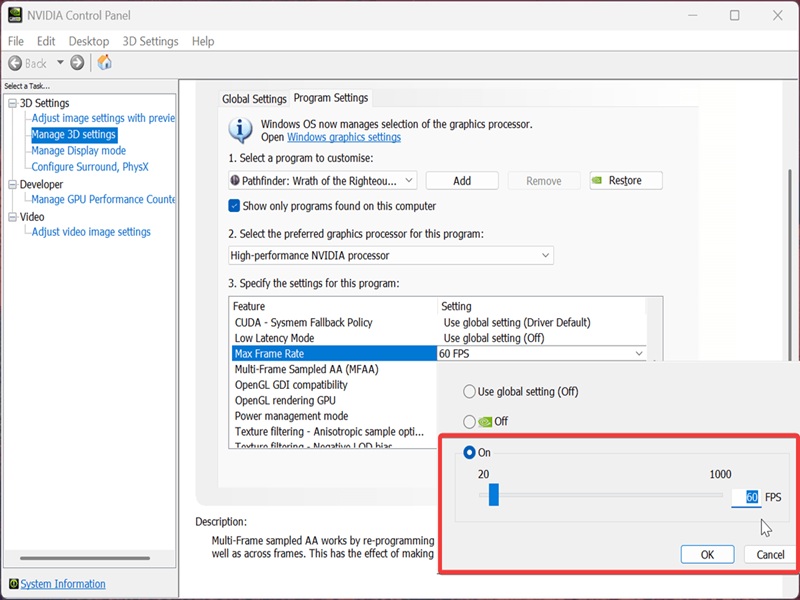
- Right-click your desktop, select Show more options, then NVIDIA Control Panel.
- On the left side panel, select Manage 3D settings.
- On the right, click on the Program Settings tab. By default, Global Settings will open first.
- Click on the menu under Select a program to customize, and pick the game you want. If you can't find it on the list, click the Add button.
- Once you've selected the game, click the menu under it and choose High-performance NVIDIA processor.
- Now, scroll through the list of options in the third menu and find Max Frame Rate.
- Click on Use global setting (Off) next to it, and select On instead. Choose your framerate limit and click OK.
- Finally, hit the Apply button.
Via AMD Software Adrenalin Edition
Or, if you own an AMD GPU:
- Open the AMD software from your taskbar system tray.
- Go to the Gaming tab.
- Find the game you want to adjust. If it's not there, click the three-dot icon in the right corner and select Add A Game...
- Click on the game, and on the list of graphics settings, enable Radeon Chill.
- Adjust your min and max FPS on the two sliders.
Sorry, no screenshots for this one since I'm stuck with NVIDIA.
Alternatively, you can use in-game settings to limit your FPS (though they don't always work that well!) and other third-party software like MSI Afterburner and RivaTuner.
Some options may introduce more input latency than others, so you may have to experiment a bit to find the one that works best for your specific game.

|
selma citakovic
Selma is a gamer, geek and gremlin hunter with a passion for cyber security and smashing Windows bugs before they bite. She’s IBM-certified, loves real freeware, despises bloatware, and powers most of her troubleshooting with an unhealthy amount of coffee. |
comments powered by Disqus
