Providing Free and Editor Tested Software Downloads
< HOME | TUTORIALS | GEEK-CADE| WEB TOOLS | YOUTUBE | NEWSLETTER | DEALS! | FORUMS | >

MajorGeeks.com - Chicks just love a Geek in Uniform.

Software Categories

All In One Tweaks
Android
Antivirus & Malware
Appearance
Back Up
Browsers
CD\DVD\Blu-Ray
Covert Ops
Drivers
Drives (SSD, HDD, USB)
Games
Graphics & Photos
Internet Tools
Linux Distros
MajorGeeks Windows Tweaks
Multimedia
Networking
Office & Productivity
System Tools

Other news

· How To and Tutorials
· Life Hacks and Reviews
· Way Off Base
· MajorGeeks Deals
· News
· Off Base
· Reviews


Opera One
Everything
you need.
Already
there.
AI assistant
Aria, built right in
Free VPN
No account needed
Ad blocker
Faster, cleaner web
Tab Islands
Grouped browsing
Useful sidebars
Make it yours
No Clunky Extensions Needed.


MajorGeeks Approved.


Download free

spread the word

· YouTube
· Facebook
· Instagram
· Twitter
· Pintrest
· RSS/XML Feeds
· News Blur
· Yahoo
· Symbaloo

about

· Top Freeware Picks
· Malware Removal
· Geektionary
· Useful Links
· About Us
· Copyright
· Privacy
· Terms of Service
· How to Uninstall

top downloads

1. GS Auto Clicker
2. Smart Defrag
3. Macrium Reflect FREE Edition
4. MusicBee
5. McAfee Removal Tool (MCPR)
6. K-Lite Mega Codec Pack
7. Dolby AC-3/AC-4 Installer
8. Microsoft Expression Web
9. Visual C++ Redistributable Runtimes AIO Repack
10. K-Lite Codec Pack Full
More >>

top reads

Star How Much Storage Space Are Your Installed Apps Using in Windows 11?

Star How To Reset and Fix the Settings App in Windows 11

Star How To Remove the Windows 11 Updated Start Menu

Star How To Download a Windows 11 ISO

Star How To Disable Drag Tray

Star How To Boot Into WinRE (Windows Recovery Environment)

Star How To Find the Installation Date of Apps

Star Recently Opened Files - How To Hide or Show Them In Jump Lists, File Explorer, and Start Menu

Star How To Change the Name of a Local or Microsoft Account

Star How To Remove OneDrive From the Navigation Pane in File Explorer


MajorGeeks.Com » Overview» Tutorials and Video Guides » How to Share Files Wirelessly in Windows 10 & 11

How to Share Files Wirelessly in Windows 10 & 11

By Timothy Tibbetts

on 06/15/2023

Hop into IObit’s Easter Sale and save up to 90% on top utilities, plus score 3 FREE months before the deal disappears! πŸ°πŸŒ·πŸ†

Microsoft introduced Nearby Sharing in 2018, allowing users to transfer files to other computers on the same network. Here's how you can share files wirelessly on your Windows 10 or 100 computer.

Both Wi-Fi and Bluetooth are required. Go to Start > Settings > Bluetooth & devices to make sure Bluetooth is on.

Windows 10 - Click on Start > Settings > System > Shared experiences.
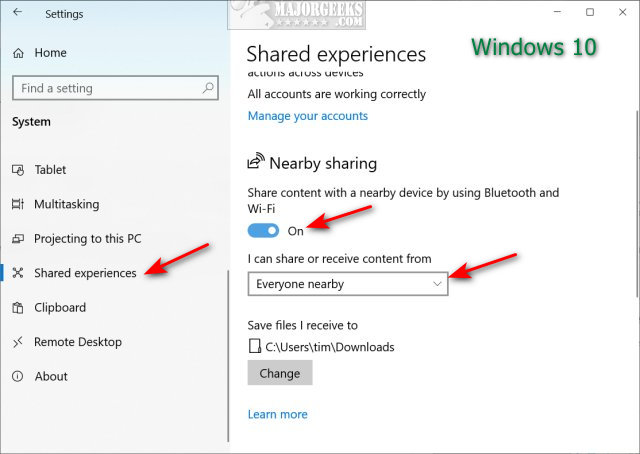


Windows 11 - Click on Start > Settings > Nearby sharing.
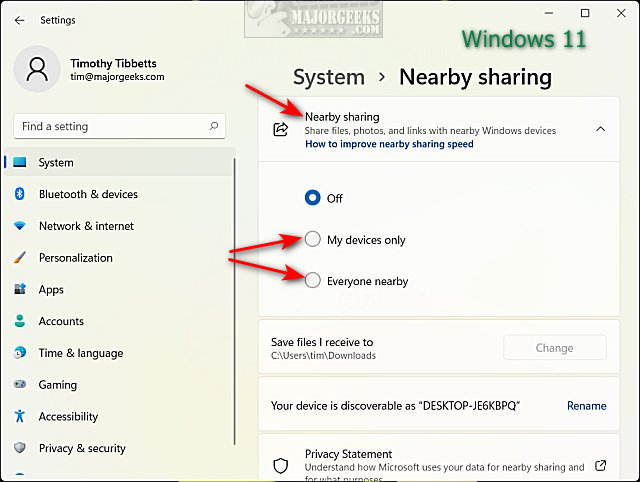


Turn on Nearby sharing. Choose My devices or Everyone nearby.

You can always change where to save files as well.

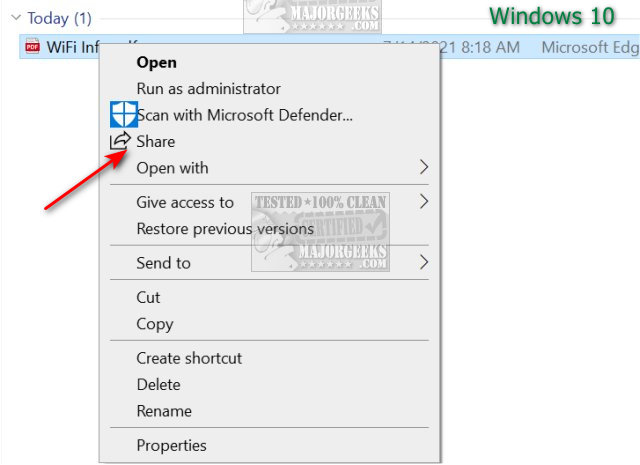
In Windows 10, right-click on any file(s) and click on Share.


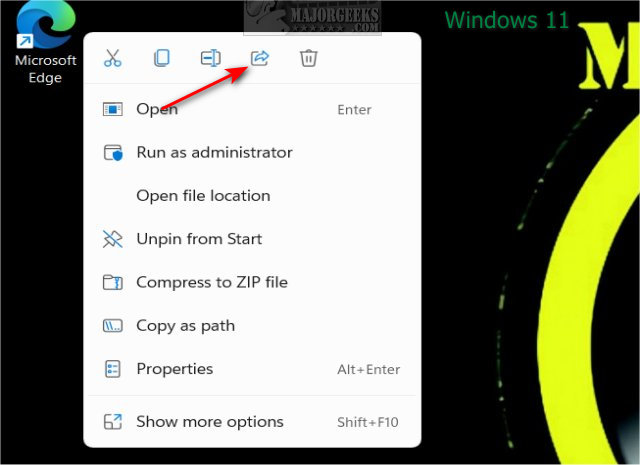
In Windows 11, right-click on any file(s) and click on the Share tab.


Similar:
  • How to Enable or Disable Offline Files in Windows 10
  • How to Turn On or Off Network Discovery (Make this PC Discoverable)
  • Windows 10 Can’t See Other Computers on Network
  • How to Find the IP Address of a Network Printer

    comments powered by Disqus


  • © 2000-2026 MajorGeeks.com
    Powered by Contentteller® Business Edition
