


Should You Clean Up the Component Store (WinSxS) Folder?
By selma čitakovićon 06/28/2026 |
![{$insert['content_title']](/content/file/6126_image4.png
)
If you've ever snooped around C:\Windows, you may have seen a large folder called WinSxS. This folder, also known as the Component Store, keeps Windows Component Store files that are used for system updates and customization.
Generally, Windows does a decent job of keeping the folder size manageable without your input. It relies on scheduled cleanup tasks and automatically deletes outdated component packages. However, there's a 30-day grace period for older versions of updated components. They're kept as backup, in case you want to roll back changes or for repairs.
So, you may want to speed up the process and get rid of these files right away if you're short on storage. A word of warning, though: Don't actually delete the WinSxS folder or any files within it. If you do, you're gonna have a bad time. Your PC needs it to boot and function normally.
Instead, you can reduce its size with built-in tools that are safe and won't harm your system. But first, you should check its actual size and whether it's recommended to perform a cleanup.
Should you clean up the WinSxS folder?
There's a neat command that lets you analyze the Component Store and tells you whether it's time for a cleanup. To use it:
- Press Win + X, select Terminal (Admin), and open either Command Prompt or PowerShell.
- Type the following command and hit Enter: DISM /Online /Cleanup-Image /AnalyzeComponentStore
- Wait for the process to complete. It may take a couple of minutes.
- It should display Component Store (WinSxS) information, including its reported size, its actual size, the date of the last cleanup, and whether another one is recommended.
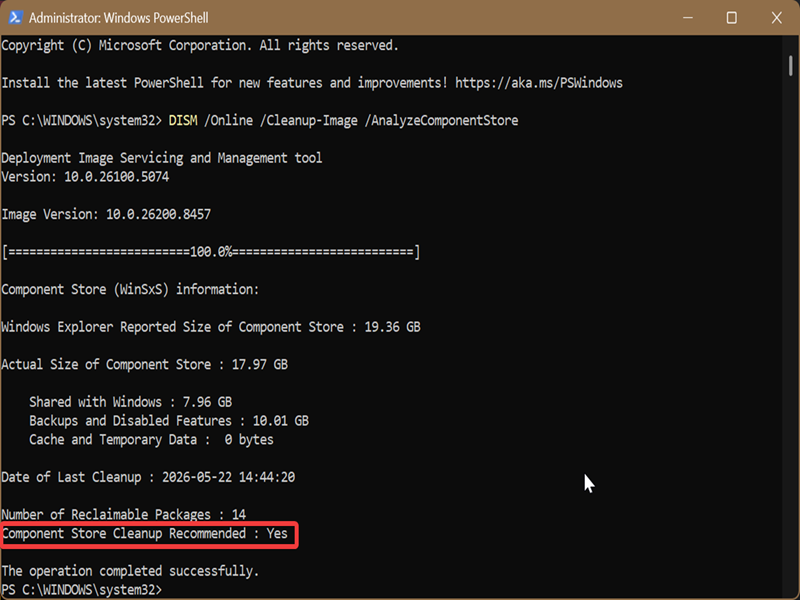
The cleanup will target the Backups and Disabled Features, and the Cache and Temporary Data sections. You can see their sizes and add them up to see how much storage space you could free up. Additionally, the Number of Reclaimable Packages shows you how many older packages you can remove.
If it says "Component Store Cleanup Recommended: Yes," proceed with the next steps.
Use commands to clean up the Component Store
You can quickly reduce the WinSxS folder's size with elevated PowerShell or Command Prompt. Here's how:
- Press Win + X, select Terminal (Admin), and open your preferred command-line tool.
- Paste the following and press Enter: DISM /Online /Cleanup-Image /StartComponentCleanup
- Wait for it to complete. (It may take a while.)
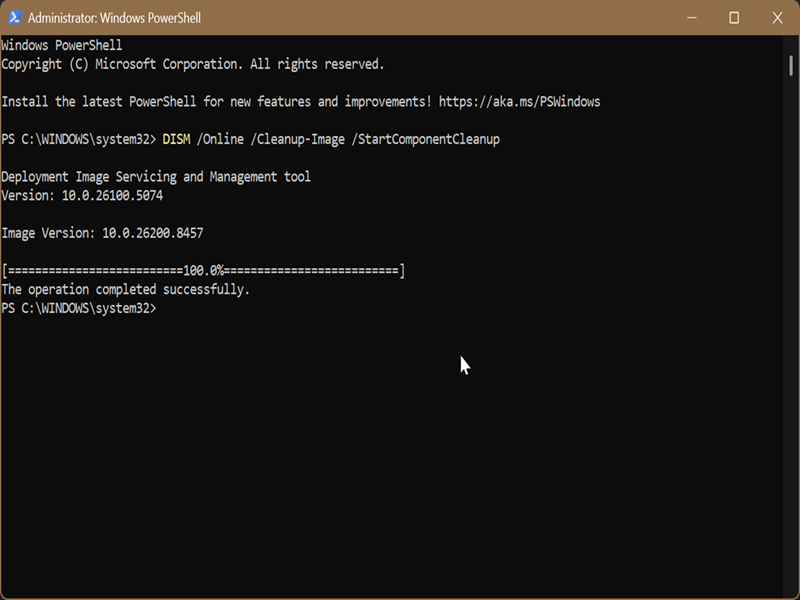
You can then run the command from the first step again (DISM /Online /Cleanup-Image /AnalyzeComponentStore) and see how much space you've freed up.
However, there's a similar command you can try for an even more thorough cleanup. This will delete all outdated versions of every component.
Open elevated PowerShell or Command Prompt, and paste the following: DISM /Online /Cleanup-Image /StartComponentCleanup /ResetBase
Once it completes, you can analyze the Component Store and check out the reduced storage size. In my case, I managed to cut it down from 17.97 GB to 12.42 GB, which is not bad at all.
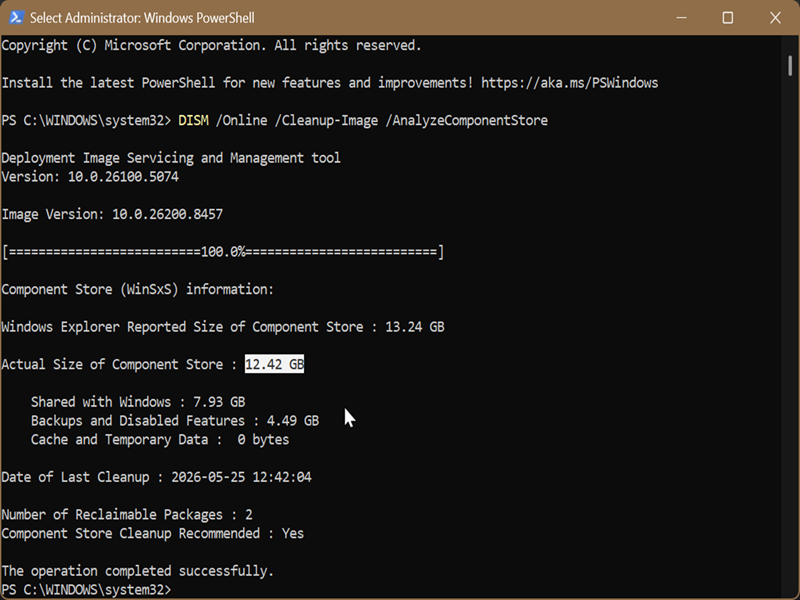
But you may also notice one tiny detail: After running the command, it will show there are still 2 reclaimable packages and recommend running another cleanup. Even if you do that, the 2 packages will remain.
This is a common bug in 24H2 and 25H2. To fix it, you will have to target the two stubborn packages and remove them manually. Paste the following command in an elevated terminal, and press Enter: dism /online /remove-package /packagename:Package_for_RollupFix~31bf3856ad364e35~amd64~~26100.1742.1.10
After that, they should be gone, and /AnalyzeComponentStore will stop recommending you to run cleanups again.
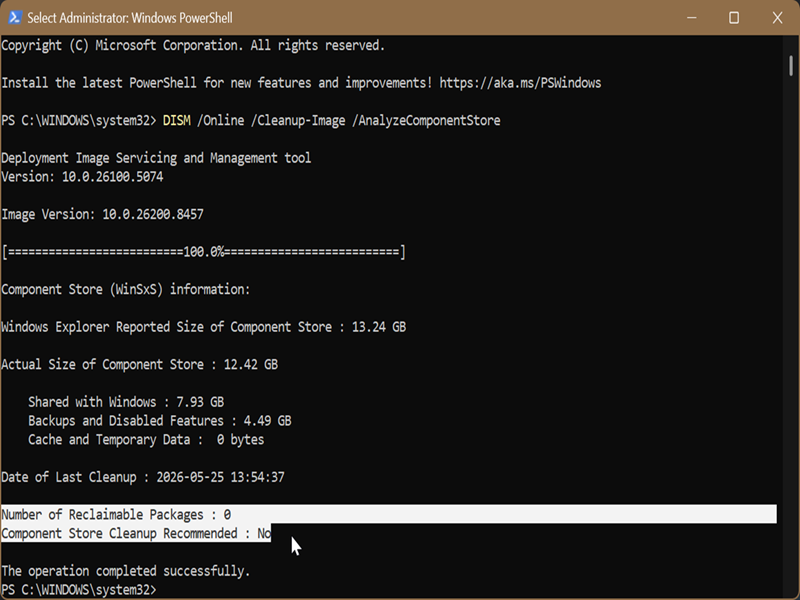
It's nothing too important anyway, just a bit annoying, but now you know how to resolve it!
Finally, you can also use Task Scheduler for the cleanup, but it's slower and less effective than running these commands. We have covered the method in an older guide, so you can check it out if you need it.

|
selma citakovic
Selma is a gamer, geek and gremlin hunter with a passion for cyber security and smashing Windows bugs before they bite. She’s IBM-certified, loves real freeware, despises bloatware, and powers most of her troubleshooting with an unhealthy amount of coffee. |
comments powered by Disqus
