


Stop Apps From Accessing Foreground Text in Windows 11
By selma čitakovićon 10/19/2026 |
![{$insert['content_title']](/content/file/6509_image5.jpg
)
Windows 11 has a setting that controls whether apps can read the text that's currently visible on your screen. Typically, it applies to Copilot and AI-assisted features, writing assistance tools, and accessibility features. But if you don't use these tools, you may want to disable this setting.
After all, it can also read sensitive info on your screen, including financial data, medical information, passwords, etc. So, if you don't need features that rely on foreground text access, there's no good reason to keep it on. Annoyingly, it's enabled by default, and it's not the easiest setting to find unless you know where to look.
Let me help you with that!
Via Settings
To disable or enable foreground text access for all users, you'll first have to sign in as an administrator.
Then, do the following:
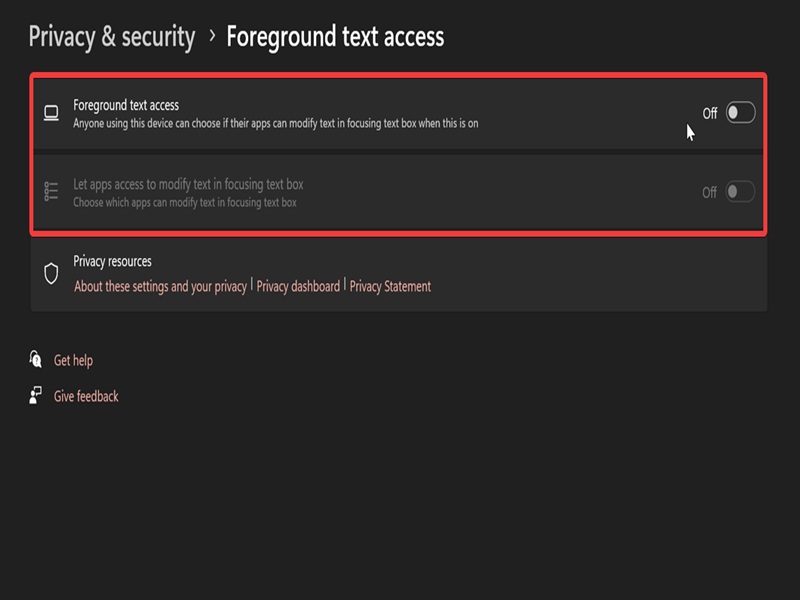
- Go to Settings > Privacy & security.
- Under App permissions, scroll all the way down to find Foreground text access.
- Toggle Foreground text access on or off.
To achieve the same effect but for the current user instead:
- Go to the same location in Settings > Privacy & security > Foreground text access.
- Toggle on or off Let apps access to modify text in focusing text box.
Via command
Alternatively, you can try this method. Make sure you've signed in as an admin and follow these steps:
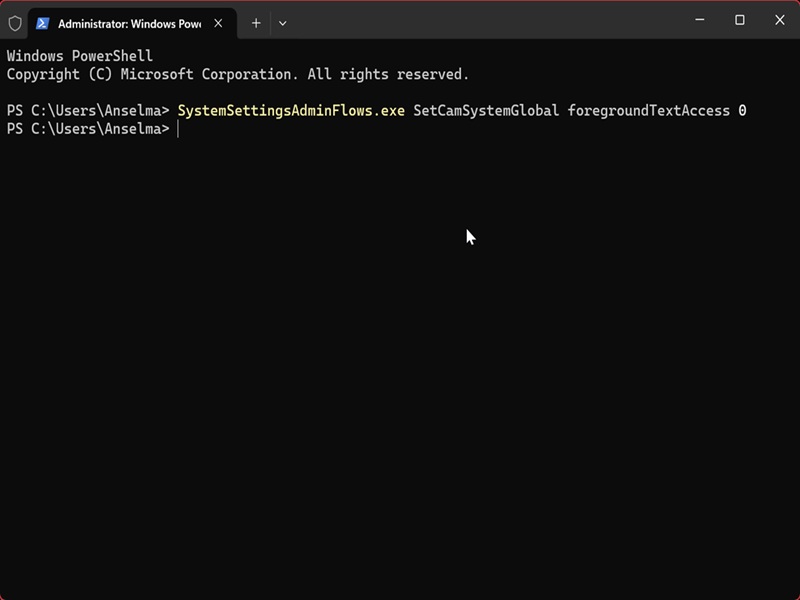
- Press Win + X, select Terminal (Admin), and open either PowerShell or Command Prompt. It doesn't matter which one you choose.
- To turn off foreground text access for all users, paste the following command and hit Enter: SystemSettingsAdminFlows.exe SetCamSystemGlobal foregroundTextAccess 0
- To enable it: SystemSettingsAdminFlows.exe SetCamSystemGlobal foregroundTextAccess 1
Via Local Group Policy Editor
Lastly, if you'd like more control over this setting, you can specify apps that you want to enable or disable foreground text access for. To do so, you'll need to use the Local Group Policy Editor. This tool is available by default in Windows Pro, Education, and Enterprise editions. If you're a Home edition user, you'll have to try a workaround to install it.
Anyway, here are the steps:
- Press Win + R, type gpedit.msc, and hit Enter.
- Navigate to Computer Configuration > Administrative Templates > Windows Components > App Privacy on the left.
- On the right side of App Privacy, double-click Let Windows apps access text content from foreground applications.
- To force enable foreground text access for all users, select Enabled, and in the Options menu below, next to Default for all apps, choose Force Allow. Click OK.
- To force disable it, select Enabled, and next to Default for all apps, choose Force Deny. Click OK.
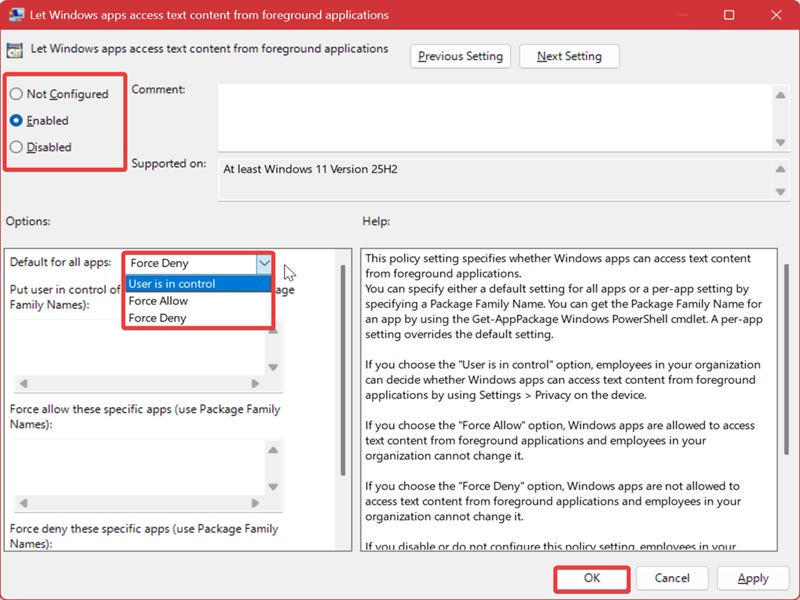
Again, you'll need administrative privileges to apply these changes for everyone.
Overall, these policy settings are more permanent than the previous methods in the guide. If you force enable/disable foreground text access, the relevant toggle in Settings will be greyed out. To undo this, simply select Not configured in the same window, and click OK. That's the policy's default value anyway.
However, if you want to single out specific apps, you'll need to know their Package Family Name. You can get it with a simple PowerShell command: Get-AppxPackage
If you're unsure of the app's full name, you can use the * wildcard character with part of the name. In that case, the full command looks like this: Get-AppxPackage *
Once you type in the command and hit Enter, look for PackageFamilyName in the output.
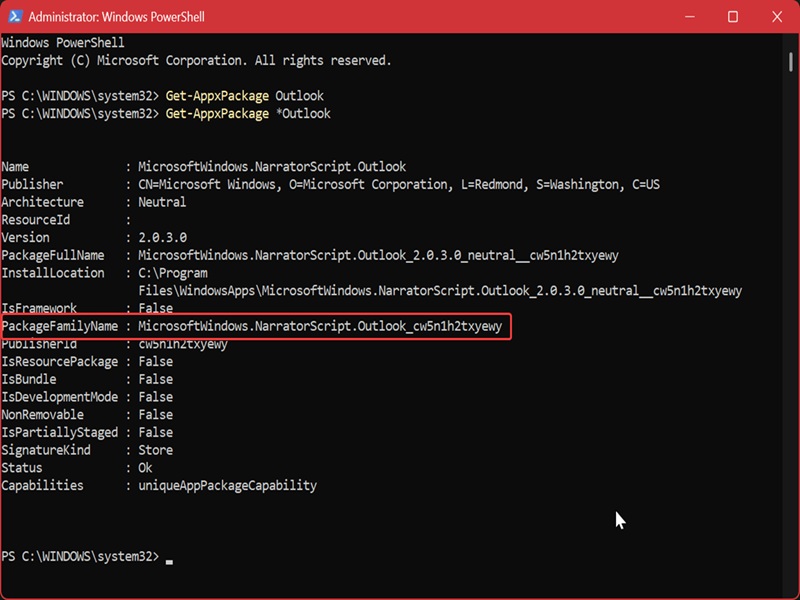
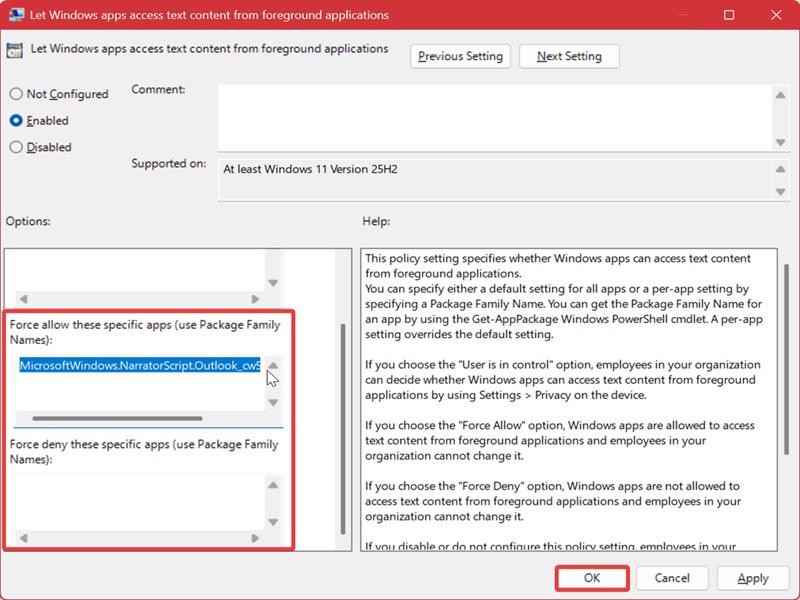
So, for example, the Package Family Name for Outlook is MicrosoftWindows.NarratorScript.Outlook_cw5n1h2txyewy.
Keep this info at hand since you'll need it in a second.
Now, back in the Local Group Policy Editor: When you select Force Allow or Force Deny, you can paste the Package Family Name for the apps you want in the text fields underneath. Click OK when you're done.
Hopefully, these tips will help you keep your sensitive info safe from prying eyes.

|
selma citakovic
Selma is a gamer, geek and gremlin hunter with a passion for cyber security and smashing Windows bugs before they bite. She’s IBM-certified, loves real freeware, despises bloatware, and powers most of her troubleshooting with an unhealthy amount of coffee. |
comments powered by Disqus
