


USB Selective Suspend: Turn It On or Off?
By selma čitakovićon 08/30/2026 |
![{$insert['content_title']](/content/file/6281_image1.png
)
USB selective suspend is an often overlooked feature that allows you to power down USB devices when they're inactive. You can save power when they're idle and use them normally when you actually need them. This is especially useful for laptops. You can make your battery last longer and cut down on unnecessary noise and thermal load.
By default, USB selective suspend is enabled, and Microsoft "strongly recommends" it stays that way. I've never experienced any issues with it, so I keep it on. Users with random USB disconnect problems have reported some success after disabling this, but it's not conclusive. Still, you can quickly disable it, even temporarily, and see if it helps if you're in the same boat.
Here's how!
Via Power Options
Since selective suspend is a power-saving feature, it makes sense that you'll find it here:
- Type Control Panel in Windows Search, and select Open.
- If it's in Category view, click on View by: and select Small icons or Large icons.
- Now, click the Power Options icon.
- Click the Change plan settings link next to the power plan you're currently using.
- Select Change advanced power settings.
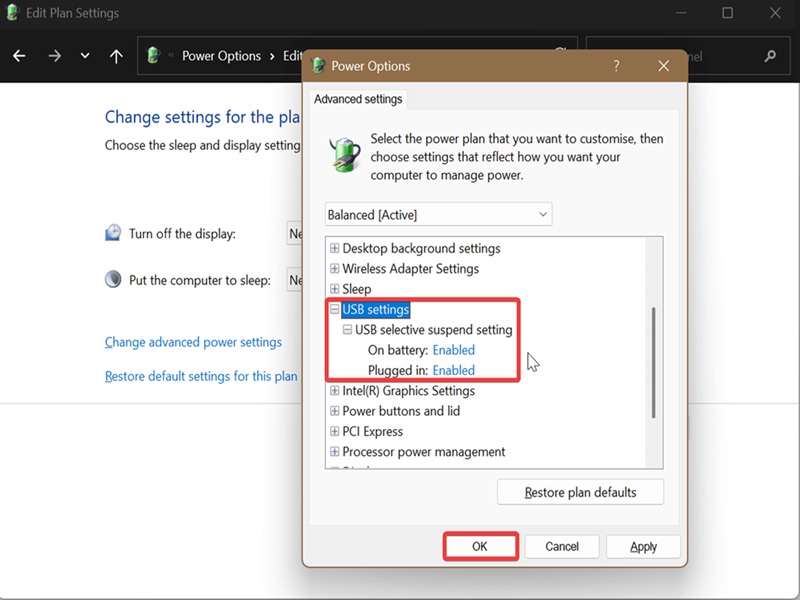
- In the new window that opens, click on USB settings and USB selective suspend setting to expand them.
- Select Enabled or Disabled from the dropdown menu, and click OK.
Via command
Or, if you don't feel like poking around Control Panel:
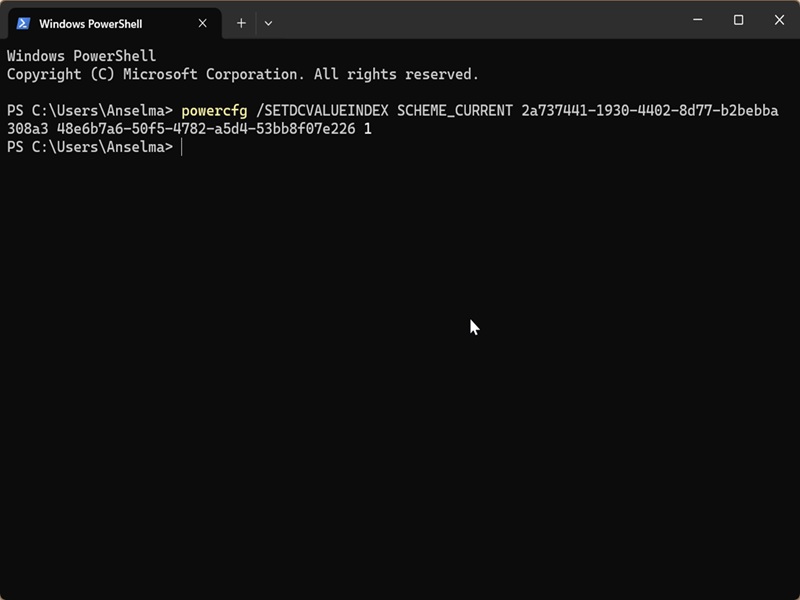
- Press Win + X, select Terminal, and open either PowerShell or Command Prompt.
- On a plugged-in laptop or desktop PC, to enable USB selective suspend: powercfg /SETACVALUEINDEX SCHEME_CURRENT 2a737441-1930-4402-8d77-b2bebba308a3 48e6b7a6-50f5-4782-a5d4-53bb8f07e226 1
- On a plugged-in laptop or desktop PC, to disable it: powercfg /SETACVALUEINDEX SCHEME_CURRENT 2a737441-1930-4402-8d77-b2bebba308a3 48e6b7a6-50f5-4782-a5d4-53bb8f07e226 0
- On battery, to enable USB selective suspend: powercfg /SETDCVALUEINDEX SCHEME_CURRENT 2a737441-1930-4402-8d77-b2bebba308a3 48e6b7a6-50f5-4782-a5d4-53bb8f07e226 1
- On battery, to disable it: powercfg /SETDCVALUEINDEX SCHEME_CURRENT 2a737441-1930-4402-8d77-b2bebba308a3 48e6b7a6-50f5-4782-a5d4-53bb8f07e226 0
Either approach works, whether you have a desktop computer or a laptop.

|
selma citakovic
Selma is a gamer, geek and gremlin hunter with a passion for cyber security and smashing Windows bugs before they bite. She’s IBM-certified, loves real freeware, despises bloatware, and powers most of her troubleshooting with an unhealthy amount of coffee. |
comments powered by Disqus
