


What Is Smart App Control and Is It Worth Using?
By selma čitakovićon 12/27/2025 |
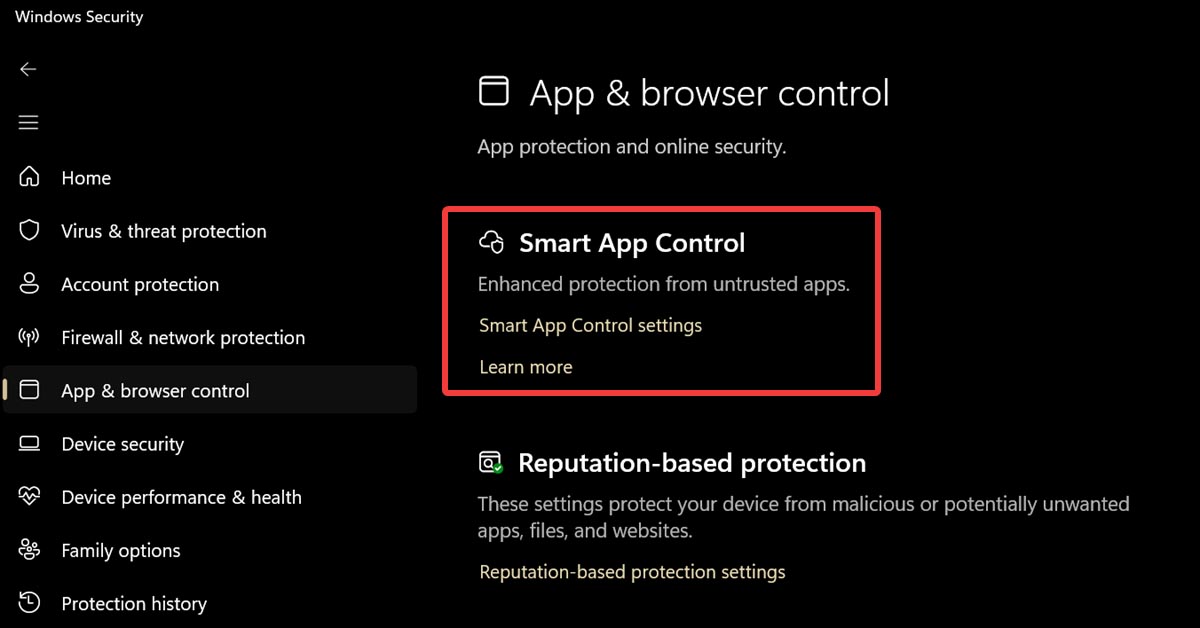
Smart App Control (SAC) is a lesser-known security feature in Windows 11. It's often disabled by default, so it probably flew under your radar as well. So, what's the deal with SAC, and is it worth turning on?
In short, it's not that smart, actually. It's been a few years now since its introduction, and the feature is still buggy. It sounds decent (if a bit confusing) in theory, but in practice, it doesn't work that well. It will often block safe apps, with no way of whitelisting them.
Read on as I explain in more detail how it works, and whether it's worth keeping on your computer. Spoiler alert: no, but there's some nuance to it.
What is Smart App Control?
Smart App Control is a Windows 11 security feature that can block untrusted or malicious apps. It was introduced in version 22H2, and you can find it in the Windows Security settings. What's unique about it is that it flags suspicious apps before you even run them, based on Microsoft's cloud-powered app intelligence services. If the security services believe a program to be safe, you'll be able to run it. If not, SAC will promptly block it.
This sounds like it would be useful against PUAs and malware, but there's a problem.
Once SAC decides an app is untrusted, you can't whitelist it. According to Microsoft Support, "untrusted" means that the program doesn't have a valid digital signature, or that the intelligent security service can't make a confident prediction about it. Unfortunately, many users have complained about SAC flagging even well-known and completely safe programs. For example, it recently blocked Clair Obscure: Expedition 33, a rather popular RPG.
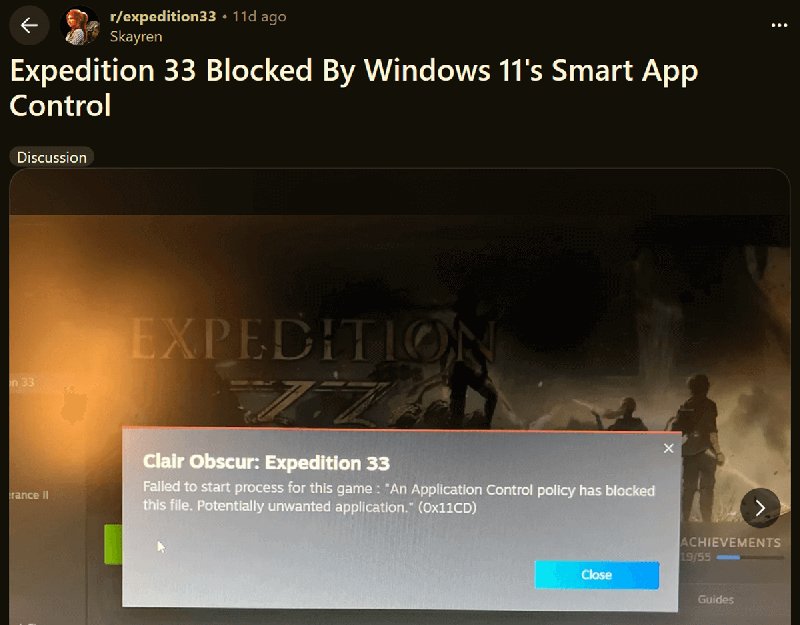
The only way to bypass this is to disable the feature completely, or, as Microsoft suggests, to bug the developers to sign their app with a valid signature. Additionally, once you turn it off, you can only turn it back on again after a fresh reinstall or reset. Yeah, that's not really a whole lot of options.
However, we should finally see changes to the feature in 2026. You'll soon be able to turn SAC on and off whenever you want, without needing to reinstall.
Let's wait and see if that makes it more viable.
How to turn Smart App Control on/off
You can find SAC in Windows Security > App & browser control > Smart App Control > Smart App Control settings.
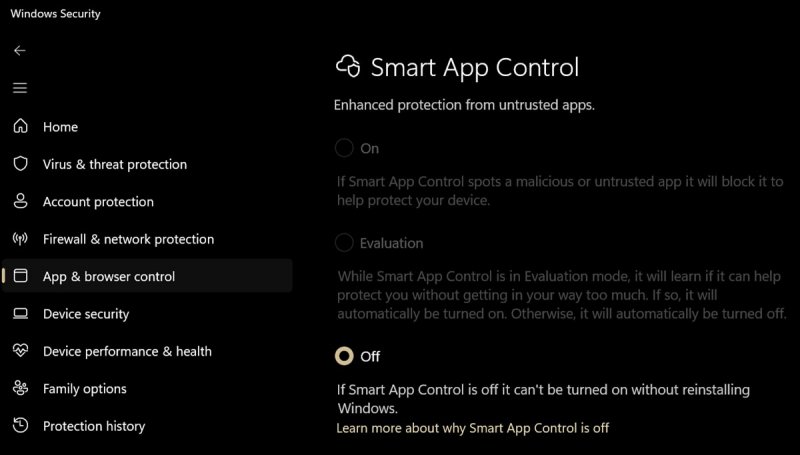
As mentioned earlier, you can enable it only after a clean Windows 11 install or a system reset. So, if you upgraded from Windows 10, as I did, you'll notice that the "On" and "Evaluation" options are greyed out.
If you turn it on under those circumstances, it will first run in Evaluation mode. Think of it as the feature's test run. It will quietly observe which programs you frequently use and whether your usage patterns match Microsoft's standards. It won't block anything during this period.
If SAC determines that it will be a good fit for you, it will automatically activate, or you can just turn it on yourself. This is called Enforcement mode. While it's active, the feature will block apps it deems suspicious - and there's nothing you can do to mitigate this. You can't add exceptions or whitelist programs.
Once you disable it, it will permanently turn off for that Windows installation. You can do so by clicking the "Off" button in Smart App Control settings.
Is it worth keeping enabled?
If you follow basic cybersecurity advice and keep Windows updated (for definitions), you can disable SAC and not worry about it. Just watch what you download and install, and let Windows Defender do its thing.
Right now, SAC is overly aggressive for no good reason and offers no compromises to users. Developers, modders, power users, and gamers should turn it off and spare themselves the headache.
The only scenario where it's worth keeping is for users who don't really know their way around computers, so they might accidentally download questionable apps.
However, if the 2026 SAC update turns out all right, it might be time to re-evaluate its uses. If you can switch it off and on at will, there's much more wiggle room. So, if it flags a program you trust, you could just disable it temporarily, install or run the program, and then turn SAC back on again.
We'll see how that turns out, but for now, you can mostly ignore it.

|
selma citakovic
Selma is a gamer, geek and gremlin hunter with a passion for cyber security and smashing Windows bugs before they bite. She’s IBM-certified, loves real freeware, despises bloatware, and powers most of her troubleshooting with an unhealthy amount of coffee. |
comments powered by Disqus
