


Where to Find Windows Update Logs and How to Read Them
By selma čitakovićon 08/01/2026 |
![{$insert['content_title']](/content/file/6166_image1.jpg
)
The Windows update logs tell you all you need to know about the update process - if you know how to read them. They include information like timestamps, component names, process IDs, and more. This comes in handy if you're diagnosing failing updates or troubleshooting performance issues/weird PC behavior after a recent update.
We'll show you two easy ways to find these logs and interpret them.
Via PowerShell
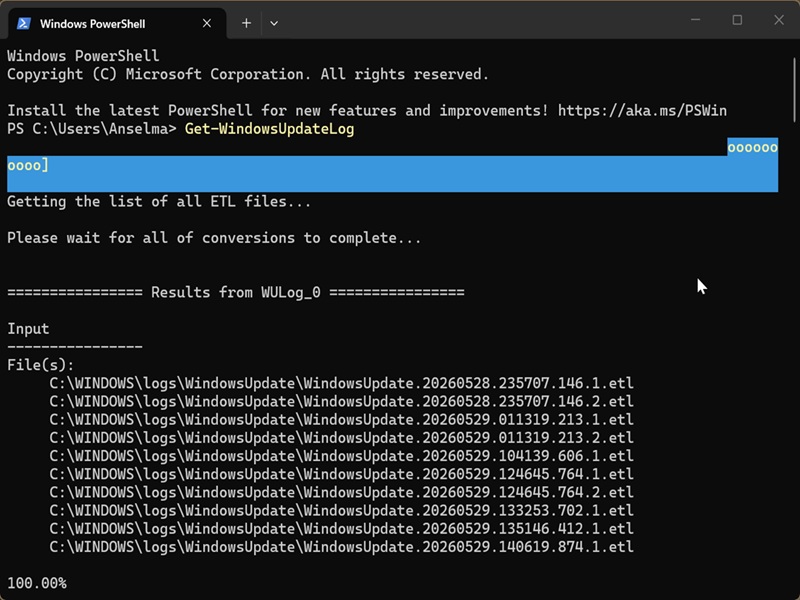
You can export Windows Update log files to your desktop like this:
- Type PowerShell in Windows Search and open it.
- Paste this command and hit Enter: Get-WindowsUpdateLog
- Wait for the process to finish. When it does, you'll be notified that it completed successfully.
- It should create a WindowsUpdate.log file on your desktop.
When you open the file, you'll see a wall of text structured like this:
- Timestamps - usually in chronological order
- Process ID and thread ID - the first four digits are the process ID, and the next four are the thread ID
- Component name - identifiers for the components that are associated with the IDs
- Update identifiers - they include update IDs and revision numbers, revision IDs, local IDs, and inconsistent terms and descriptions.
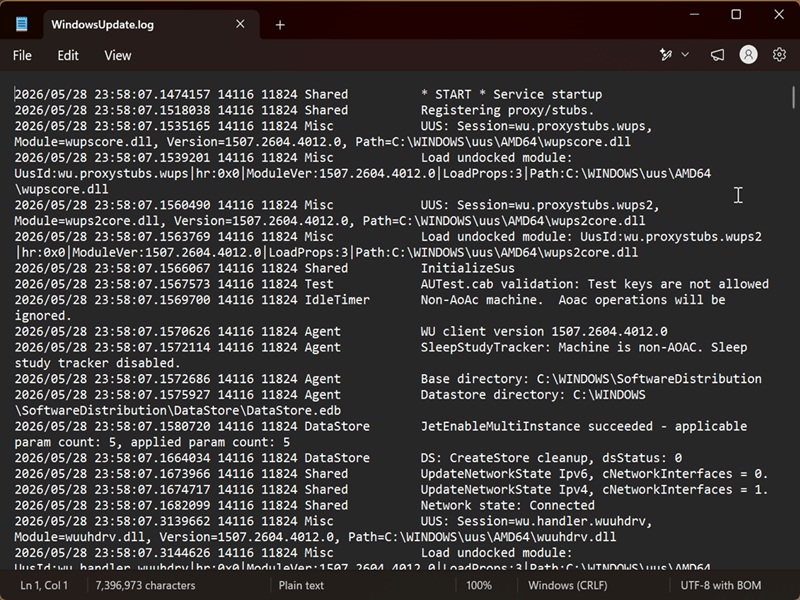
Basically, it will look like gibberish unless you know the general log structure.
Via Event Viewer
You can also use the Event Viewer to read the logs. It's more user-friendly than the previous method, since the displayed information is labeled and easier to understand.
Here are the steps:
- Press Win + R, type eventvwr.msc, and press Enter.
- On the left side, navigate to Applications and Service Logs > Microsoft > Windows > WindowsUpdateClient > Operational.
- You can then browse the event logs in the middle. To get detailed info, select a specific log and click on the Details tab below it.
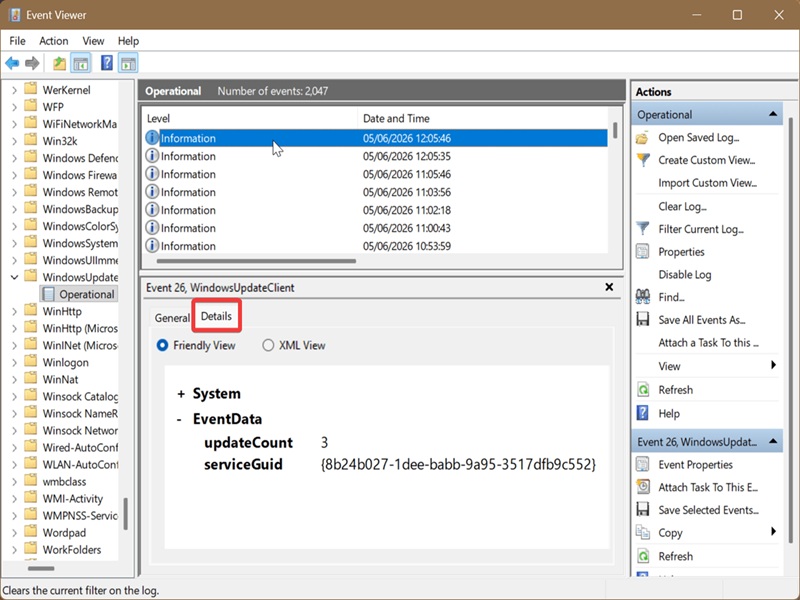
I suggest you maximize the window to get a better look at everything.
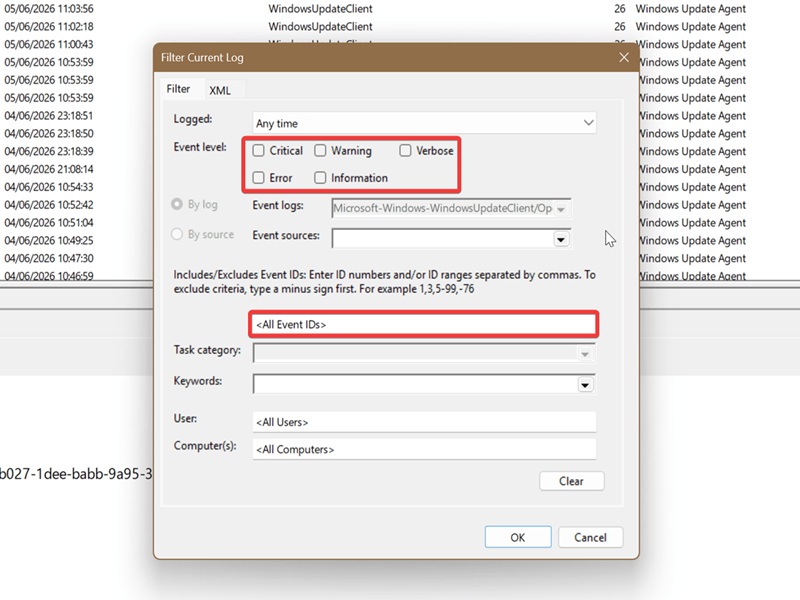
Moreover, if you're troubleshooting, you can filter the logs and look for problematic updates by clicking on Filter Current Log... on the right. You can then select Error or Warning, for example, and hit OK. Or, if you know the failing update's ID, you can search for it directly. The Event Viewer will then display only the logs that fit your criteria.
Finally, if this all seems like too much information, you can check out the Windows Update history. It provides a quick overview of your recently installed feature, definition, and quality updates.

|
selma citakovic
Selma is a gamer, geek and gremlin hunter with a passion for cyber security and smashing Windows bugs before they bite. She’s IBM-certified, loves real freeware, despises bloatware, and powers most of her troubleshooting with an unhealthy amount of coffee. |
comments powered by Disqus
