


How to Remove or Edit Saved Credit Card Information in Chrome, Firefox, and Edge
By Timothy Tibbettson 10/21/2023 |
Most of us save our credit card information in our web browser to make life a little easier. Sooner or later, you'll need, or want, to edit or remove a saved credit card. You might also want to stop using this feature altogether. In this guide, we show you how to manage all your saved credit card information.
1: Google Chrome
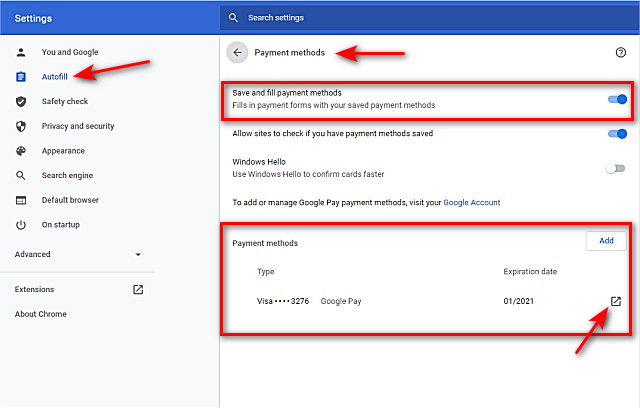
Click the three dots in the top right corner and click on Settings. Click on Autofill on the left, then Payment methods on the right.
Click on Save and fill payment methods to enable or disable Chrome from saving your credit card information.
Click on the arrow next to any credit card to be taken to Google Pay to make any changes, including editing, removing, or adding credit or debit cards, PayPal, and bank accounts.
2: Mozilla Firefox
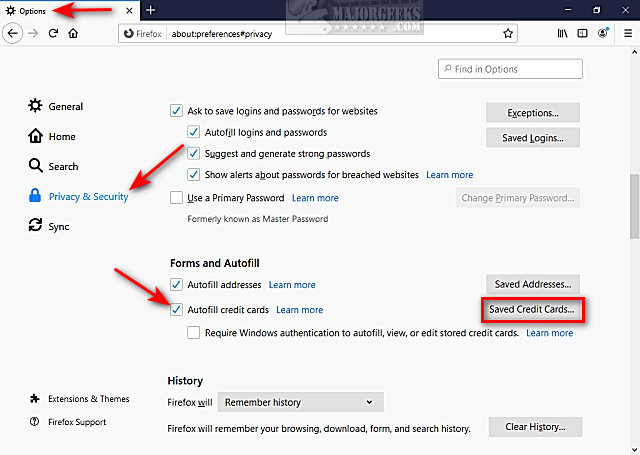
Click the gear icon in the top right corner to access options. On the left, click on Privacy & Security. Scroll down to Forms and Autofill.
Check or uncheck Autofill credit cards to enable or disable Firefox from saving your credit card information.
Click on Saved Credit Cards. A page will open to add, remove, or edit your credit or debit cards.
3: Microsoft Edge & Internet Explorer
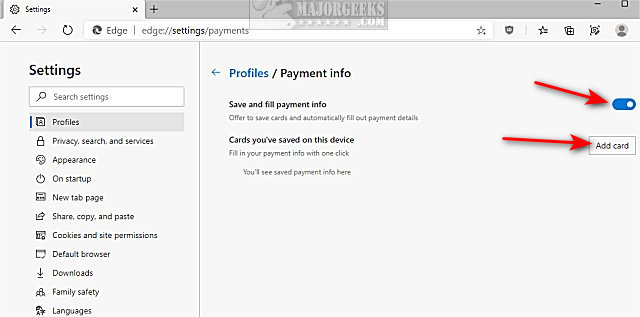
In the Chromium-based Microsoft Edge, click the three dots in the top right corner and then click on Settings. Click on Payment info on the right.
Click on Save and fill payment info to enable or disable Edge from saving your credit card information.
Click on Manage cards to edit any saved credit cards or Add card to add a new credit or debit card.
Internet Explorer users will need to click the gear icon in the top right corner and click on Internet Options. Click on the Content tab and click on Settings next to AutoComplete. By default, Ask me before saving passwords should already be checked. Click on Manage Passwords to view or delete any saved credit card information. Consider upgrading to the Chromium-based Microsoft Edge.
Similar:
How to Edit or Change Your Phone Number in Google Chrome
How to Delete Autofill Entries from Google Chrome
How to View, Edit, and Manage Your Google Chrome Passwords
comments powered by Disqus
1: Google Chrome
Click the three dots in the top right corner and click on Settings. Click on Autofill on the left, then Payment methods on the right.
Click on Save and fill payment methods to enable or disable Chrome from saving your credit card information.
Click on the arrow next to any credit card to be taken to Google Pay to make any changes, including editing, removing, or adding credit or debit cards, PayPal, and bank accounts.
2: Mozilla Firefox
Click the gear icon in the top right corner to access options. On the left, click on Privacy & Security. Scroll down to Forms and Autofill.
Check or uncheck Autofill credit cards to enable or disable Firefox from saving your credit card information.
Click on Saved Credit Cards. A page will open to add, remove, or edit your credit or debit cards.
3: Microsoft Edge & Internet Explorer
In the Chromium-based Microsoft Edge, click the three dots in the top right corner and then click on Settings. Click on Payment info on the right.
Click on Save and fill payment info to enable or disable Edge from saving your credit card information.
Click on Manage cards to edit any saved credit cards or Add card to add a new credit or debit card.
Internet Explorer users will need to click the gear icon in the top right corner and click on Internet Options. Click on the Content tab and click on Settings next to AutoComplete. By default, Ask me before saving passwords should already be checked. Click on Manage Passwords to view or delete any saved credit card information. Consider upgrading to the Chromium-based Microsoft Edge.
Similar:
comments powered by Disqus
