


How to Show Multiple Clocks on Windows
By Timothy Tibbettson 06/15/2023 |
By default, Windows 7, 8, and 10 will show you a single clock with your current time and zone. Did you know you can display an additional two clocks on the taskbar? Here's how.
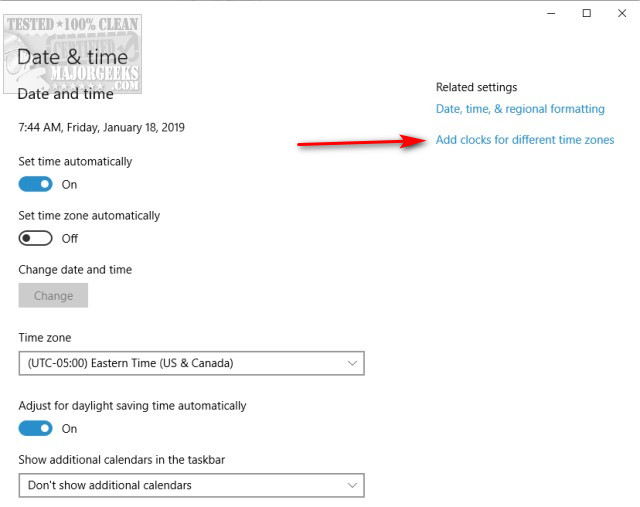
Open your Control Panel and locate your Date & Time Settings or press the Windows Key + S and begin typing clock until you see Date & Time Settings or click on the clock in the system tray and select Date & Time Settings.
On Windows 7 and 8, click on the Additional Clock tab. Windows 10 users first need to click on Add clocks for different time zones.
You should now see two clocks and a checkbox that says Show this clock. Check both boxes and select a time zone. Choosing a time zone should be familiar to anyone who has installed Windows clean. Remember that the first clock displayed is your current clock and the time that you'll see in the system tray.
Finally, enter a display name.
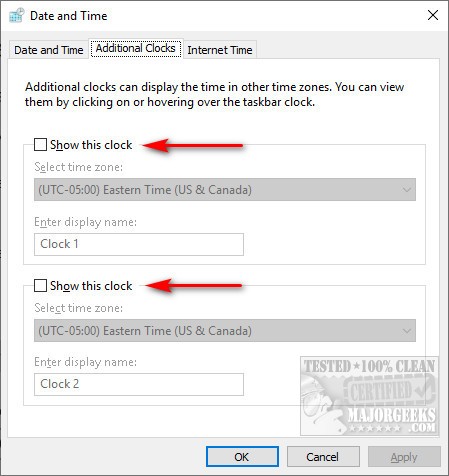
Click on Apply, then OK.
Now, click on your clock and you will see the two different time zones.
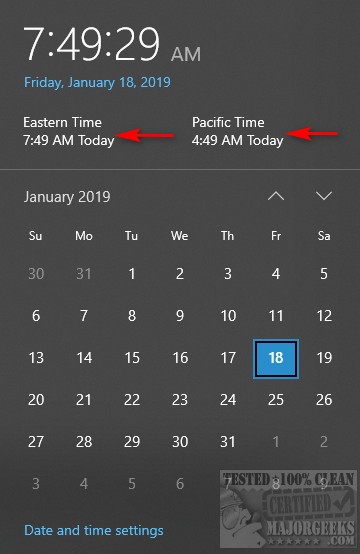
The nice thing about the two clocks is that it is unobtrusive, and uses little to no additional resources that you'll notice.
Similar:
How to Fix Incorrect Date or Time With Windows Clock
How to Show Time Only on the Windows 10 Taskbar
How to Remove the Clock From Windows 10 Taskbar
comments powered by Disqus
Open your Control Panel and locate your Date & Time Settings or press the Windows Key + S and begin typing clock until you see Date & Time Settings or click on the clock in the system tray and select Date & Time Settings.
On Windows 7 and 8, click on the Additional Clock tab. Windows 10 users first need to click on Add clocks for different time zones.
You should now see two clocks and a checkbox that says Show this clock. Check both boxes and select a time zone. Choosing a time zone should be familiar to anyone who has installed Windows clean. Remember that the first clock displayed is your current clock and the time that you'll see in the system tray.
Finally, enter a display name.
Click on Apply, then OK.
Now, click on your clock and you will see the two different time zones.
The nice thing about the two clocks is that it is unobtrusive, and uses little to no additional resources that you'll notice.
Similar:
comments powered by Disqus
