


10 Windows 11 Settings to Turn Off Right Now
By selma čitakovićon 07/05/2026 |
![{$insert['content_title']](/content/file/6147_image2.png
)
It's no secret that Windows 11 includes its fair share of bloatware and unwanted features. Unfortunately, it falls to you as the user to trim all the fat and spend an inordinate amount of time in the Settings, Control Panel, Group Policy Editor, and Registry Editor.
So, to help you out at least a bit, we created this cheat sheet with 10 problematic settings and features you can quickly toggle off and greatly improve your user experience. This includes disabling various ads, diagnostics, clutter, update-related stuff, and other Windows fluff.
Let's dig in!
Update settings
Windows updates have the unfortunate tendency to sometimes break stuff. So, if you don't want to be caught unaware by them:
- Go to Settings > Windows Update.
- Disable Get the latest updates as soon as they're available.
- You can also Pause updates for a few weeks right under that option.
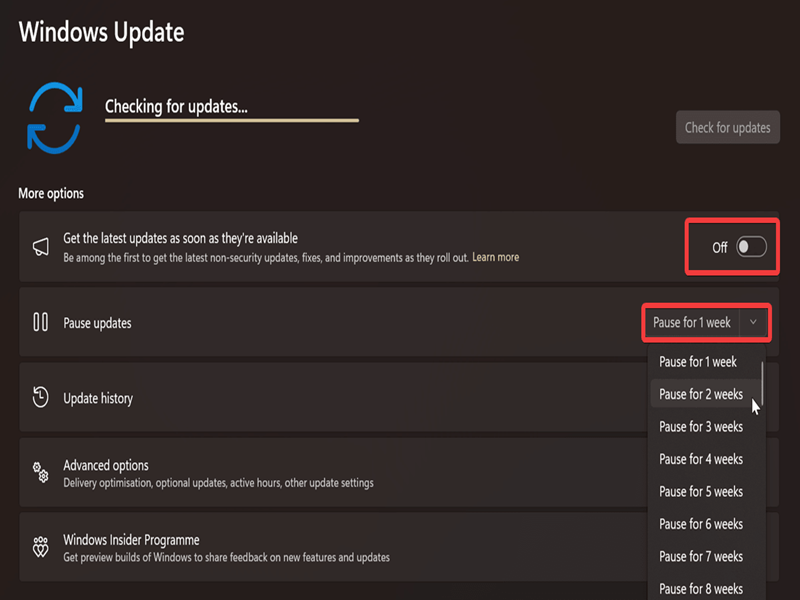
If you want to delay them for longer than five weeks, we have just the guide for that.
Fast Startup
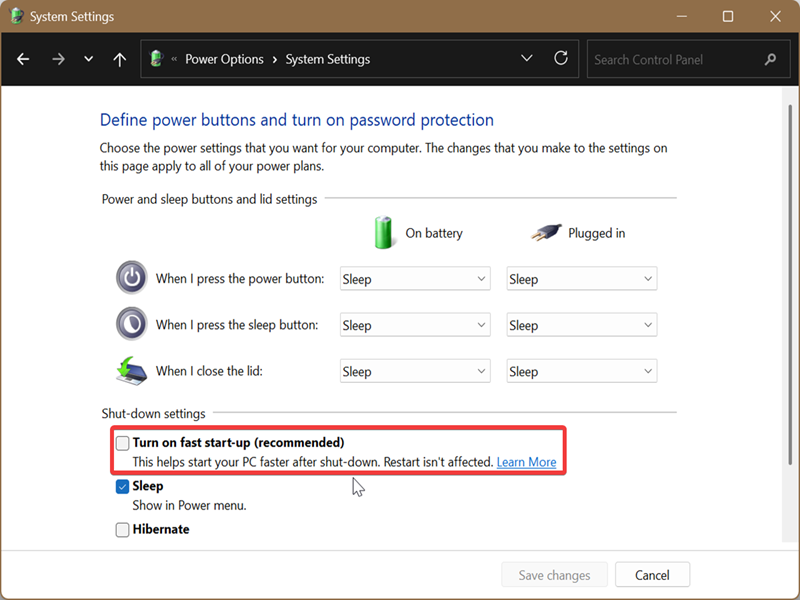
Fast Startup is a mildly controversial feature that helps you boot faster, but it's not recommended for dual-boot configurations or people who forget to restart after installing updates. This is because it's actually a hybrid boot that skips a lot of the steps involved in a traditional (cold) startup. Shutting down your system with Fast Startup enabled doesn't count as a real shutdown. You'll have to restart for that. Many users don't know this, so they don't install system or driver updates properly.
Additionally, the speed boost is negligible if you own an SSD. To keep things simple, I recommend you just disable this feature:
- Type Control Panel in Windows Search and open it.
- Go to Power Options (in Small icons or Large icons view).
- Click on Choose what the power buttons do on the left side.
- Toggle off Turn on fast startup (recommended).
- If the option is greyed out, select Change settings that are currently unavailable near the top.
- Click on Save changes in the corner when you're done.
Recommendations & offers
The following section is full of questionable settings that basically give Windows free rein to pester you with ads. It will recommend content to you based on your activities, language lists, and used apps.
- Go to Settings > Privacy & security > Recommendations & offers.
- Toggle off:
- Personalized offers
- Allow websites to access my language list
- Improve Start and Search results
- Show notifications in Settings
- Recommendations and offers in Settings
- Advertising ID.
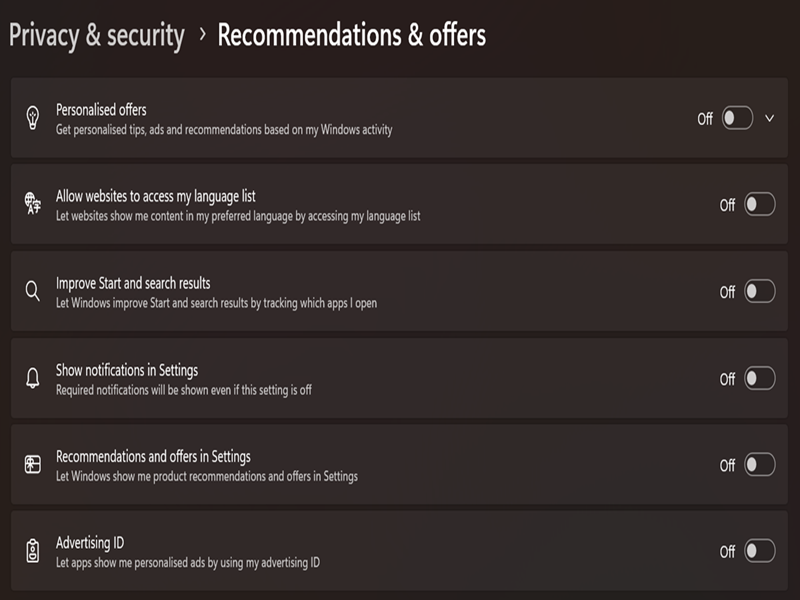
That's pretty much everything on that page, but trust me, it's worth it.
Fun facts, tips, tricks, and bloat on your lock screen
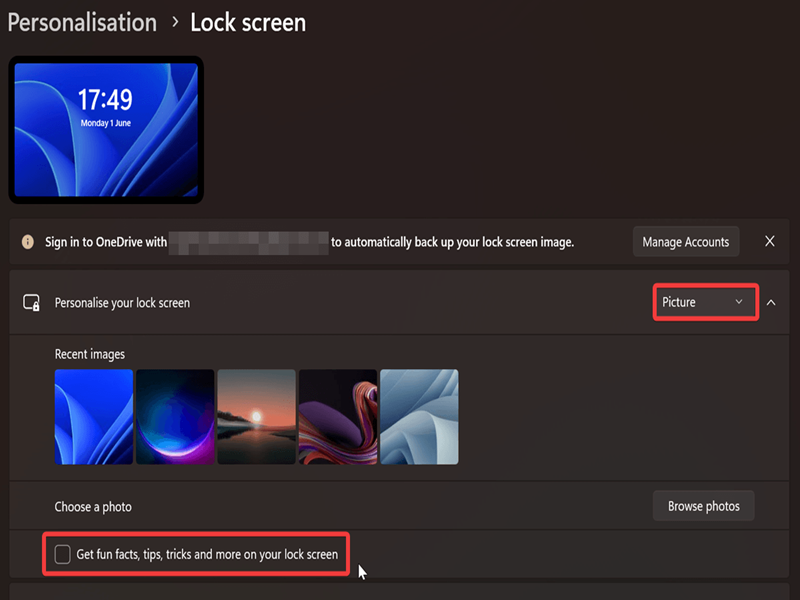
If you'd prefer your lock screen to be free of random clutter, do this:
- Go to Settings > Personalization > Lock screen.
- Select Personalize your lock screen and choose a picture or slideshow as your background.
- Uncheck Get fun facts, tips, tricks, and more on your lock screen.
Start menu
The Windows 11 Start menu is one of the areas that suffers from bloat the most. To make it easier on the eyes, do this:
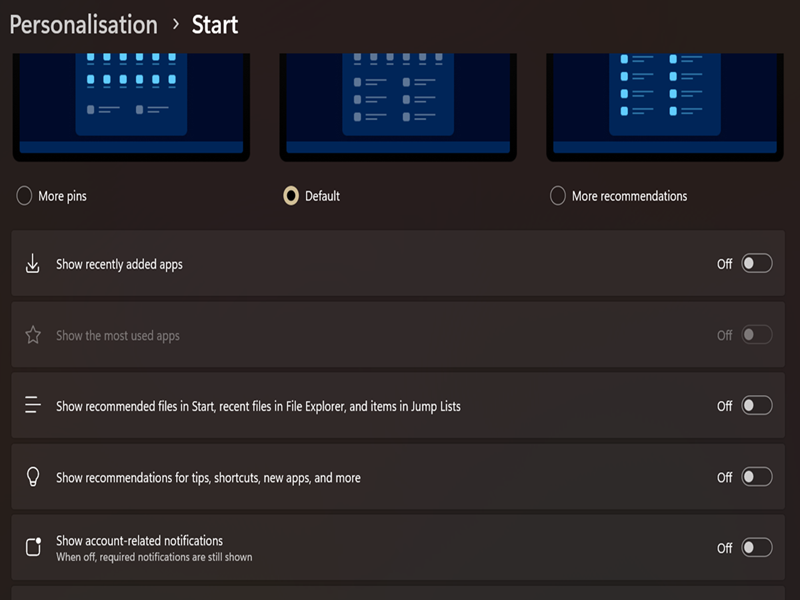
- Go to Settings > Personalization > Start.
- Toggle off the following:
- Show recently added apps
- Show the most used apps
- Show recommended files in Start, recent files in File Explorer, and items in Jump Lists
- Show recommendations for tips, shortcuts, new apps, and more
- Show account-related notifications.
Notifications
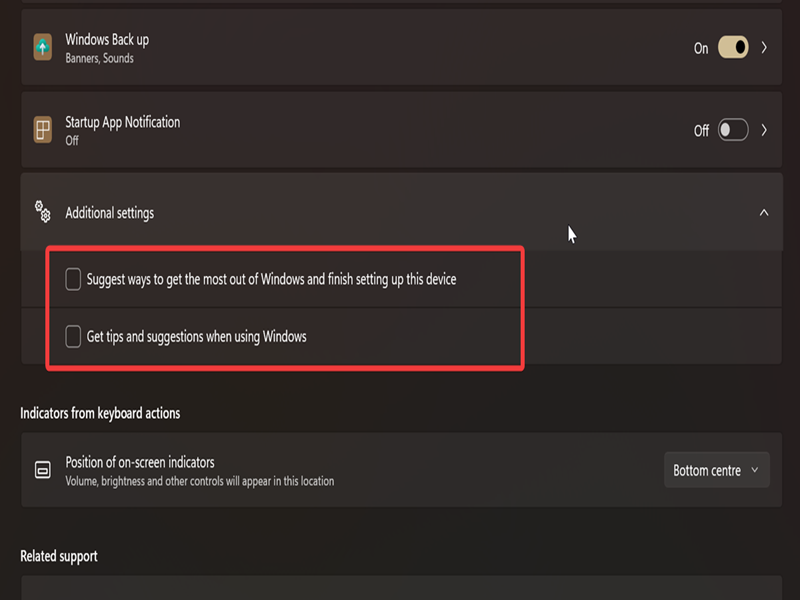
The following two options will remove the "Let's finish setting up your device" screen and various pop-ups and tips:
- Go to Settings > System > Notifications.
- Scroll down and expand Additional settings.
- Uncheck Suggest ways to get the most out of Windows and finish setting up this device and Get tips and suggestions when using Windows.
Search
The Search box could also benefit from a cleanup:
- Go to Privacy & security > Search.
- Disable Search history, Show search highlights, and Search my accounts for both Microsoft and Work or school accounts.
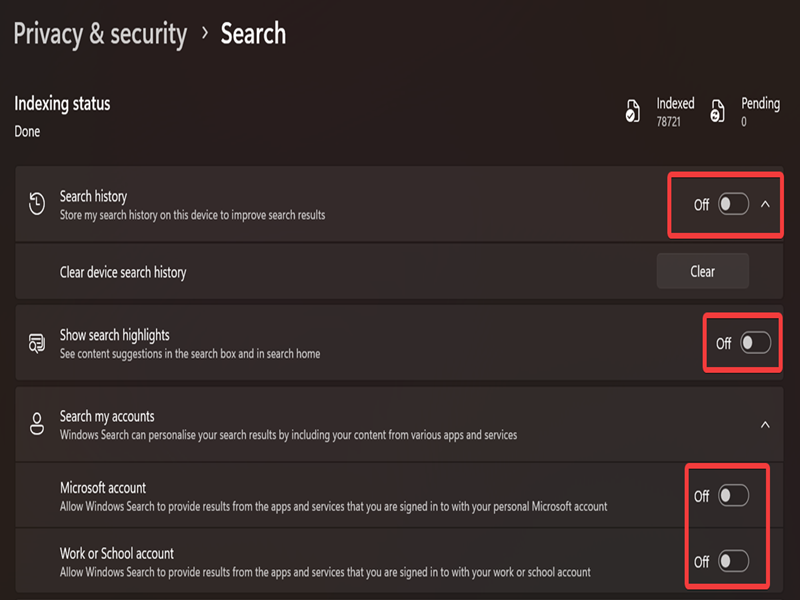
This will stop it from storing your search history, personalizing your search results, and suggesting content you probably don't need.
Diagnostics & feedback
Windows 11 relies on required diagnostic data to function normally (or so it claims). You can limit its reach like this:
- Go to Settings > Privacy & security > Diagnostics & feedback.
- Expand Diagnostic data and toggle off Send optional diagnostic data.
- Disable Improve inking and typing.
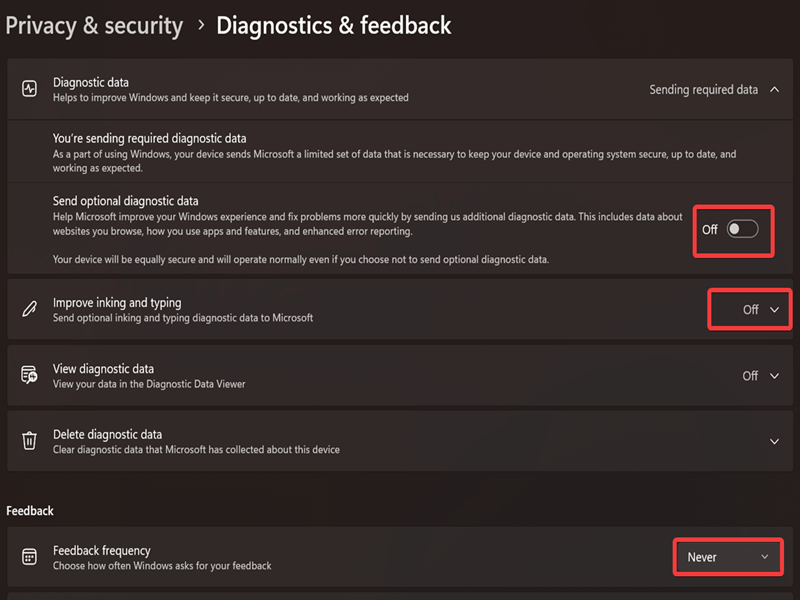
Scroll down and select Never for Feedback frequency, tool. Moreover, there's a way to stop sending even the required data, but it involves registry editing.
OneDrive folder backup settings
OneDrive comes pre-packed with Windows 11, which may sound convenient, but in practice, it's really not that great. The free plan is extremely limited and just a ploy to get you to subscribe. You only have 5GB of cloud storage for free, while the default settings are configured to back up your local Documents, Pictures, Videos, Music, and Desktop folders. I don't know about you, but there's no way 5GB is going to cut it for all those files.
To prevent potential issues (including data loss), I recommend you disable folder backup sync:
- Open OneDrive by clicking on its system tray icon. (If you've previously taken it off your taskbar, right-click it, select Taskbar settings, and expand Other system tray icons. Toggle on OneDrive.)
- Click the cog icon and select Settings.
- While in Sync and backup, click on the Manage backup button.
- You should see a list of folders. Toggle off all the ones you don't want to back up.
- Confirm your decision by clicking OK.
- For the Desktop folder, you'll have to select This computer only, then click Continue.
- Again, click OK when OneDrive confirms that backup has stopped for a specific folder.
- Click Close on the backup window when you're done.

You can also disable or uninstall OneDrive outright if it doesn't suit your needs.
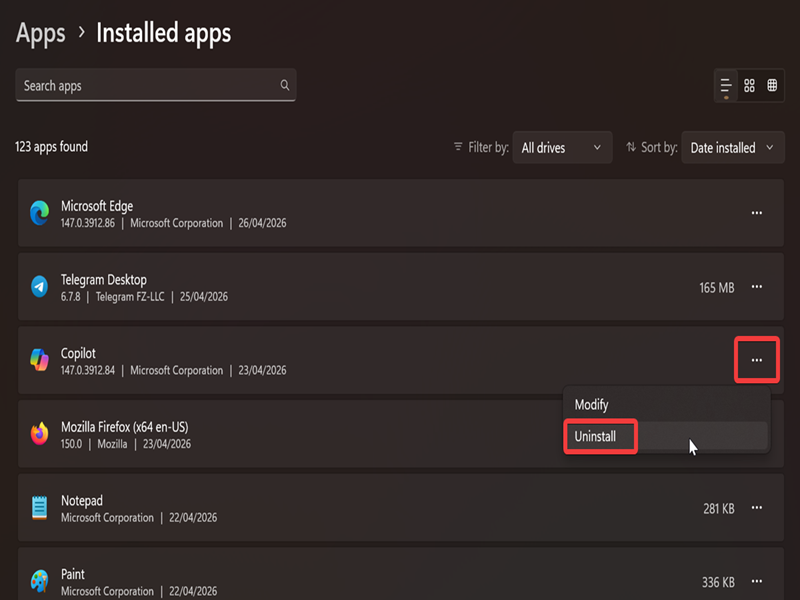
Copilot
Another built-in Windows feature that may not be to your liking! After seeing it almost everywhere within the operating system, Microsoft seems to be pulling back a bit. You can now uninstall it normally like any other app, for one.
If you'd like to get rid of it, here's how:
- Go to Settings > Apps > Installed apps.
- Look for Copilot, and click the three dots next to it. Select Uninstall.
- Again, confirm by clicking Uninstall.
And that's all! Admittedly, it's a long list with a lot of things to disable, but your computer will thank you for it. If there's anything else that's your go-to, feel free to share it with the class below.

|
selma citakovic
Selma is a gamer, geek and gremlin hunter with a passion for cyber security and smashing Windows bugs before they bite. She’s IBM-certified, loves real freeware, despises bloatware, and powers most of her troubleshooting with an unhealthy amount of coffee. |
comments powered by Disqus
