


Change When Your Screen Turns Off in Windows 11
By selma čitakovićon 09/27/2026 |
![{$insert['content_title']](/content/file/6440_image2.jpg
)
If you leave your PC alone for a while, you might come back to find that the display has turned off. That's completely normal. By default, this screen timeout happens after five minutes of inactivity on battery and 15 minutes when plugged in. You can just move your mouse, and it will turn back on.
Of course, you can change the timing to something that's more to your liking. Or disable it so that your screen never automatically turns off. Here's how!
Via Settings
You can find the options here:
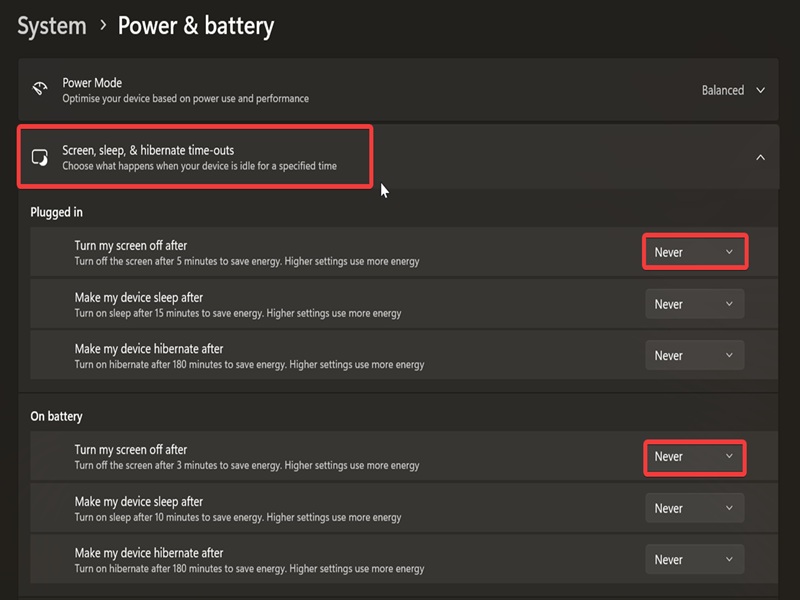
- Go to Settings > System > Power or Power & battery.
- Click to expand Screen and sleep or Screen, sleep, & hibernate timeouts.
- Choose when to turn off your screen (never, in minutes, or hours) when it's plugged in or on battery power.
Via Power Plan settings
You can also do it the old-fashioned way in the legacy Control Panel:
- Type Control Panel in Windows Search and click Open.
- Select Power Options. If you can't find it, switch to Icons view in the top-right corner.
- Click the Choose when to turn off the display link on the left.
- Select from the drop-down menus when you want to turn off the display.
- Click the Save changes button when done.
Alternatively, you can try the Advanced Power Plan settings:
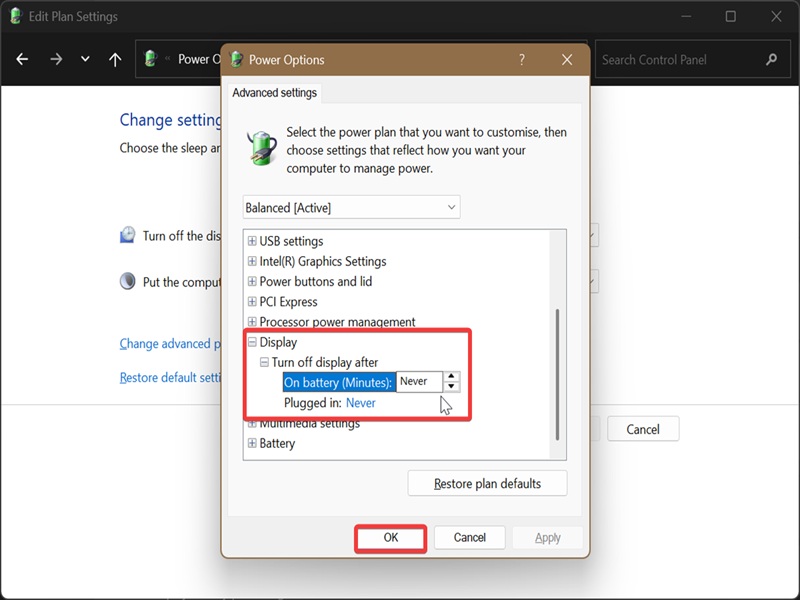
- While in Power Options, click the Change plan settings link next to the power plan you currently use.
- Select Change advanced power settings.
- In the new window that opens, scroll down and click on Display to expand it.
- Click Turn off display after, and choose how many minutes or hours you want in the drop-down menu. You can also pick Never.
- Click OK to apply the changes.
Via command
Or, if you prefer using commands:
- Press Win + X and select Terminal. Open Command Prompt or PowerShell; either works.
- If you want to change the screen timeout while on battery, paste these commands and hit Enter: powercfg -change -monitor-timeout-dc <minutes> OR powercfg /SETDCVALUEINDEX SCHEME_CURRENT 7516b95f-f776-4464-8c53-06167f40cc99 3c0bc021-c8a8-4e07-a973-6b14cbcb2b7e <seconds>
- To do the same but for a plugged-in PC, try these: powercfg -change -monitor-timeout-ac <minutes> OR powercfg /SETACVALUEINDEX SCHEME_CURRENT 7516b95f-f776-4464-8c53-06167f40cc99 3c0bc021-c8a8-4e07-a973-6b14cbcb2b7e <seconds>
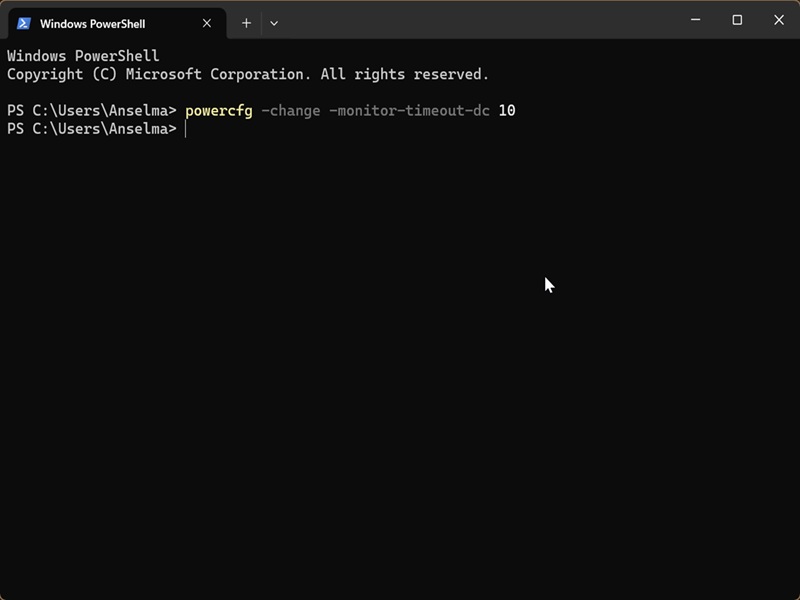
As you can see, there are separate commands for battery/plugged-in modes and for minutes/seconds. You'll have to replace the placeholders
However, if you want your display to never automatically turn off, type 0 instead of minutes and seconds.
You can also make your monitor turn off only on demand with a batch file. It's useful if you want to dim your screen without waiting.

|
selma citakovic
Selma is a gamer, geek and gremlin hunter with a passion for cyber security and smashing Windows bugs before they bite. She’s IBM-certified, loves real freeware, despises bloatware, and powers most of her troubleshooting with an unhealthy amount of coffee. |
comments powered by Disqus
