


Clean Boot Troubleshooting: A Step-by-Step Guide
By selma čitakovićon 08/13/2026 |
![{$insert['content_title']](/content/file/6299_image4.png
)
If a program doesn't run properly, or you can't install/uninstall it, it could be due to other apps and services interfering with it. However, figuring out which one is responsible for the software conflict is tricky.
You can perform a clean boot - start Windows with a minimal set of startup programs and drivers. That makes it easier to isolate the problematic app or service, and you won't feel like you're looking for a needle in a haystack.
I'll show you how to do it, step-by-step.
Perform a clean boot
Make sure you've signed in as an administrator first, and follow these steps:
- Press Ctrl + Shift + Esc to open Task Manager.
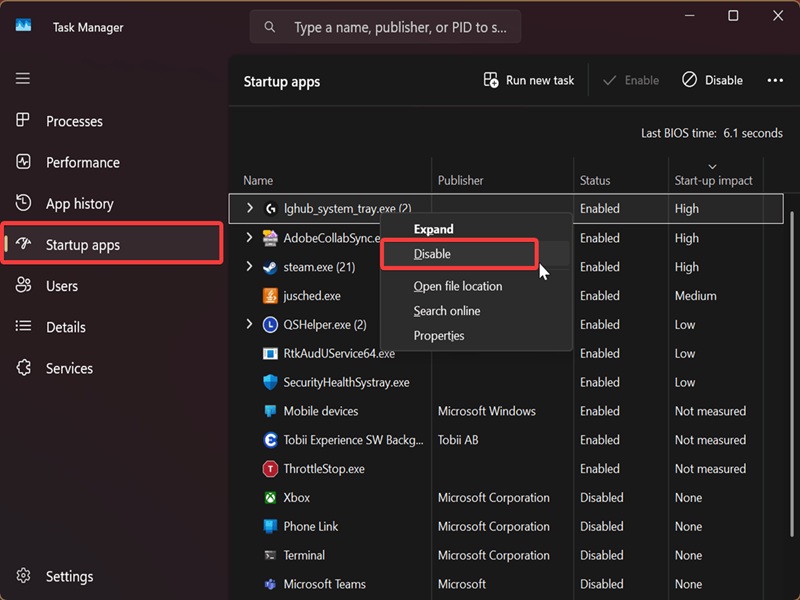
- Click on Startup apps on the left side, or if you still have the "old" Task Manager design, click the Startup tab at the top.
- Go through all the startup apps one by one, right-click them, and select Disable.
- Once you've disabled them, close Task Manager.
- Press Win + R, type msconfig.exe, and hit Enter. This will open System Configuration.
- Go to the Services tab, and check the Hide all Microsoft services box.
- Now, click the Disable all button, and hit OK.
- A confirmation window will pop up, asking you to restart. Click on Restart.
Your PC will then perform a clean boot. You can now troubleshoot and try to sleuth out which app or service is causing your problems.
Identify the software conflict
The process may differ depending on the kind of issues you're having. Let's call them scenario A and B.
Scenario A: You can't install or uninstall certain programs.
Try doing so now in a clean boot environment. If the problem was due to app/service interference, you'll be able to install/uninstall the program, and your work here is done. You can proceed to step 3.
But if you still can't do it and the clean boot isn't helping, you're not addressing the real cause of the issue. You'll have to look for solutions elsewhere.
Scenario B: You've had trouble running a program before the clean boot.
Try now! If it still doesn't work, it's not due to app/service interference, so you'll have to look into other causes.
However, if the program actually runs now, that means there is something that's preventing it from working. You just have to find out what it is.
You can start by re-opening System Configuration (msconfig.exe). Go to the Services tab again, and check the "Hide all Microsoft services" box. But this time, also check the upper half of the services you see in the table. Keep the other half unchecked. Click OK, and confirm you want to restart.
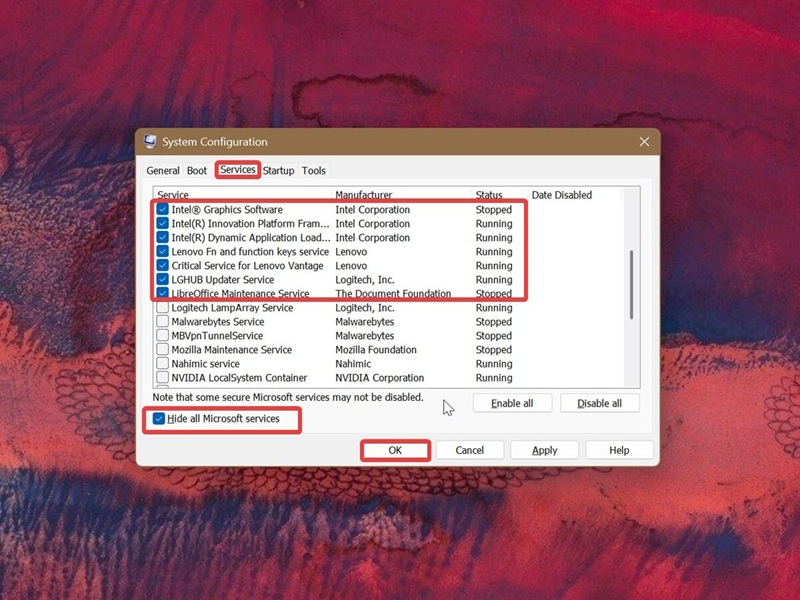
If the problem with the program persists after the restart, that means the culprit is one of the services you checked in System Configuration. You just have to narrow it down: disable services from that group one by one and restart until you identify the one causing the problem.
On the other hand, if the affected program works normally after checking the first half of the services, the culprit could be in the other half. So, this time you should uncheck the upper half and check the lower one. Repeat the same process to single out the problematic service.
Either way, once you figure out the culprit, you can proceed to step 3.
However, if you've determined that none of the services are the cause of the issue, it's time to move on to Task Manager. One of the startup programs could be what you're looking for.
The process here is pretty much the same:
You'll enable the upper half of programs in the startup list first, restart, and check if the issue persists. If it does, bingo. It has to be one of the programs you've enabled; now you just need to isolate it. Disable them one by one and restart until you determine which app it is.
Likewise, if the problem doesn't occur when the first half of startup apps is enabled, it has to be the second half. Just make sure you don't lose track of which apps you've already checked.
Lastly, if you've checked and eliminated all non-Microsoft services and startup programs, and you still haven't found the culprit:
It's a Microsoft service. This is the least likely scenario, so we left it for last. This time, open System Configuration, but don't check the box for Hide all Microsoft services. Repeat the elimination process to finally identify the offending service.
Whew, that was a lot of work.
Return your PC to a normal startup
All that's left to do is "undo" the clean boot and restart your PC normally. Here's how:
- Open Task Manager and go to Startup apps/Startup.
- Right-click and enable each of the apps you've previously disabled.
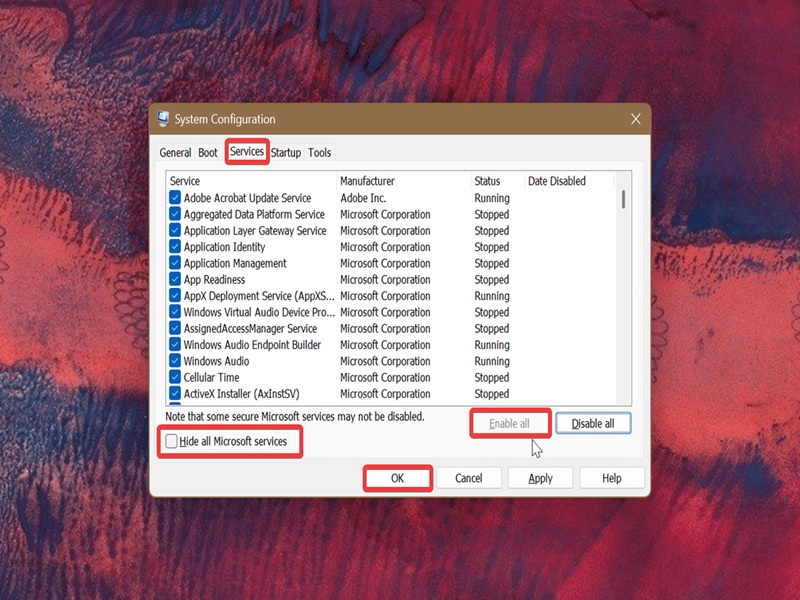
- Open System Configuration and go to the Services tab.
- Uncheck the Hide all Microsoft services box.
- Click the Enable all button, then OK.
- Confirm you want to restart.
And that's it!
If it's not a software conflict, it could be the program itself that's faulty, or something else entirely. You can do the usual: try to update, repair, and reinstall it, or look up error codes online. You can also check the Major Geeks support forums and see if other people have experienced similar issues.

|
selma citakovic
Selma is a gamer, geek and gremlin hunter with a passion for cyber security and smashing Windows bugs before they bite. She’s IBM-certified, loves real freeware, despises bloatware, and powers most of her troubleshooting with an unhealthy amount of coffee. |
comments powered by Disqus
