


Delete Restore Points in Windows 11 the Right Way
By selma čitakovićon 07/19/2026 |
![{$insert['content_title']](/content/file/6239_image3.jpg
)
If you feel like restore points are taking up too much space, you can just delete them. Additionally, you can single out specific restore points, the oldest ones, or simply get rid of everything. It's up to you!
Make sure you sign in as an administrator first, and read on.
Delete all via System Protection
If you want to remove all restore points on a specific drive, do the following:
- Go to Settings > System > About (at the very end of the page).
- Click the System protection link next to Related links.
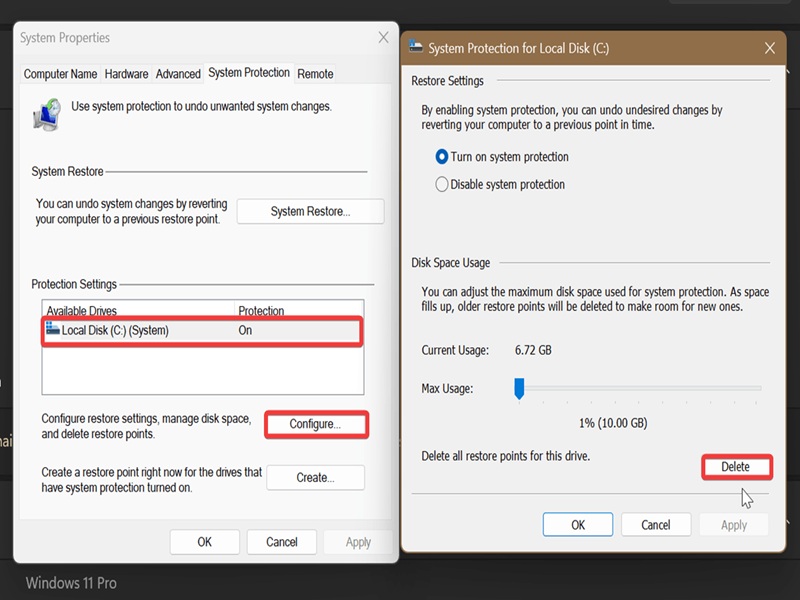
- This will open a new window, System Properties, with the System Protection tab.
- Select the drive on which you want to delete all restore points under Available drives.
- Click the Configure button.
- Hit the Delete button on the new window that opens.
- Confirm your decision by clicking on Continue.
- You'll be notified when the restore points are deleted. Click Close.
- Click on the OK button when you're back to System Properties.
Delete all via command
You can also try a command-based approach. To get rid of all restore points on all drives:
- Type CMD into Windows Search, and select Run as administrator.
- Paste the following command and press Enter: vssadmin delete shadows /all
- Type Y to confirm your decision.
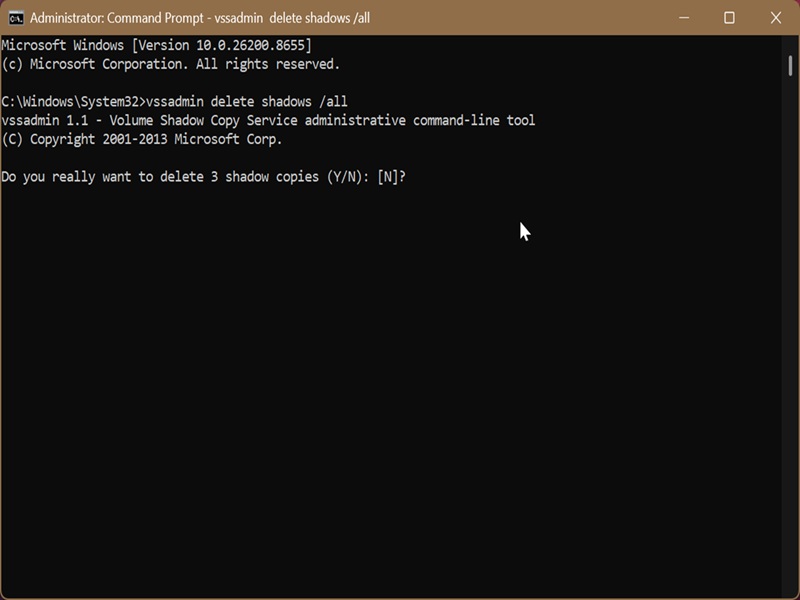
Alternatively, you can paste vssadmin delete shadows /all /quiet to immediately execute the command, without prompting.
But what if you want to delete restore points only on a specific drive?
- Open elevated Command Prompt again.
- Type this command: vssadmin delete shadows /For=drive letter: /all but replace the placeholder with the actual drive letter. For example: vssadmin delete shadows /For=C: /all
- Type Y to confirm.
Again, you can add /quiet to the end of the command to skip confirmation.
Delete a specific restore point via command
The previous methods allowed you to delete everything without specifying. If you want to remove only particular restore points, try this instead:
- Type CMD into Windows Search, and select Run as administrator.
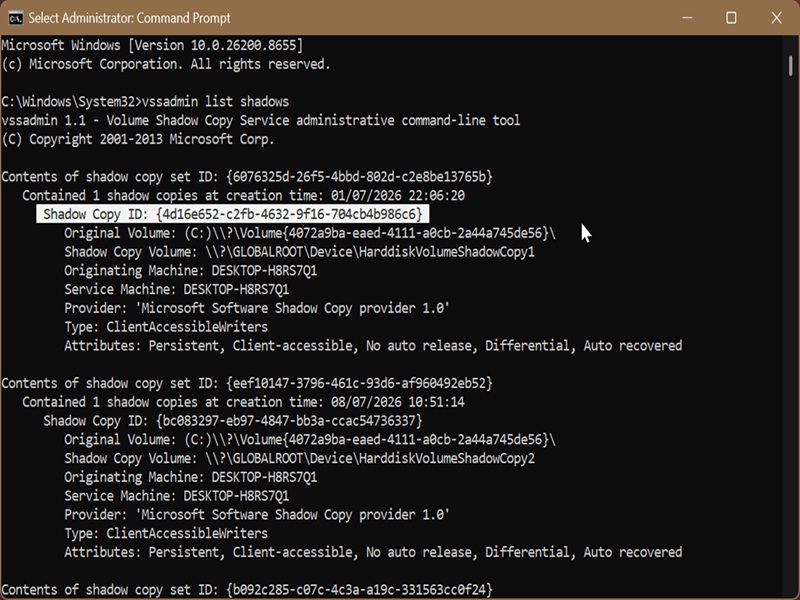
- Paste this command and hit Enter: vssadmin list shadows
- It will list "shadow copies," which are actually restore points, together with their IDs, dates, and other details.
- Find the one you want and note its Shadow Copy ID in the curly brackets. You'll need it in just a bit.
- Now, type this command: vssadmin delete shadows /Shadow={Shadow Copy ID} but paste the actual ID for the restore point in the brackets.
- Press Y to confirm.
Delete the oldest restore point via command
Or if you'd just like to remove the oldest one:
- Type CMD into Windows Search, and select Run as administrator.
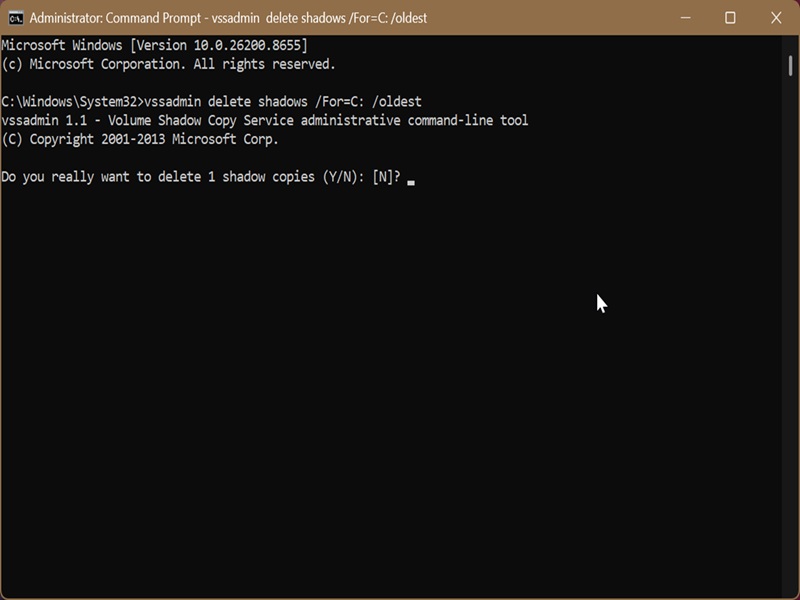
- Paste the following command: vssadmin delete shadows /For=drive letter: /oldest but again, replace the placeholder with the actual drive letter.
- Type Y to confirm your decision.
Finally, you can always check out your most recent restore points via System Restore or a command. We've covered it in a previous guide.

|
selma citakovic
Selma is a gamer, geek and gremlin hunter with a passion for cyber security and smashing Windows bugs before they bite. She’s IBM-certified, loves real freeware, despises bloatware, and powers most of her troubleshooting with an unhealthy amount of coffee. |
comments powered by Disqus
