


How to Delete Some or All System Restore Points on Windows 10 & 11
By Timothy Tibbettson 07/12/2023 |
Depending on how System Restore is configured, it can be wasting a lot of space. Luckily, it's easy to delete all of your Restore points, or even everything but the most recent. Here's how.
While we're poking around System Restore, we'll also point out a few other things, like how much space to use and how to enable or disable System Restore entirely.
1: Delete All Restore Points
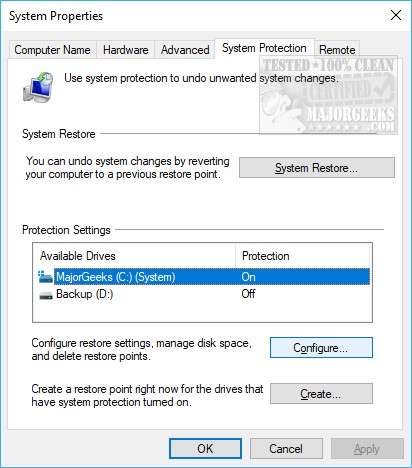
Press the Windows Key + R and type in SystemPropertiesProtection followed by the enter key. You are now in the System Protection tab of System Properties.
Highlight your main drive, usually (C:)(System) and click on Configure.
Click on Delete near the lower right, and a warning will appear that you're about to delete all restore points. Click on Continue, and all Restore Points will be deleted.
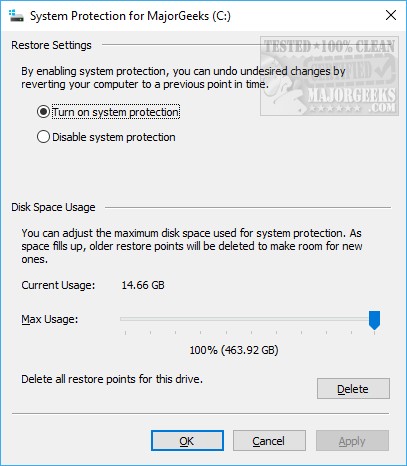
You might have also noted a few System Restore options you can change here as well.
You can enable or disable System Restore and even decide how much space can be used. Windows still, by default, uses 100% of your drive space as potential space for Restore Points. Because System Restore will delete old restore points, limiting the space used can save you the trouble of having to remove Restore Points because Windows will automatically delete the old Restore Point as space gets limited. Opinions vary, but we wouldn't use 10-25%. Use the slider next to Max Usage to change the amount of drive space allocated.
If you keep a drive image as we do, then we disable System Restore to improve system performance.
2: Delete All but the Most Recent Restore Point
Open File Explorer and right-click on your C: drive and select Properties. Click on Disk Cleanup.
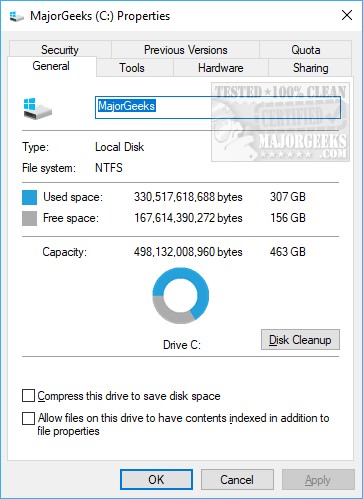
Click on Clean up system files. Wait a minute or two until Windows scans and click on the More Options tab at the top.
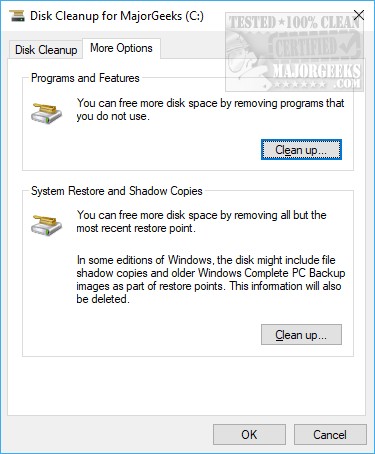
Click on Clean up under System Restore and Shadow Copies. Once again, you will be warned that everything will be deleted but the most recent restore point. Click Delete and you're finished.
If you exit Disk Cleanup, you will be prompted again that you'll permanently delete some files. You can click cancel, but remember we're in Disk Cleanup, so go ahead and let Disk Cleanup do its job while you're here by clicking on Delete Files.
3: Delete One or More Restore Points From PowerShell
Advanced users might want to delete one or more points from PowerShell, or the Command Prompt. We're going to just touch on this method, so anyone looking for the commands has them.
Open Command Prompt or PowerShell as administrator and type in vssadmin list shadows. Any line you see with Shadow Copy ID: is a Restore Point.
So, to remove one or more of these Restore Points, you need to type in vssadmin delete shadows /Shadow= followed by the long numbers that follow Shadow Copy ID: as mentioned above.
Of course, you can also delete all of your Restore Points from here as well. Type in vssadmin delete shadows /all to delete everything.
That's it. Hopefully, you're cleaned up your drive and maybe even find your computer running a little better now.
Similar:
How to Delete Some or All System Restore Points on Windows 10
Enable, Disable, Manage, Delete or Create a System Restore Point
How to Change System Protection Storage Size in Windows 10
How-To Fix System Restore Failed While Restoring the Directory and Other System Restore Errors
comments powered by Disqus
While we're poking around System Restore, we'll also point out a few other things, like how much space to use and how to enable or disable System Restore entirely.
1: Delete All Restore Points
Press the Windows Key + R and type in SystemPropertiesProtection followed by the enter key. You are now in the System Protection tab of System Properties.
Highlight your main drive, usually (C:)(System) and click on Configure.
Click on Delete near the lower right, and a warning will appear that you're about to delete all restore points. Click on Continue, and all Restore Points will be deleted.
You might have also noted a few System Restore options you can change here as well.
You can enable or disable System Restore and even decide how much space can be used. Windows still, by default, uses 100% of your drive space as potential space for Restore Points. Because System Restore will delete old restore points, limiting the space used can save you the trouble of having to remove Restore Points because Windows will automatically delete the old Restore Point as space gets limited. Opinions vary, but we wouldn't use 10-25%. Use the slider next to Max Usage to change the amount of drive space allocated.
If you keep a drive image as we do, then we disable System Restore to improve system performance.
2: Delete All but the Most Recent Restore Point
Open File Explorer and right-click on your C: drive and select Properties. Click on Disk Cleanup.
Click on Clean up system files. Wait a minute or two until Windows scans and click on the More Options tab at the top.
Click on Clean up under System Restore and Shadow Copies. Once again, you will be warned that everything will be deleted but the most recent restore point. Click Delete and you're finished.
If you exit Disk Cleanup, you will be prompted again that you'll permanently delete some files. You can click cancel, but remember we're in Disk Cleanup, so go ahead and let Disk Cleanup do its job while you're here by clicking on Delete Files.
3: Delete One or More Restore Points From PowerShell
Advanced users might want to delete one or more points from PowerShell, or the Command Prompt. We're going to just touch on this method, so anyone looking for the commands has them.
Open Command Prompt or PowerShell as administrator and type in vssadmin list shadows. Any line you see with Shadow Copy ID: is a Restore Point.
So, to remove one or more of these Restore Points, you need to type in vssadmin delete shadows /Shadow= followed by the long numbers that follow Shadow Copy ID: as mentioned above.
Of course, you can also delete all of your Restore Points from here as well. Type in vssadmin delete shadows /all to delete everything.
That's it. Hopefully, you're cleaned up your drive and maybe even find your computer running a little better now.
Similar:
comments powered by Disqus
