


Where To Find Previous Restore Points in Windows 11
By selma čitakovićon 06/27/2026 |
![{$insert['content_title']](/content/file/6136_image2.jpg
)
If you're experiencing system instability after a bad driver update, or you changed something in the registry you really shouldn't have, System Restore can save the day. It keeps track of system changes and lets you roll back to an earlier point in time. However, it can't keep these snapshots indefinitely. Restore points have a 60-day limit in Windows 11, after which they're deleted to make space for newer ones.
So, if you'd like to check out the most recent restore points, read on!
Via System Restore
Obviously, you can find a list of restore points in the System Restore wizard. To bring it up:
- Press Win + R, type rstrui.exe, and hit Enter.
- Select Choose a different restore point, and click Next. Alternatively, if this is your first time using System Restore, you'll see an introduction screen. Click Next on it.
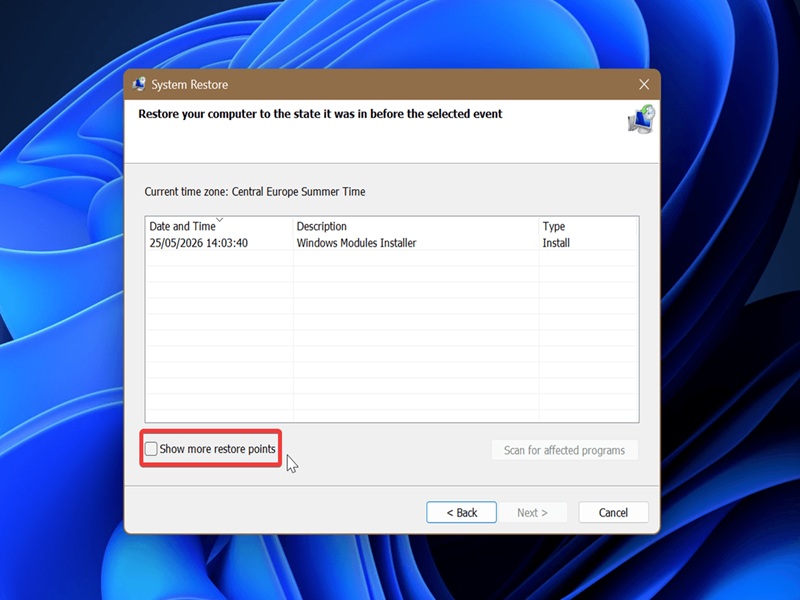
- You should see a table with your most recent restore point(s). Check Show more restore points to expand the list.
- You can select a specific point and click on Scan for affected programs to see which ones will be deleted or restored.
- Click on Cancel when you're done looking.
Via command
Or, you can check it in elevated PowerShell or Command Prompt. Here's how:
- Press Win + X, select Terminal (Admin), and open the command-line shell you prefer.
- In PowerShell, type the following command and press Enter: Get-ComputerRestorePoint | Format-Table -AutoSize
- Or, use this one in Command Prompt: PowerShell Get-ComputerRestorePoint^|Format-Table -AutoSize
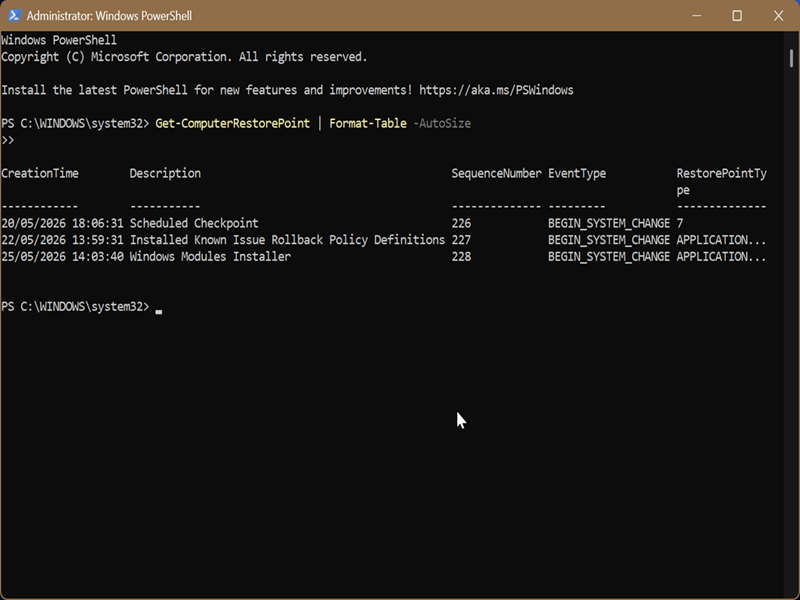
You'll see a table with Creation Time, Description, Sequence Number, Event Type, and Restore Point Type values.
Still, keep in mind that System Restore isn't the same recovery method as backups or system images. It's short-term and only takes a snapshot of your system files and settings. It's not suitable for long-term disaster recovery.

|
selma citakovic
Selma is a gamer, geek and gremlin hunter with a passion for cyber security and smashing Windows bugs before they bite. She’s IBM-certified, loves real freeware, despises bloatware, and powers most of her troubleshooting with an unhealthy amount of coffee. |
comments powered by Disqus
