


How to Enable Dictation in Windows 10 & 11
By Timothy Tibbettson 06/15/2023 |
Dictation in Windows 10 is part of the Speech features allowing you to make text entry easier. Here's how to get started with Dictation.
One of the fun things about computers is that you never stop learning. Whether it's hardware or software, there's a lot to learn, and it's constantly evolving and changing.
That brings us to Dictation and something I learned today.
Press the Windows Key + H to start Dictation. If you have a touch keyboard, you can press the microphone button.
You should see a thin, rectangular box at the top center of your screen.
If you see a message to turn on Speech Recognition; click on it to jump to Settings and enable Speech Recognition.

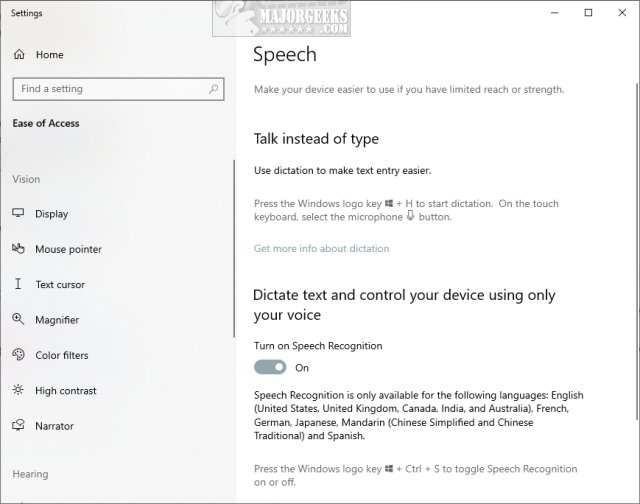

You can also find Speech Recognition in Settings > Ease of access > Speech. Look for Turn on Speech Recognition to enable or disable Speech Recognition.
Speech is only available in English, French, German, Japanese, Mandarin, and Spanish.
As they say on the internet, "I was today years old when I discovered the Win + H key for Dictation."
Similar:
How to Enable Windows Sonic Surround Sound on Windows 10
How to Diagnose Sound Delays, Lags and Audio Latency in Windows 10
How to Rename Your Sound Input or Output Devices
comments powered by Disqus
One of the fun things about computers is that you never stop learning. Whether it's hardware or software, there's a lot to learn, and it's constantly evolving and changing.
That brings us to Dictation and something I learned today.
Press the Windows Key + H to start Dictation. If you have a touch keyboard, you can press the microphone button.
You should see a thin, rectangular box at the top center of your screen.
If you see a message to turn on Speech Recognition; click on it to jump to Settings and enable Speech Recognition.
You can also find Speech Recognition in Settings > Ease of access > Speech. Look for Turn on Speech Recognition to enable or disable Speech Recognition.
Speech is only available in English, French, German, Japanese, Mandarin, and Spanish.
As they say on the internet, "I was today years old when I discovered the Win + H key for Dictation."
Similar:
comments powered by Disqus
