


Failed – Virus Detected on Windows 10 & 11
By Timothy Tibbettson 06/15/2023 |
Google Chrome, Mozilla Firefox, or Microsoft Edge might refuse to download a file warning you Failed – Virus Detected even though you know or trust the file is safe. Failed – Virus Detected means that Windows Defender has determined a file that you were downloading is a potential virus.
There are two possible reasons why this happened.
1: The File Contains a Virus or Malware
The file you're downloading could be a virus, malware, or contain Potentially Unwanted Programs (PUP's). If you're not sure, don't download it. It's as simple as that. There isn't a download in the world worth trashing your computer.
2: It's a False Positive
If you're downloading from a website you trust, like MajorGeeks, and you know or believe the file is clean, you're probably right. While Windows Defender does its best, it also errs on the side of caution by flagging files that it does not recognize as infected. Some antivirus companies call this heurestics.
A heuristic technique, as defined by WikiPedia, is an approach to problem-solving, learning, or discovery that employs a practical method not guaranteed to be optimal or perfect but sufficient for the immediate goals.
In other words, they don't know.
Video tutorial:
Disable Windows Defender Temporarily to Download a File
If you know a safe file and want to download it, the easiest solution is to disable Windows Defenders Virus & Threat Protection temporarily.
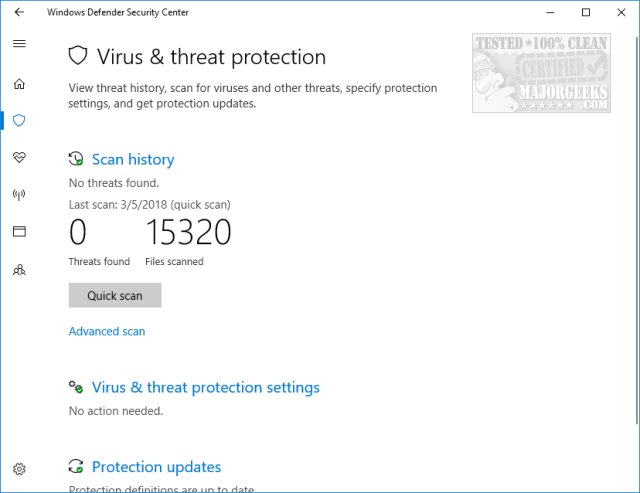
Click on the Windows Defender shield icon in the system tray (lower right) or press the Windows Key + S and type in security and click on Windows Defender Security Center.
Click on Virus & threat protection > Virus & threat protection settings > Manage settings.
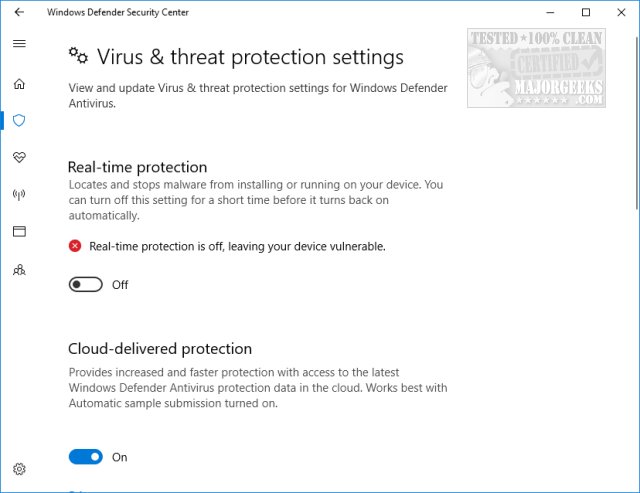
Disable Real-time Protection and optionally Cloud-delivered protection if that fails.
Click Yes when prompted by User Account Control.
Leave the Virus & threat protection settings window open, then download the blocked file.
Now, return to the Virus & threat protection settings window and toggle Real-time Protection and Cloud-delivered protection on.
Similar:
How to Tell the Difference Between a Virus and a False Positive
Virus Scan Failed or Virus Detected Error
How to Manage Windows Defender Antivirus Found Threats
How to Install Avast as a Lightweight Antivirus
comments powered by Disqus
There are two possible reasons why this happened.
1: The File Contains a Virus or Malware
The file you're downloading could be a virus, malware, or contain Potentially Unwanted Programs (PUP's). If you're not sure, don't download it. It's as simple as that. There isn't a download in the world worth trashing your computer.
2: It's a False Positive
If you're downloading from a website you trust, like MajorGeeks, and you know or believe the file is clean, you're probably right. While Windows Defender does its best, it also errs on the side of caution by flagging files that it does not recognize as infected. Some antivirus companies call this heurestics.
A heuristic technique, as defined by WikiPedia, is an approach to problem-solving, learning, or discovery that employs a practical method not guaranteed to be optimal or perfect but sufficient for the immediate goals.
In other words, they don't know.
Disable Windows Defender Temporarily to Download a File
If you know a safe file and want to download it, the easiest solution is to disable Windows Defenders Virus & Threat Protection temporarily.
Click on the Windows Defender shield icon in the system tray (lower right) or press the Windows Key + S and type in security and click on Windows Defender Security Center.
Click on Virus & threat protection > Virus & threat protection settings > Manage settings.
Disable Real-time Protection and optionally Cloud-delivered protection if that fails.
Click Yes when prompted by User Account Control.
Leave the Virus & threat protection settings window open, then download the blocked file.
Now, return to the Virus & threat protection settings window and toggle Real-time Protection and Cloud-delivered protection on.
Similar:
comments powered by Disqus
