


Google Search Tricks You'll Actually Use in 2025 and Beyond
By selma čitakovićon 12/03/2025 |
 Googling things isn't as straightforward as it used to be. Now, you have to wade through AI slop and ads to get the info you need. It kinda sucks! On the brighter side, at least you can use operators to search more precisely. However, you'll still see some guides recommending tips and tricks that no longer work in 2025.
Some search operators are now obsolete, like the tilde (~) one, for example. Back in the day, you could use ~ to include synonyms in your search, but Google's algorithm now does that by default.
So, to save you the trouble, I tried out the most commonly recommended tips and singled out 15 that still work. Check them out now!
Exact match [""]
You can target results that mention a specific word with quotation marks.
For example: "Legion Pro 5 16IRX9"
This will provide information only for this laptop model and filter out the rest.
Specific website [site:]
If you're looking for information from one particular website or domain, you can type site:domainname.com right after your query in Google Search.
For example: Legion Pro 5 heatsink site:lenovo.com
Exclude words [-]
If you have to Google something, but you can't be bothered with related but irrelevant results, use this operator. Put a minus sign just before the words you don't want to see.
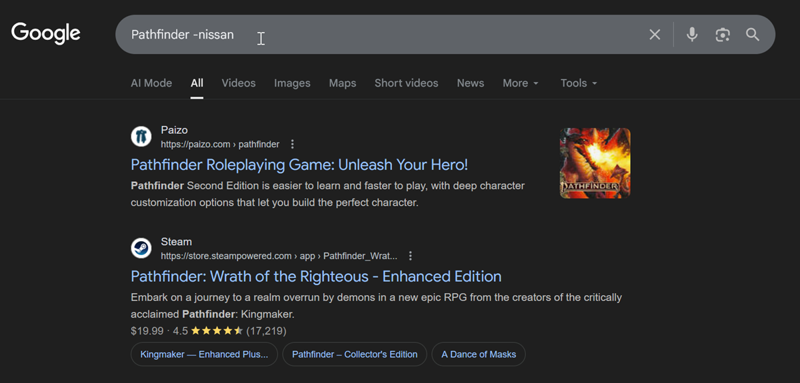
For example: Pathfinder -nissan
This will weed out all the results that relate to Nissan Pathfinder, a 2025 SUV model, and let me focus on Pathfinder, the tabletop RPG and video game series, instead.
Any of these words [OR]
You can match any of multiple words in your search with the OR operator. That way, you won't have to run separate searches for each.
For example: Pathfinder tabletop OR video game
I promise I'll stop it with the Pathfinder examples now.
Number range [..]
This is an interesting one! You can look up date, price, and weight ranges. Just put in two stops between numbers, and don't forget to add a unit of measurement.
For example: Lenovo laptop case $50..$100
File type [filetype:]
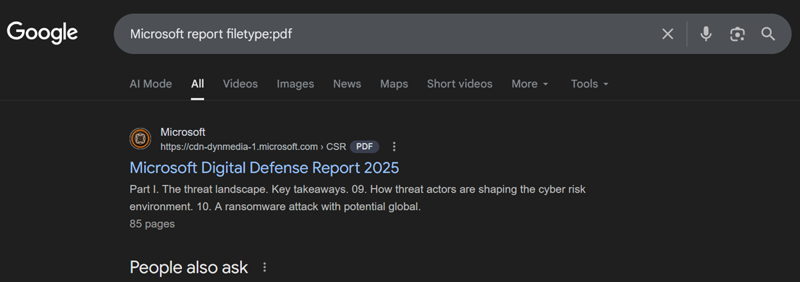
If you're hunting down PDFs, this operator will come in handy. It also works on .xls, .ppt, .doc, and other file formats. Simply type in filetype: after your query.
For example: Microsoft report filetype:pdf
Before a specific date [before:YYYY-MM-DD]
Looking for results before a particular date? You can use before:YYYY-MM-DD in Google Search.
For example: best graphics card before:2022-12-31
After a specific date [after:YYYY-MM-DD]
Conversely, you can focus on matches after a certain date with after:YYYY-MM-DD.
For example: best CPU after:2017-01-01
Between dates [before:YYYY-MM-DD after:YYYY-MM-DD]
Finally, you can combine the two operators to pinpoint search results between two dates.
For example: best gaming laptop before:2025-01-01 after:2020-01-01
Recent results [tbs=qdr:h, tbs=qdr:d, tbs=qdr:w, etc.]
You can also look up the most recent results for the past day, hour, week, month, or year. Still, you can't do it within the search query. You'll have to add special parameters to the URL, or add them to the Google Search homepage instead.
These parameters are:
- tbs=qdr:h (the past hour)
- tbs=qdr:d (the past day)
- tbs=qdr:w (the past week)
- tbs=qdr:m (the past month)
- tbs=qdr:y (the past year).
So, for example, if you open https://www.google.com/webhp?tbs=qdr:d
, you can restrict all search results to the past 24 hours. Try it out!
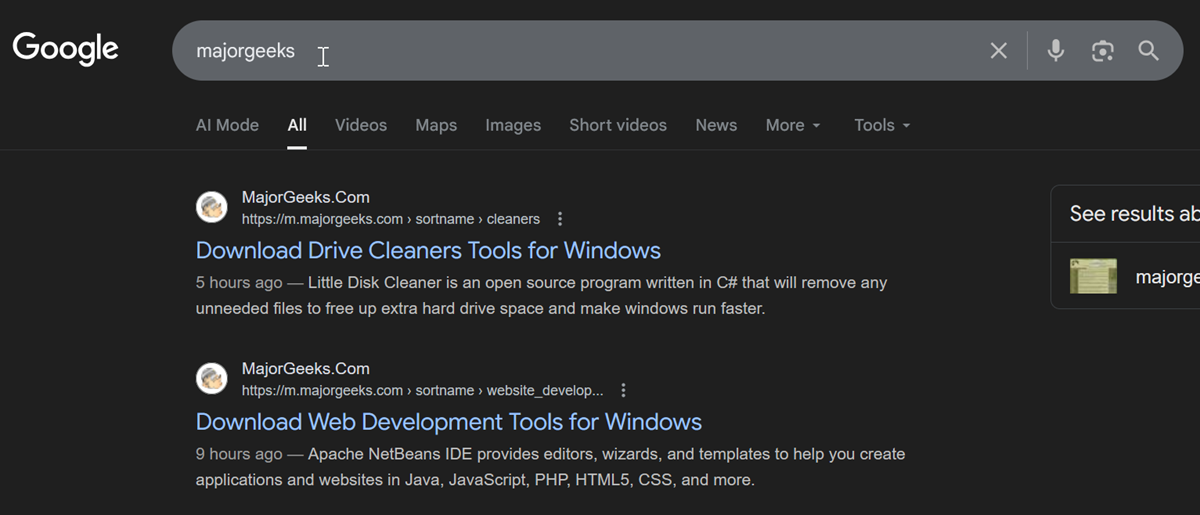
I googled MajorGeeks, and it displayed the most recent posts from today.
Related websites [related:]
Useful for when you're looking for multiple websites related to one domain. Just type in related:domainname.com.
For example: related:IBM.com
This will display a list of sites related to IBM.
Specific words in title [intitle:,allintitle:]
If you need to be really precise and target pages with a certain word in the title, use intitle:.
For example: intitle:cyberpunk
But, if you want to include multiple words, you should use allintitle:.
Specific words in text [intext:,allintext:]
Similarly, you can tell Google Search to only show you sites that have specific words in their content. You can type intext: for one word, and allintext: for multiple.
For example: allintext:debloat Windows
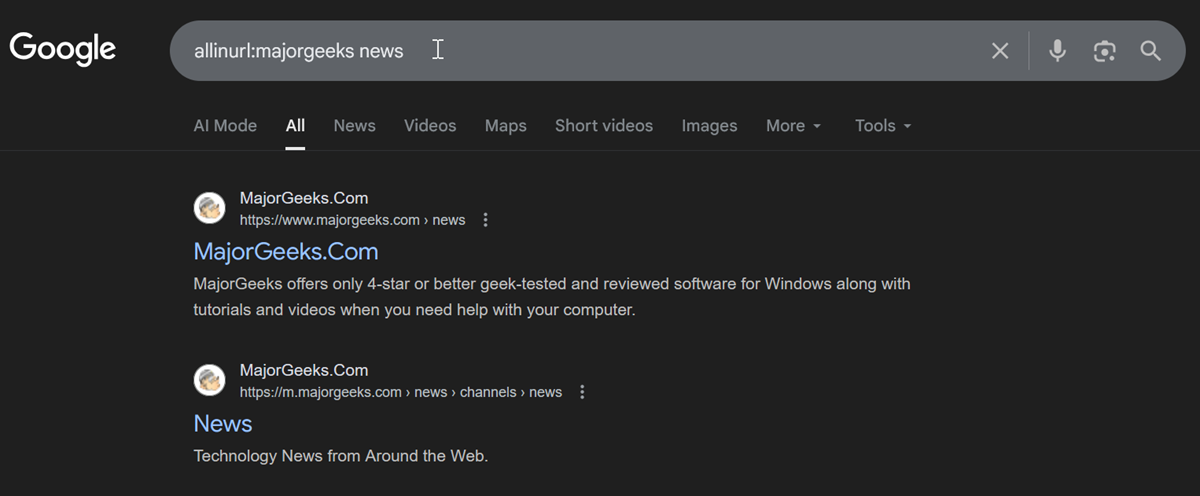
Specific words in URL [inurl:,allinurl:]
Lastly, you can do the same for URLs with inurl: for one word, and allinurl: for multiple.
For example: allinurl:majorgeeks news
Google Image Search filters
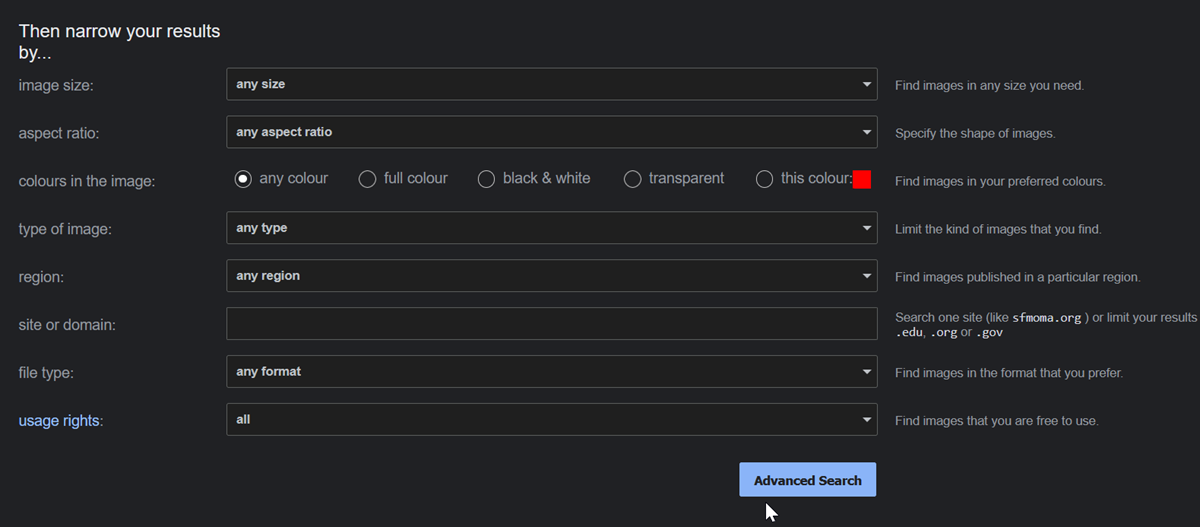
Google Image Search also has a few tricks up its sleeve. You can access several search filters under Tools, such as:
- Size
- Color
- Usage rights
- Type
- Time.
Moreover, you can find Advanced Image Search in the same section with even more options. You can narrow your results by aspect ratio, transparency, format, and more.
(Bonus) Use Advanced Search
If you don't feel like remembering operators and parameters, it's no problem at all. You can use Google's Advanced Search option instead. It can do a lot of the things I've covered earlier, but not everything.
You can, for example, look up exact words, but you can't search for them in the title tag, URL, or text specifically. Still, it covers the basics and significantly simplifies googling.
And that's all, folks!
You can now browse more accurately than ever, thanks to these tips. You can also consider some more experimental methods to combat AI search results, such as adding swear words to your queries. Or, if you're truly sick of Google, try DuckDuckGo. It's unfortunate that it takes so much effort to just look up things on the internet, but at least you're prepared now.

|
selma citakovic
Selma is a gamer, geek and gremlin hunter with a passion for cyber security and smashing Windows bugs before they bite. She’s IBM-certified, loves real freeware, despises bloatware, and powers most of her troubleshooting with an unhealthy amount of coffee. |
comments powered by Disqus
