


Here's How You Can Still Run Deprecated Troubleshooters in Windows 11
By selma čitakovićon 10/17/2026 |
![{$insert['content_title']](/content/file/6380_image3.jpg
)
Windows 11 is slowly deprecating the legacy troubleshooters you've known in previous Windows versions. This applies to all tools that are built on the Microsoft Support Diagnostic Tool (MSDT) platform. Some of them have already been moved to the new Get Help troubleshooting platform, while others have been removed.
For example, the troubleshooters for Audio, Bluetooth, and Camera have been relocated. Moreover, the ones for Devices and Printers, Hardware and Devices, and Power have been removed and are normally unavailable, but there's a workaround. You can consult the full list for more info about the deprecated services.
So, here's how you can still access and use them!
Via Settings
Usually, you can run troubleshooters like this:
- Go to Settings > System > Troubleshoot.
- Select Other troubleshooters.
- Find the one you need and click the Run button next to it.
- A Get Help window will open, where you may have to answer a couple of questions first. Get Help will then run diagnostics and various tests to help you determine your problem.
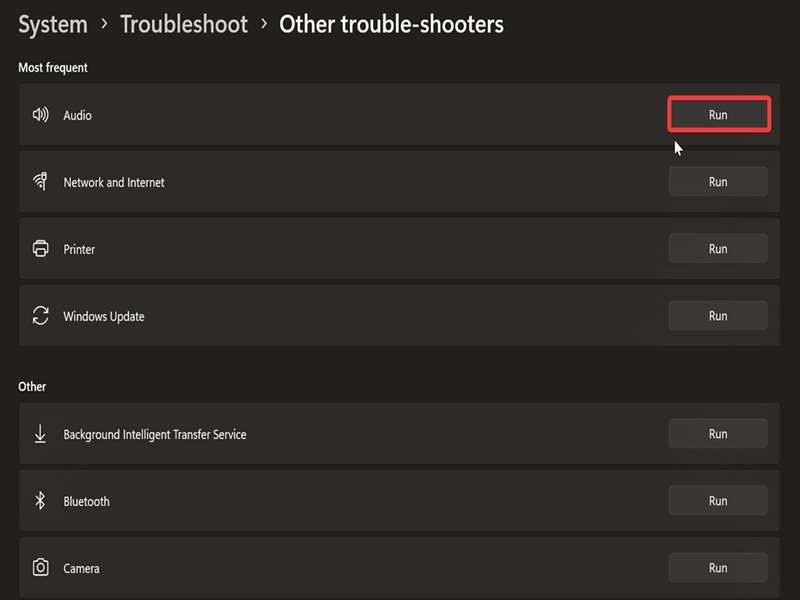
However, you may notice that a lot of the old legacy troubleshooters are missing in this section. If you can't find the one you need here in the Settings, check out the next method.
Via command
Remember how I mentioned a workaround for deprecated troubleshooters? Well, here it is.
You can still run those tools if you know their commands.
Press Win + R and paste the following mstd.exe command(s) for the troubleshooter you need:
- Background Intelligent Transfer Service: msdt.exe -id BITSDiagnostic
- Bluetooth: msdt.exe -id BluetoothDiagnostic
- Connection to a Workplace Using DirectAccess: msdt.exe -id NetworkDiagnosticsDA
- Devices and Printers: msdt.exe -id DeviceCenterDiagnostic
- Hardware and Devices: msdt.exe -id DeviceDiagnostic
- Incoming Connections: msdt.exe -id NetworkDiagnosticsInbound
- Internet Connections: msdt.exe -id NetworkDiagnosticsWeb
- Internet Explorer Performance: msdt.exe -id IEBrowseWebDiagnostic
- Internet Explorer Safety: msdt.exe -id IESecurityDiagnostic
- Keyboard: msdt.exe -id KeyboardDiagnostic
- Network Adapter: msdt.exe -id NetworkDiagnosticsNetworkAdapter
- Playing Audio: msdt.exe -id AudioPlaybackDiagnostic
- Power: msdt.exe -id PowerDiagnostic
- Printer: msdt.exe -id PrinterDiagnostic
- Program Compatibility Troubleshooter: msdt.exe -id PCWDiagnostic
- Recording Audio: msdt.exe -id AudioRecordingDiagnostic
- Search and Indexing: msdt.exe -id SearchDiagnostic
- Shared Folders: msdt.exe -id NetworkDiagnosticsFileShare
- Speech: msdt.exe -id SpeechDiagnosticCalibrate
- System Maintenance: msdt.exe -id MaintenanceDiagnostic
- Video Playback: msdt.exe -id VideoPlaybackDiagnostic
- Windows Media Player DVD: msdt.exe -id WindowsMediaPlayerDVDDiagnostic
- Windows Media Player Library: msdt.exe -id WindowsMediaPlayerLibraryDiagnostic
- Windows Media Player Settings: msdt.exe -id WindowsMediaPlayerConfigurationDiagnostic
- Windows Store Apps: msdt.exe -id AppsDiagnostic
- Windows Update: msdt.exe -id WindowsUpdateDiagnostic
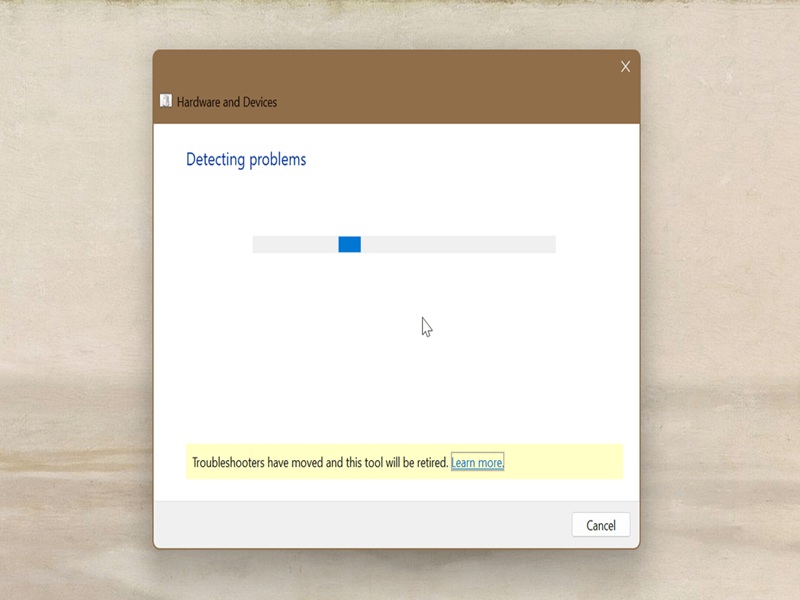
This method allows you to skip the Get Help platform and use the legacy inbox troubleshooters directly.
They have helped me out a few times, but don't put too much faith in them. They're useful for common fixes and quick resets, not for anything complex. Still, it's nice to have them around just in case.

|
selma citakovic
Selma is a gamer, geek and gremlin hunter with a passion for cyber security and smashing Windows bugs before they bite. She’s IBM-certified, loves real freeware, despises bloatware, and powers most of her troubleshooting with an unhealthy amount of coffee. |
comments powered by Disqus
