


How To Access Command Prompt at Boot
By selma čitakovićon 08/05/2026 |
![{$insert['content_title']](/content/file/6295_image2.jpg
)
Did you know that you can bring up Command Prompt before Windows even loads? This comes in handy during startup failures and troubleshooting.
Below, I'll show you how to open it in several ways, depending on whether you can boot into your system normally. Let's get into it!
Via Advanced Startup
If your system is bootable, you can access Advanced Startup from Settings like this:
- Go to Settings > System > Recovery.
- Click on the Restart now button next to Advanced Startup, under Recovery options.
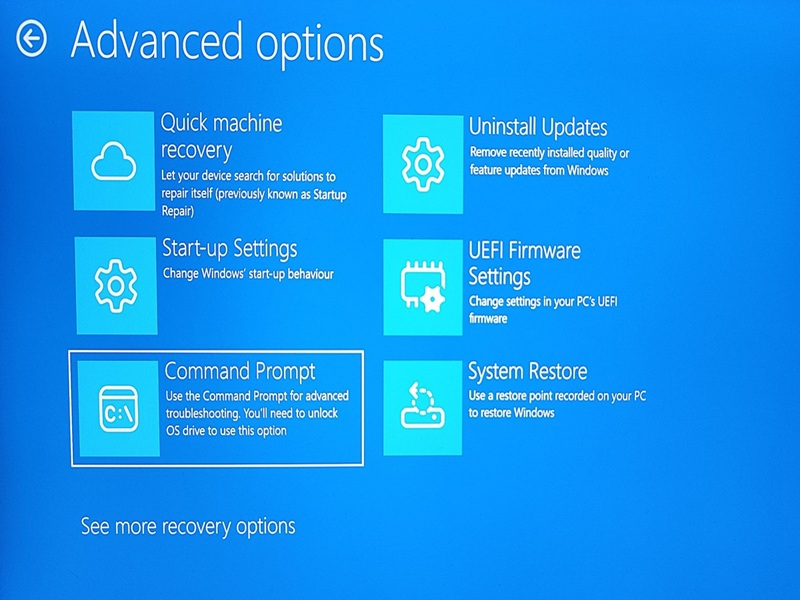
- Your system will reboot into the blue Windows Recovery environment.
- Once you're there, go to Troubleshoot > Advanced options > Command Prompt.
- You may be prompted to enter a BitLocker recovery key, but you can just click on Skip this drive in the corner.
- Command Prompt should open now.
Alternatively, you can click the Power button (either from the Start menu, login screen, or Ctrl + Alt + Delete screen), press and hold Shift, and then select Restart. That way, you don't have to go through Settings.
The rest of the steps remain the same.
Even if you can't boot into Windows at all, you can still open the Advanced Startup menu. You'll first have to press and hold the power button to turn off your PC, then turn it back on, and keep repeating this. After two or three tries, your PC should enter Automatic Repair mode. Select Advanced options, and you'll see the familiar blue Advanced Startup menu.
Via Windows 11 Installation Media
If your system is unbootable, you can also use a Windows 11 installation USB (or ISO file). Connect the bootable USB, restart, and boot from it.
When you reach the Windows Setup screen, with all the language and time options, press Shift + F10. That should open Command Prompt.
Just make sure not to accidentally click on Next, since you don't want to install Windows again.

|
selma citakovic
Selma is a gamer, geek and gremlin hunter with a passion for cyber security and smashing Windows bugs before they bite. She’s IBM-certified, loves real freeware, despises bloatware, and powers most of her troubleshooting with an unhealthy amount of coffee. |
comments powered by Disqus
