


How To Boot Into WinRE (Windows Recovery Environment)
By selma čitakovićon 04/18/2026 |
![{$insert['content_title']](/content/file/5857_image4.png
)
If something is wrong with your PC and you don't know how to fix it, WinRE (Windows Recovery Environment) is there to help. Also known as Advanced Startup, it's an operating system that exists alongside Windows on a separate partition.
It looks like a blue boot screen (not a blue screen of death) with several troubleshooting and recovery options, including:
- Startup Repair
- System Restore
- System Image Recovery
- Uninstall Updates
- Command Prompt at boot
- Reset.
You can quickly access it in multiple ways, and most importantly, even when you can't boot normally. Additionally, you don't need an administrator account to use WinRE tools in Windows 11.
I'll show you how to activate it below, so read on!
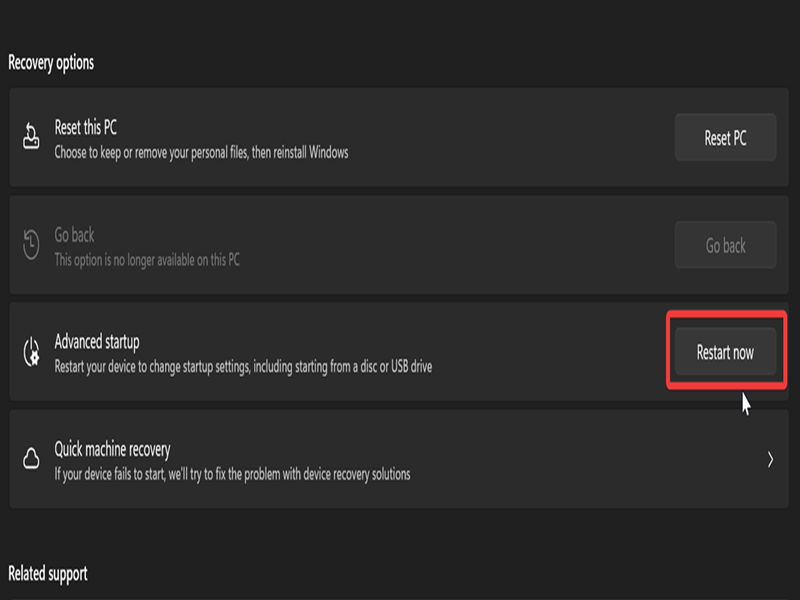
Via Settings
Windows 11 has a dedicated option for Advanced Startup in the Recovery section:
- Press Win + I to open the Settings.
- Go to System > Recovery.
- Under Recovery options, click the Restart now button next to Advanced Startup.
- Again, click on Restart now to confirm your decision.
Via Start menu
You can also enter WinRE from the Start menu:
- Click the Windows Start button on the taskbar.
- Click the Power button.
- Hold the Shift key, click on Restart, and release the Shift key.
(Please ignore me ignoring Windows updates in the screenshot.)
Via Ctrl + Alt + Delete
The Ctrl + Alt + Delete menu lets you lock the screen, sign out, switch users, open Task Manager, and more. You can also use it to access WinRE:
- Press Ctrl + Alt + Delete.
- Click the Power button in the lower right corner.
- Just like in the previous method, hold the Shift key, select Restart, and release Shift.
Via Sign-in Screen
You can boot into Advanced Startup right before you sign in:
- On the sign-in screen, click the Power button in the lower right corner.
- Hold Shift, select Restart, then release the Shift key.
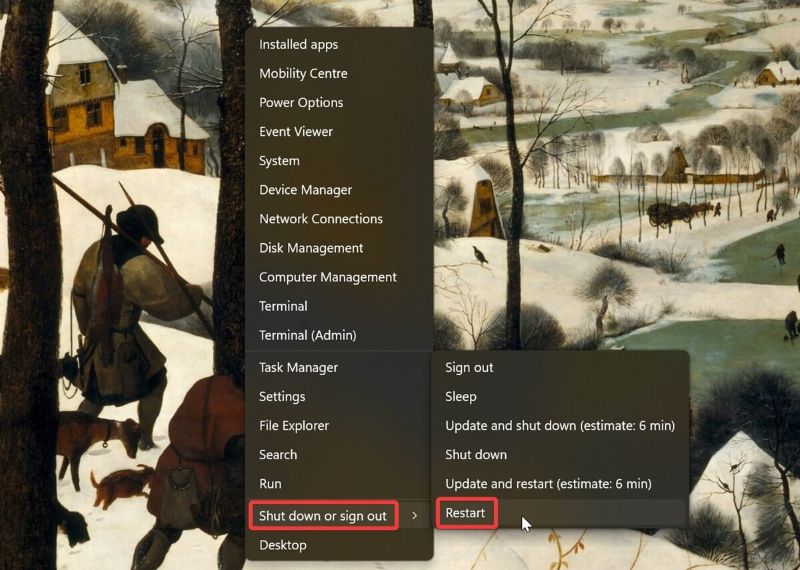
Via Power User menu
Do you know about the Win + X or Power User menu? It pops up from the Start button, with a list of configuration options. It's a nifty shortcut to a lot of power user tools, including the Advanced Startup menu.
To access it:
- Press Win + X, or right-click the Start button on the taskbar.
- Mouse over Shut down or sign out.
- Hold Shift, click on Restart, and release Shift.
Via Command Prompt/PowerShell
Alternatively, you can achieve the same effect with a command:
- Right-click the Start button and click on Windows Terminal.
- Select either Command Prompt or PowerShell.
- Type the following command and press Enter: shutdown /r /o /f /t 00
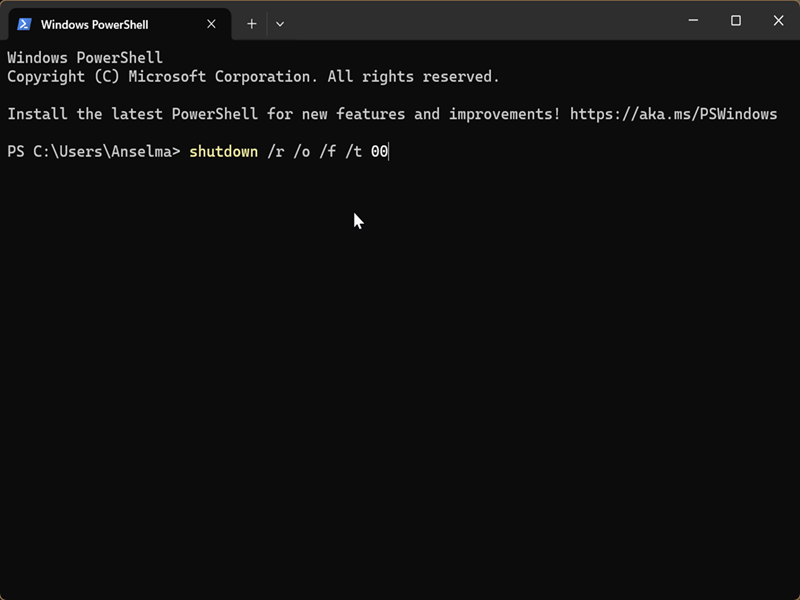
This will force an immediate restart.
Via Hard reboot
If you can't boot into Windows, you can "force" start WinRE and try to fix the problem. It will load after two failed attempts to start Windows, two system reboots or unexpected shutdowns within two minutes of boot completion, and Secure Boot errors.
Here's how to use it:
- Hold the power button until your PC turns off, and then press it to turn it on again.
- Repeat this until you see a loading screen saying something like "Please wait," or "Diagnosing your PC."
- Depending on the issue and your system's response to it, you'll see either the blue Recovery or Advanced Repair screen.
- Click See advanced repair options or Advanced options.
Hopefully, one of these methods will stick with you and come in handy. Also, check out our Windows 11 Repair playbook if you need more help with troubleshooting.

|
selma citakovic
Selma is a gamer, geek and gremlin hunter with a passion for cyber security and smashing Windows bugs before they bite. She’s IBM-certified, loves real freeware, despises bloatware, and powers most of her troubleshooting with an unhealthy amount of coffee. |
comments powered by Disqus
