


How To Disable Drag Tray
By selma čitakovićon 02/22/2026 |
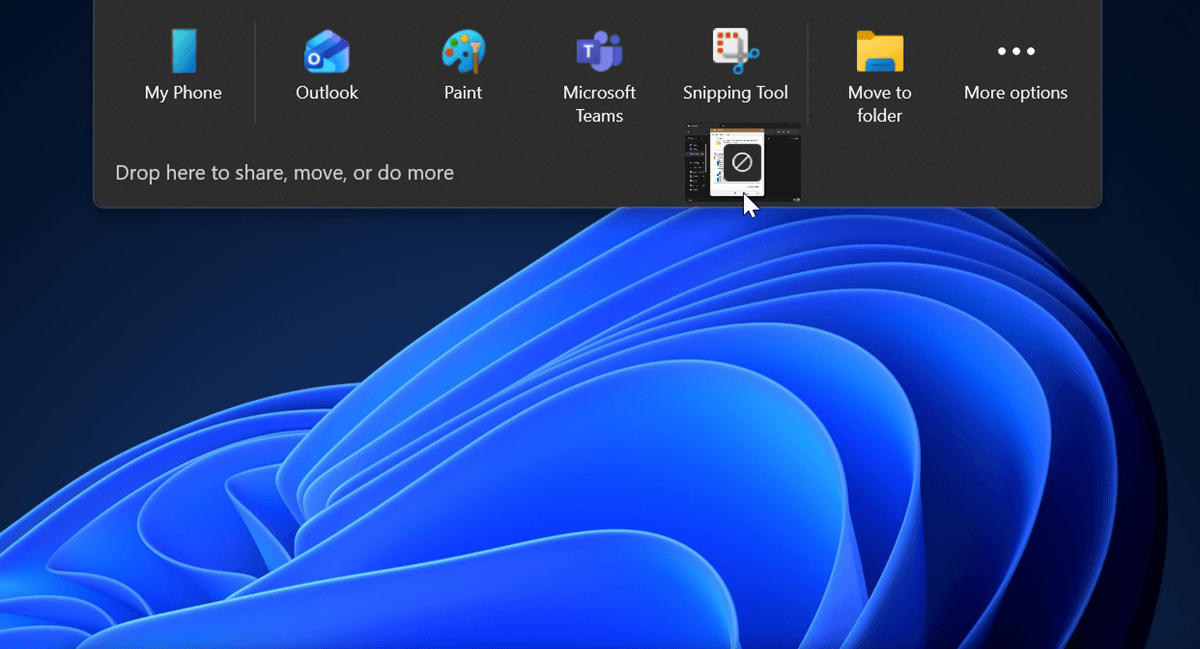
Have you noticed a tray appear at the top of your screen when you drag files? It says, "Drop here to share, move, or do more." You can then drop the file into one of the listed apps or your phone, move it to a folder, or select More. The More section will list even more apps, email contacts, and nearby devices. It works the same as "Share with" in the right-click context menu. If it's an image file, you can also edit and compress it before sharing it.
The drag tray is a new addition to Windows 11 that's designed to simplify sharing files. It was introduced in build 26100.4202 (24H2) and build 22631.5413 (23H2). If you often share files with specific apps, you might find it useful. The drag tray will remember your go-to choices and show them. Still, I wish I could customize and organize the displayed apps. It keeps suggesting programs I don't use, with a prompt to install them.
Thankfully, if you're not a fan of the feature or find it visually distracting, you can easily disable it. Here's how!
Via Settings
You can enable or disable the drag tray in the Settings:
- Go to Settings > System > Nearby sharing.
- Toggle off Drag Tray.
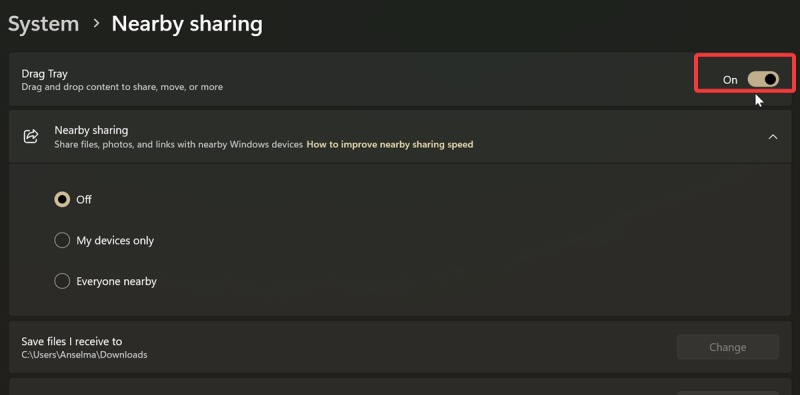
You can always turn it back on again if you feel like it.
Via Registry Editor
Alternatively, you can dig a bit deeper and disable it with the Registry Editor. If you're worried you're going to accidentally mess up your PC, I recommend creating a system restore point.
Still, it's completely safe if you closely follow these steps:
- Press Win + R, type regedit, and press Enter.
- Navigate to Computer\HKEY_CURRENT_USER\Software\Microsoft\Windows\CurrentVersion\CDP. You can paste this in the address bar at the top.
- While in the CDP key, right-click an empty spot on the right and select New > DWORD (32-bit) Value.
- Name it DragTrayEnabled.
- Double-click it and make sure you type 0 in the Value data field. Click OK.
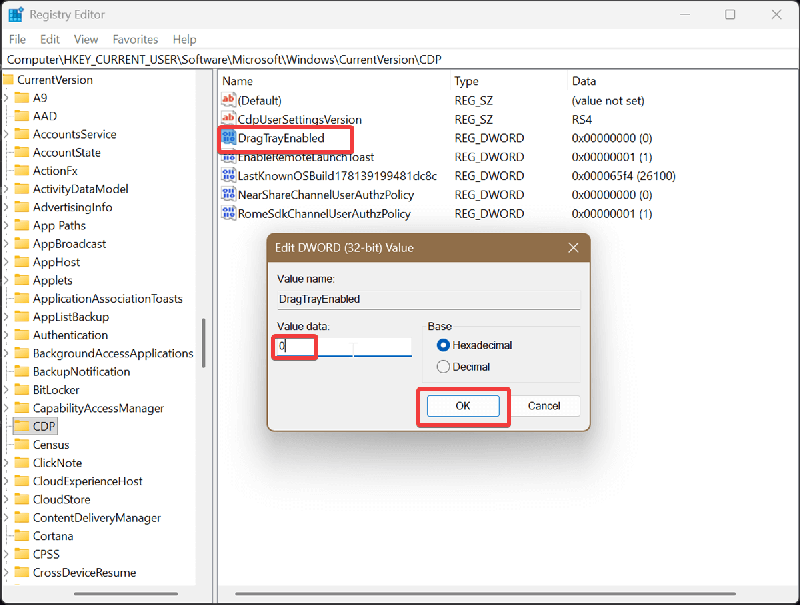
To undo these changes and enable the drag tray, just type 1 instead and click OK to save it. Additionally, if you find the DragTrayEnabled value already existing in the CDP key, you can skip the third and fourth steps. I had to create it from scratch while testing this.
Overall, it's an alright idea, but the execution is clumsy in my opinion. Why can't you freely customize and choose the apps you want to see on the tray? Until that changes, I'll keep it disabled on my PC.

|
selma citakovic
Selma is a gamer, geek and gremlin hunter with a passion for cyber security and smashing Windows bugs before they bite. She’s IBM-certified, loves real freeware, despises bloatware, and powers most of her troubleshooting with an unhealthy amount of coffee. |
comments powered by Disqus
